

Quick Answer
WhatsApp Web is the browser version of WhatsApp. Go to web.whatsapp.com on a computer, then scan the QR code with WhatsApp on your phone under Linked devices. After linking, it keeps working while your phone is off, but you need to open WhatsApp on your phone at least every 14 days.
Key Takeaways
- WhatsApp Web runs in a browser on Windows, macOS and Linux, with no app to install.
- You link it by scanning a QR code or by entering an eight-character code sent to your phone.
- One account can have up to four linked devices, and they work even when your phone is offline.
- Calling from WhatsApp Web is rolling out gradually, so it may not be on your account yet.
- App lock adds a password to WhatsApp Web, and you can log out any linked device from your phone.
WhatsApp Web puts your chats on a computer screen without installing anything. It is handy for typing long messages, sharing files from a laptop or keeping chats open beside work. This guide covers how to log in, what works without your phone, which browsers are supported and how to keep the session secure. Details come from WhatsApp’s own Help Center as of November 2026.
What is WhatsApp Web?
WhatsApp Web is a browser version of WhatsApp that connects to the account on your phone. WhatsApp describes it as a way to message from any desktop browser without downloading an app. It shows the same chats, groups and contacts as your phone.
WhatsApp Web is one of several “linked devices.” The others include the Windows and Mac apps, Android tablets, iPad, Wear OS watches, a second “companion” phone, Meta AI glasses and VR headsets, according to WhatsApp’s linked devices page. Your phone stays the primary device: you still need it to register the account and to link anything new.
How do you log in to WhatsApp Web?
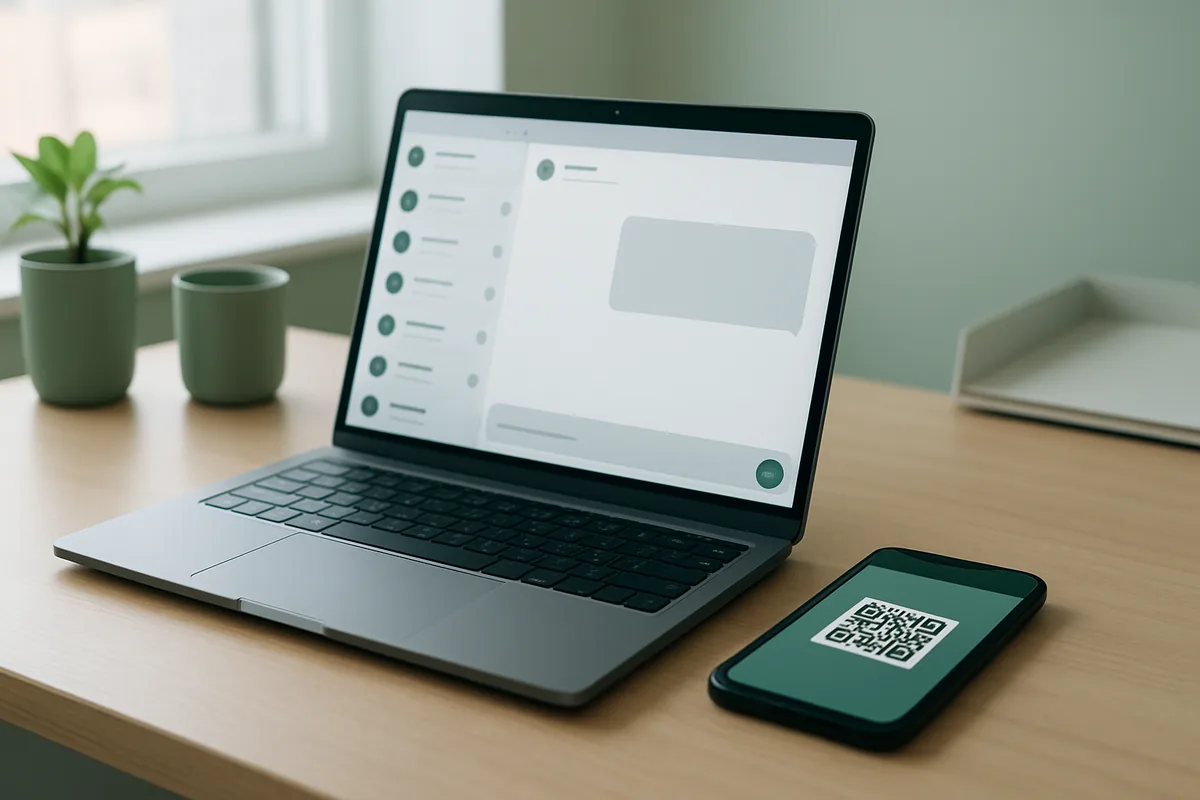
Open web.whatsapp.com on your computer and scan the QR code with WhatsApp on your phone. The steps from WhatsApp’s linking guide are:
- On your computer, go to web.whatsapp.com. A QR code appears.
- On your phone, open WhatsApp. On Android, tap the three-dot menu. On iPhone, open the Settings tab.
- Tap Linked devices, then Link a device.
- Confirm it’s you with your fingerprint, face or phone PIN if asked.
- Point your phone at the screen and scan the QR code.
Your chats then load in the browser. If WhatsApp doesn’t recognize the computer, it asks you to confirm before linking. Tap Don’t link if you didn’t start the request.
You may also be asked for a passkey. WhatsApp says it may require a passkey when you link WhatsApp Web, as an extra security check. A passkey uses your device’s fingerprint, face or screen lock instead of a password or SMS code. Passkey linking works on iPhones with iOS 16 or later, Android 9 or later with Google Play Services, and Chrome 109+, Safari 16+, Edge 109+ and Firefox 122+. Our report on WhatsApp’s new account password covers the related security changes.
Can you log in to WhatsApp Web without scanning a QR code?
Yes. You can link with your phone number and a one-time code instead. This helps when your phone camera is broken or the QR code won’t scan. WhatsApp says this option works only on WhatsApp Web and WhatsApp for Windows.
- On web.whatsapp.com, click Log in with phone number.
- Choose your country, enter the phone number on your WhatsApp account and click Next.
- An eight-character code appears on the computer screen.
- On your phone, tap the WhatsApp notification asking you to enter a code. Check that the device name and location are right, then tap Confirm.
- Verify your identity if asked, then type the eight-character code on your phone.
Does WhatsApp Web work without your phone?
Yes, once it’s linked. WhatsApp lets you link up to four devices to one account, and they keep working when your phone is off or offline. There are three limits to know:
- Your phone still matters. WhatsApp says you need to log in on your primary phone at least every 14 days to keep linked devices connected.
- Unused sessions end. WhatsApp automatically disconnects a linked device after 30 days of inactivity.
- Older chats may be missing. When you link, your phone sends an encrypted copy of your recent message history. WhatsApp notes that not every message syncs and that the desktop app syncs more history than WhatsApp Web. To search your full history, use your phone.
Messages, media and calls on linked devices are end-to-end encrypted, and each device connects to WhatsApp on its own. Deleting a message on one device syncs to your other online devices.
Which browsers support WhatsApp Web?
WhatsApp Web works on Windows, macOS and Linux in recent versions of the major browsers. WhatsApp lists these minimum versions:
| Browser | Minimum version |
|---|---|
| Google Chrome | 100 |
| Microsoft Edge | 100 |
| Mozilla Firefox | 115 |
| Safari | 15 |
| Opera | 86 |
Passkey linking needs newer versions: Chrome and Edge 109, Safari 16 and Firefox 122. JavaScript must be turned on in the browser.
Can you make calls on WhatsApp Web?
Yes, but the feature is still rolling out. WhatsApp says WhatsApp Web calling is arriving gradually and may not be available to everyone yet. Calls use your computer’s internet connection, and WhatsApp says calling works best on Chrome, Edge, Safari and Firefox. It recommends a headset, because separate microphones and speakers can cause echo. If calling isn’t there yet, the Windows and Mac apps already support voice and video calls.
For calls with people who don’t have WhatsApp at all, see our guide to WhatsApp guest calling.
WhatsApp Web vs. the WhatsApp desktop app
WhatsApp Web needs nothing installed, while the desktop app adds calling tools and more message history. Both link to your phone the same way.
| Feature | WhatsApp Web | WhatsApp for Windows or Mac |
|---|---|---|
| Install needed | No, runs in a browser | Yes, from WhatsApp’s site or the app stores |
| Systems | Windows, macOS, Linux | Windows 10 64-bit (version 1903 or later), Mac |
| Calls | Rolling out gradually | Voice and video calls with up to 32 people |
| Extras | App lock, keyboard shortcuts, chat folders | Screen sharing, call links, PDF viewing and editing |
| Message history | Recent history | Syncs more history than Web |
Sources: WhatsApp for desktops, About linked devices and message history on linked devices.
Use WhatsApp Web on a shared or work computer where you can’t install software. If WhatsApp is on your own PC every day, the desktop app is the fuller option.
How do you keep WhatsApp Web secure?
Turn on app lock, check your linked devices and use only the official site. Anyone who can reach an unlocked computer with WhatsApp Web open can read your chats, so these steps matter most on shared machines.
- Turn on app lock. In WhatsApp Web, click Settings > Privacy > App lock and set a password of 6 to 128 characters. You can lock after 1 minute, 15 minutes, 1 hour or 8 hours, and notifications are hidden while locked, per WhatsApp’s app lock guide. To lock right away, press Ctrl+Alt+L on Windows or Cmd+Ctrl+L on a Mac.
- Review linked devices. On your phone, open Linked devices to see every device on your account. Keep push notifications on so WhatsApp can alert you when a new device links.
- Use only web.whatsapp.com. WhatsApp warns that linking through unofficial apps or websites can lead to a temporary or permanent account ban, and that such tools can be used to send spam and scams from your account.
If you share a WhatsApp account with a teenager, our guide to WhatsApp parental controls explains what parents can manage.
How do you log out of WhatsApp Web?
Log out from your phone or from the browser. WhatsApp’s steps:
- From your phone: open WhatsApp, go to Linked devices, tap the device and tap Log out. This works even if you’ve left the computer behind.
- From the browser: in WhatsApp Web, go to Settings > Log out and confirm.
Always log out on a public or borrowed computer. Closing the tab alone doesn’t end the session.
FAQ
Is WhatsApp Web free?
Yes. WhatsApp Web is free to use in a supported browser. Messages and calls use your internet connection, and WhatsApp says calls from WhatsApp Web are free, even to contacts in other countries.
Can I use WhatsApp Web without my phone?
Yes, after you link it. Linked devices work when your phone is off or offline, but you need to open WhatsApp on your phone at least every 14 days to keep them connected. You also need the phone to link a new device.
How many devices can use WhatsApp Web at once?
WhatsApp allows up to four linked devices per account at the same time, in addition to your primary phone. WhatsApp Web in a browser counts as one of the four.
Why does WhatsApp Web keep logging me out?
WhatsApp disconnects linked devices that haven’t been used for 30 days and requires you to open WhatsApp on your primary phone at least every 14 days. Clearing browser data or logging out from your phone also ends the session.
Is WhatsApp Web safe?
Your messages on WhatsApp Web are end-to-end encrypted, like on your phone. The main risk is someone using an unlocked computer, so turn on app lock, log out on shared computers and only use web.whatsapp.com.