

Quick Answer
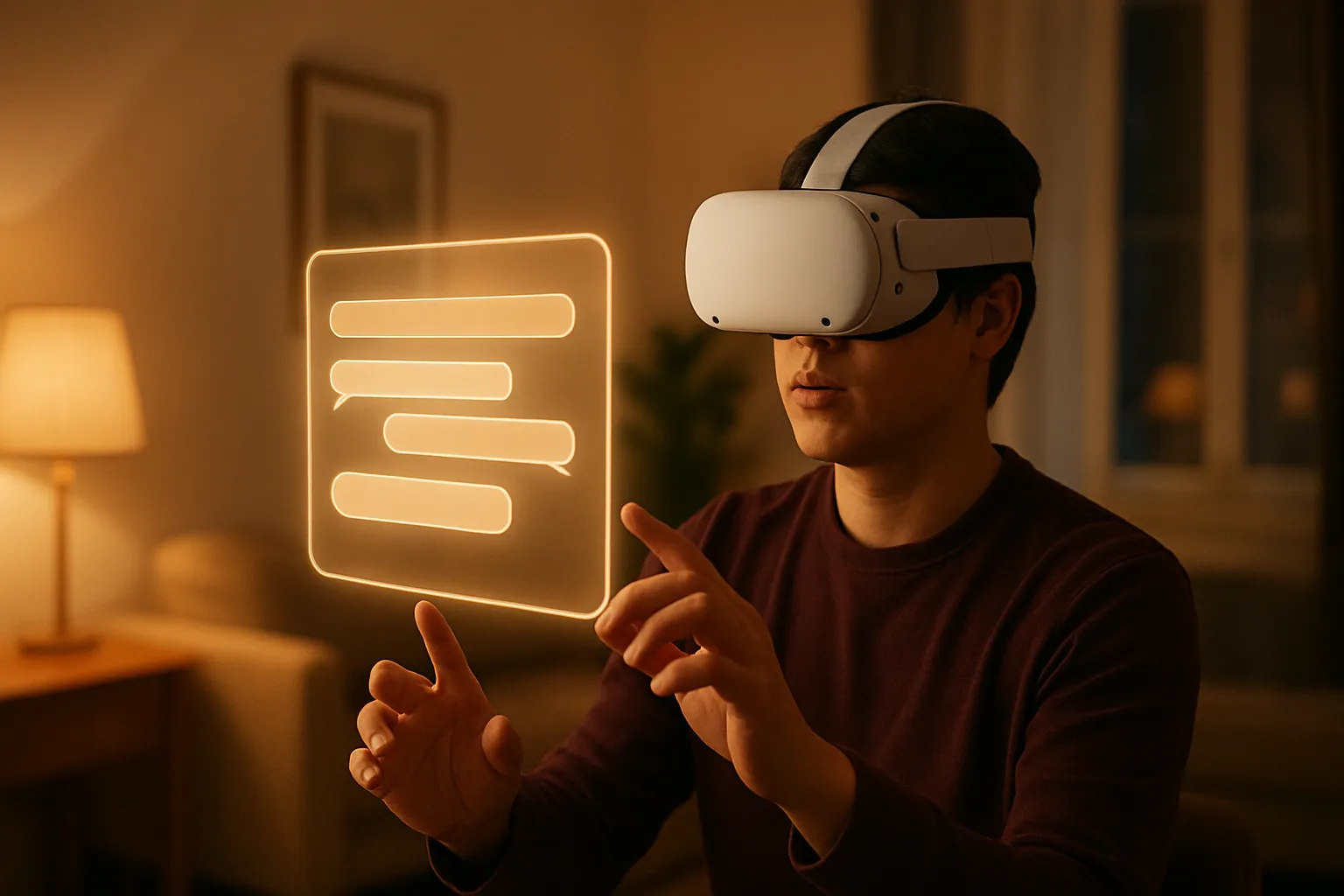
Discord’s native app launched on Meta Quest on June 30, 2026, and is available free from the Meta Horizon Store for Quest 2 and newer headsets. The app supports servers, direct messages, voice and video calls, and gameplay streaming, and it can stay pinned in your VR playspace while you use other apps. No Discord Nitro subscription is required to get started.
Key Takeaways
- Discord’s native Quest app is free on the Meta Horizon Store and works on Quest 2, Quest 3, Quest 3S, and Quest Pro.
- The app supports servers, DMs, group DMs, voice calls, video calls, and Quest gameplay streaming to Discord, according to Discord’s official support page.
- The pinned-window feature lets Discord stay visible in your VR playspace while you play a game or use another app, without leaving either experience.
- First-time sign-ins made before September 30, 2026, are eligible for a free one-month Discord Nitro trial, though Discord notes eligibility requirements vary by account and region.
- Discord processes your data on Meta Quest under the same privacy policy that governs its other platforms, so the privacy considerations are the same as on the desktop or mobile app.
What is the Discord app for Meta Quest, and why does it matter?
Discord’s native Meta Quest app is a full version of the Discord platform built specifically for Meta’s Horizon OS, available free from the Horizon Store as of June 30, 2026. Discord’s official support page confirms that the app gives Quest users access to servers, direct messages, group DMs, and voice and video calls without relying on the headset’s web browser or a separate phone or PC.
This matters because the workarounds that Quest owners previously used were genuinely limited. UploadVR noted that the headset browser’s microphone behavior was inconsistent, and the browser closed entirely if you navigated away. Keeping a phone open beside the headset just to stay in a voice channel was the other common option, but that approach required managing two devices throughout a session. The native app replaces both workarounds with a single installation that behaves like a standard platform app.
The launch also extends Discord’s presence across gaming platforms more broadly. Discord’s official blog describes the app as a way to reach your servers and communities while in VR, not a separate or reduced version of Discord. Your existing account, server memberships, message history, and contacts carry over directly after you sign in.
Which Meta Quest headsets support the Discord app?
The Discord app for Meta Quest is available on Quest 2, Quest 3, Quest 3S, and Quest Pro. Discord’s official support documentation and multiple launch reports confirm the app is a free download from the Meta Horizon Store and that it runs on Quest 2 and all newer headsets running Horizon OS.
The original first-generation Oculus Quest is not on this list, which is consistent with Meta’s broader pattern of phasing out software support for that model. If you own a Quest 2, Quest 3, Quest 3S, or Quest Pro, the app should be available to you in the Horizon Store today. That said, performance characteristics may differ between the older Quest 2 hardware and the newer Quest 3 or 3S, and independent testing across all models has not yet been published in depth. Users on Quest 2 should monitor for any framerate or thermal impact when running Discord pinned alongside a graphically demanding game.
How do you download and install Discord on Meta Quest?
- Put on your Meta Quest headset and open the Horizon Store from the universal menu.
- Use the search function to find Discord. The app listing is free and published by Discord Inc.
- Select Download and wait for the installation to complete. No sideloading or browser access is required.
- Open Discord from your app library once installation finishes.
- Sign in with your existing Discord account credentials. If you do not have an account, create one at discord.com before starting.
- Grant the microphone permission when prompted so the headset’s built-in mic can be used for voice calls.
Alternatively, Discord’s support page notes that you can find the app through the Meta website and send it to your headset from there. Once you are signed in, all your servers, direct messages, and contacts are immediately accessible with no additional configuration required.
As a practical note, you should stop and contact Meta or Discord support if the app fails to install or does not appear in search results. App Store availability issues occasionally arise from regional Horizon Store variations or Horizon OS version mismatches, and those require vendor-side resolution rather than a manual fix.
What features does Discord on Meta Quest include?
Discord on Meta Quest includes the full set of features found in the desktop and mobile versions of the app. Discord’s official support documentation lists servers, direct messages, group DMs, voice calls, video calls, and gameplay streaming as supported features.
| Feature | Available on Meta Quest App | Notes |
|---|---|---|
| Servers and channels | Yes | Existing memberships carry over on sign-in |
| Direct messages (DMs) | Yes | Includes group DMs |
| Voice calls | Yes | Uses headset’s built-in microphone |
| Video calls | Yes | Can join as your Meta Avatar instead of a live camera feed |
| Quest gameplay streaming to Discord | Yes | Higher-quality streaming requires Nitro |
| Pinned window in VR playspace | Yes | Discord stays visible while other apps are in use |
| System-level notifications | Yes | Not available through the browser workaround |
The video call feature includes one detail specific to the Quest: Discord’s blog notes that you can join a video call as your Meta Avatar rather than streaming a live camera view, which is useful if you prefer not to show your physical surroundings on a call. Gameplay streaming lets friends in a Discord voice channel watch your VR session in real time, removing the earlier limitation where streaming required routing through a browser tab first.
How does the pinned-window feature work in VR?
The pinned-window feature is the most significant practical improvement over the previous browser-based approach. Once Discord is open, you can pin the app’s interface to a fixed location in your VR playspace so that it remains visible while you switch to a game or another application. The voice call or conversation stays live continuously rather than dropping when you leave the Discord window.
This means a voice channel session with friends on PC, mobile, or console remains active while you play Beat Saber, load into a co-op shooter, or use any other Quest app. Your Discord contacts do not need a headset to participate. Discord’s cross-platform design means Quest users and PC or mobile users are all in the same servers and voice channels, not segregated versions of them.
For most users, the practical result is that VR gaming sessions no longer require a second device to coordinate with people outside the headset. That said, independent performance testing of the pinned-window feature under load has not yet been published extensively. How Discord affects frame rate and battery life during a graphically intensive game with the window pinned is a variable worth monitoring, particularly on Quest 2 hardware.
Is Discord Nitro required, and what is the free trial offer?
Discord Nitro is not required to use the Discord app on Meta Quest. All core features, including servers, direct messages, voice calls, video calls, and standard-quality gameplay streaming, are available to any user with a free Discord account.
That said, a free one-month Nitro trial is available to eligible users who download the app and sign in for the first time before September 30, 2026. Nitro adds higher-quality Go Live streaming, larger file upload limits, and additional profile customization options. UploadVR reported that the trial appears as a redemption notification in the Meta Horizon mobile app, and that users who already have an active Nitro subscription may not receive an additional month. Discord’s own documentation notes that eligibility requirements vary by account and region, so the trial is not guaranteed for every user who installs the app.
For users who decide Nitro is not worth keeping after the trial, canceling the subscription before it renews is the practical action. Discord’s subscription settings are accessible from within the app or at discord.com, and the free account remains fully functional after cancellation.
What are the privacy considerations for using Discord on Meta Quest?
Discord’s privacy practices on Meta Quest follow the same framework as on other platforms. Discord’s official FAQ for the Quest app states that the company uses your data consistently with its standard Privacy Policy, the same as on any other device. This means Discord collects the same categories of data it collects from desktop and mobile users, including account information, message metadata, and usage activity.
The practical consideration is that two data relationships exist simultaneously when you use Discord on a Quest headset. Discord’s data practices apply to your Discord account and activity, while Meta’s data practices apply to your use of the headset, Horizon OS, and the Horizon Store. These are separate privacy relationships governed by separate policies. Users who are cautious about data sharing may want to review both Discord’s privacy policy and Meta’s Horizon OS privacy documentation before connecting accounts or granting permissions.
If your organization has policies about approved communication platforms or data handling on company-issued or personally owned devices, check with your IT or compliance team before using Discord on a work-adjacent headset setup. The same caution applies to anyone who uses their Quest in a professional or educational context where platform data policies matter.
For more context on how social and messaging platforms handle data across new device categories, see Threads Now Lets You Make Your Likes Private: How to Lock Down Your Privacy and Snapchat’s New ‘Now Playing’ Shares Your Spotify Music on Snap Map. For related coverage on app platform changes, see Instagram Instants Now Supports Video: How to Send Disappearing Clips to Friends and WhatsApp’s New Calling Features: Web Calls, Waiting Room, and More.
FAQ
Is the Discord app free on Meta Quest?
The Discord app on Meta Quest is free to download from the Meta Horizon Store and free to use with a standard Discord account. A Discord Nitro subscription is optional and adds higher-quality streaming and larger file uploads, but it is not required for access to servers, DMs, or voice calls.
Does Discord on Meta Quest work with my existing account and servers?
Discord on Meta Quest works with your existing account and all current server memberships. After signing in with your Discord credentials, your servers, message history, and contacts are immediately accessible with no additional setup required.
Can I use Discord while playing a game on Quest without stopping the game?
Yes, the Discord app on Meta Quest can be pinned as a floating window in your VR playspace and will remain active while you use other apps or play games. Voice calls and text conversations continue running in the background without requiring you to exit the game or switch applications.
Which Quest headsets can run the Discord app?
The Discord app is available for Quest 2, Quest 3, Quest 3S, and Quest Pro headsets. The original first-generation Quest is not supported. All compatible models can download the app directly from the Meta Horizon Store at no cost.
What data does Discord collect when used on Meta Quest?
Discord collects data on Meta Quest under the same privacy policy that applies to its desktop and mobile apps, as stated in Discord’s official Quest FAQ. Users also operate under Meta’s separate Horizon OS data practices simultaneously, so reviewing both companies’ privacy policies is advisable before connecting accounts.