

Quick Answer
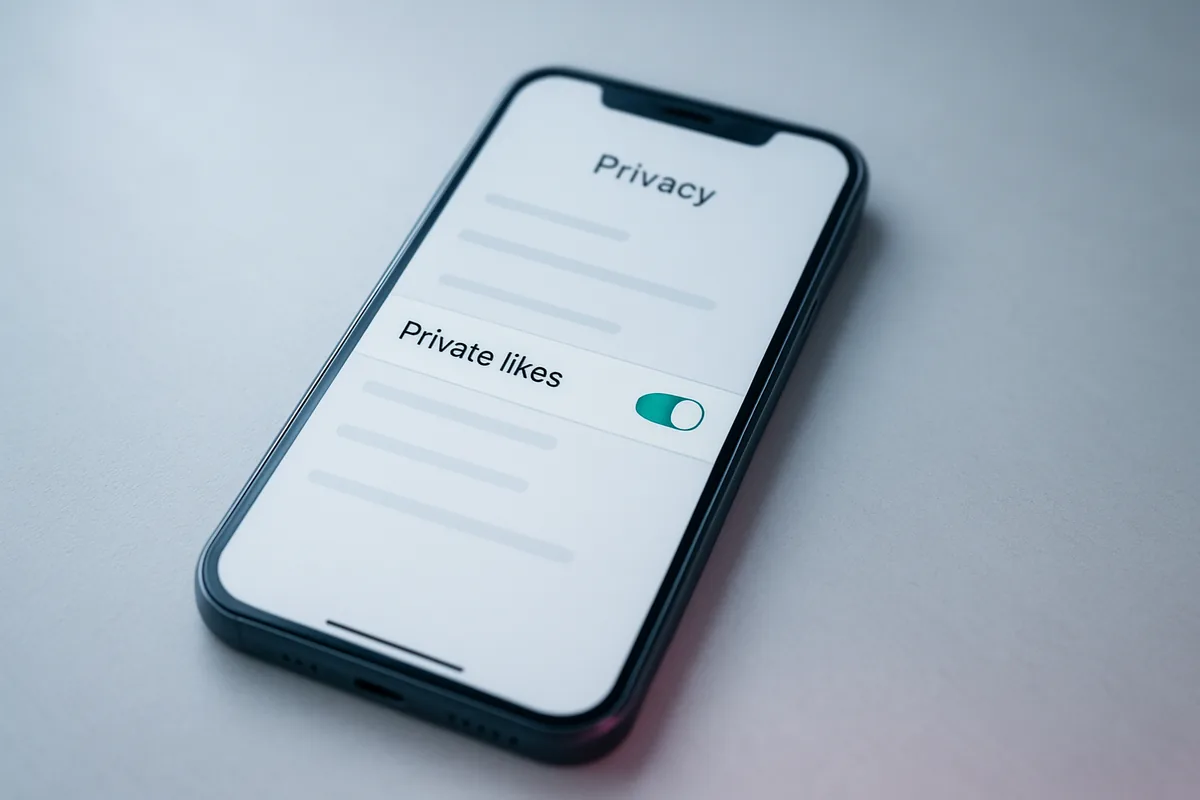
Threads now lets you make your likes private, so only you and the post’s author can see what you liked. To turn it on, open Threads, go to Settings, then Privacy, then Private likes, and toggle it on. Threads also lets you hide like counts, limit who can reply or message you, and make your whole profile private.
Key Takeaways
- Threads’ new Private likes setting hides your likes from everyone except you and the post’s author.
- Turn it on under Settings, then Privacy, then Private likes; it applies to all past and future likes.
- You can also hide like and share counts, a setting shared with Instagram.
- Limit who can reply, mention, or message you to cut spam and unwanted contact.
- Make your whole profile private so only approved followers see your posts.
What is the new “Private likes” feature on Threads?
Private likes is a new Threads setting that hides which posts you have liked from everyone except you and the person who posted. Before this, your likes could be seen by anyone who could view the post, which made some people cautious about what they liked. Threads rolled out the change in 2026 and announced it on its official account.
The setting is comprehensive, since it applies to all of your likes, both past and future, not just new ones. If you later change your mind and turn it off, all of your likes become visible again. So it is a single switch that cleanly separates your likes from your public profile.
The move mirrors a wider trend, after X made likes private so people would feel freer to engage. Threads, which launched in 2023 and is owned by Meta, is leaning the same way. It is a small setting with a real effect on how comfortable the app feels to use.
How do you make your likes private on Threads?
You make your likes private on Threads with a single toggle in the privacy menu, and it takes under a minute. The setting lives in the same place whether you are on iPhone or Android. Follow these steps.
- Open Threads and tap your profile icon, then the menu button in the top corner.
- Tap Settings, then Privacy.
- Tap Private likes.
- Toggle it on to hide your likes from everyone except each post’s author.
- Leave it off, or toggle it back off later, if you want your likes public again.
Once enabled, this covers every like on your account, so you do not need to hide old likes individually. It is worth doing if you use likes as bookmarks or engage with a wide range of content you would rather not broadcast. For a look at how other apps are handling this kind of sharing, see our piece on Snapchat’s music sharing on Snap Map.
How do you hide like and share counts?
To hide like and share counts, use the separate “Hide like and share counts” setting, which controls the numbers rather than who liked what. This one hides the tally of likes, views, reposts, and quotes on posts, so you see less of the engagement-count pressure. Threads documented this control on its official account.
You can set it as a default for all posts under Settings, then Privacy, then Hide like and share counts, or hide counts on an individual post using the three-dot menu on that post. One thing to know is that this setting is shared with Instagram, so turning it on affects both apps. That link between the two is a recurring theme in Threads settings.
Hiding counts is different from Private likes, and you can use either or both. Counts affect what numbers you and others see, while Private likes affects whether people can see your specific likes. Together they give you control over both the pressure of numbers and the exposure of your activity.
How do you control who can reply to and mention you?
You control who can reply to and mention you through separate reply and mention settings, which are among the most useful tools for cutting noise. For replies, you can choose between anyone, only profiles you follow, or only people you mention, set from the three-dot menu on a post before or after publishing. That alone filters out a lot of unwanted interaction.
For mentions, go to Settings, then Privacy, then Mentions, and choose whether everyone, only people you follow, or no one can mention you. You can also filter unwanted words and phrases using Hidden Words in the Privacy menu, which automatically hides replies containing terms you specify. These controls are especially helpful if you post publicly and attract spam.
Stop here and set your reply and message controls before you post something that might go wide, since it is easier to limit interaction upfront than to clean up afterward. For direct messages, open Settings, then Privacy, then Messages, and choose “Only people you follow” to cut down on spam and unwanted contact. Our guide on teen account privacy settings covers similar controls on another platform.
How do you make your Threads profile private?
You make your Threads profile private by switching your account to private, which limits your posts to approved followers only. With a private account, people must request to follow you, and only those you approve can see your threads and replies. This is the strongest single privacy step if you want a closed audience.
You can set this in the Privacy section, though because Threads is tied to Instagram, changing your Instagram account to private also makes your Threads account private. Accounts for users under 16 are set to private by default, while older users start public and can switch. Keep in mind the two apps stay in sync on this.
A private profile is a bigger change than the other settings, since it affects who can see everything you post. If you would rather stay public but reduce exposure, the reply, mention, and Private likes controls are a lighter-touch option. Choose based on whether you want a fully closed account or just fewer open doors.
What other Threads privacy settings should you check?
Beyond likes and replies, a few more Threads settings are worth a quick check to round out your privacy. One thing that trips people up is that Threads settings live in 3 places: the Threads app, the Instagram app, and the Meta Account Center. Muting, blocking, and restricting let you manage specific accounts, and several of these are shared with Instagram, so acting in one app carries to the other. Restricting someone is a quieter option than blocking, since they will not be notified.
Here is a summary of the 6 main Threads privacy controls and where to find them.
| Setting | What it does | Where to find it |
|---|---|---|
| Private likes | Hides your likes from others | Settings, Privacy, Private likes |
| Hide like and share counts | Hides engagement numbers | Settings, Privacy, Hide like and share counts |
| Who can reply | Limits who replies to your posts | Three-dot menu on a post |
| Mentions | Limits who can mention you | Settings, Privacy, Mentions |
| Messages | Filters who can message you | Settings, Privacy, Messages |
| Private profile | Restricts posts to approved followers | Privacy, or Instagram settings |
It is also worth turning off “Suggesting posts on other apps” if you do not want your Threads posts appearing as suggestions on Facebook and Instagram. Two-factor authentication, managed through Instagram or the Meta Account Center, adds security on top of privacy. For where social platforms are heading next, see our roundup of social media trends, our look at Waze’s latest app features, and our explainer on Mastodon.
FAQ
How do I make my likes private on Threads?
Open Threads, go to Settings, then Privacy, then Private likes, and toggle it on. This hides all your likes, past and future, from everyone except each post’s author.
Does Private likes hide my old likes too?
Yes, the setting applies to all of your likes, both past and future, not just new ones. If you turn it off later, your likes become visible again.
Is hiding like counts the same as Private likes?
No, hiding like and share counts hides the engagement numbers, while Private likes hides which posts you liked. You can use either setting or both.
Do Threads privacy settings affect Instagram?
Some do, since several settings like hiding like counts and going private are shared between Threads and Instagram. Changing them in one app can update the other.
How do I stop spam messages on Threads?
Go to Settings, then Privacy, then Messages, and choose “Only people you follow” to limit who can message you. You can also use Hidden Words to filter unwanted terms.