

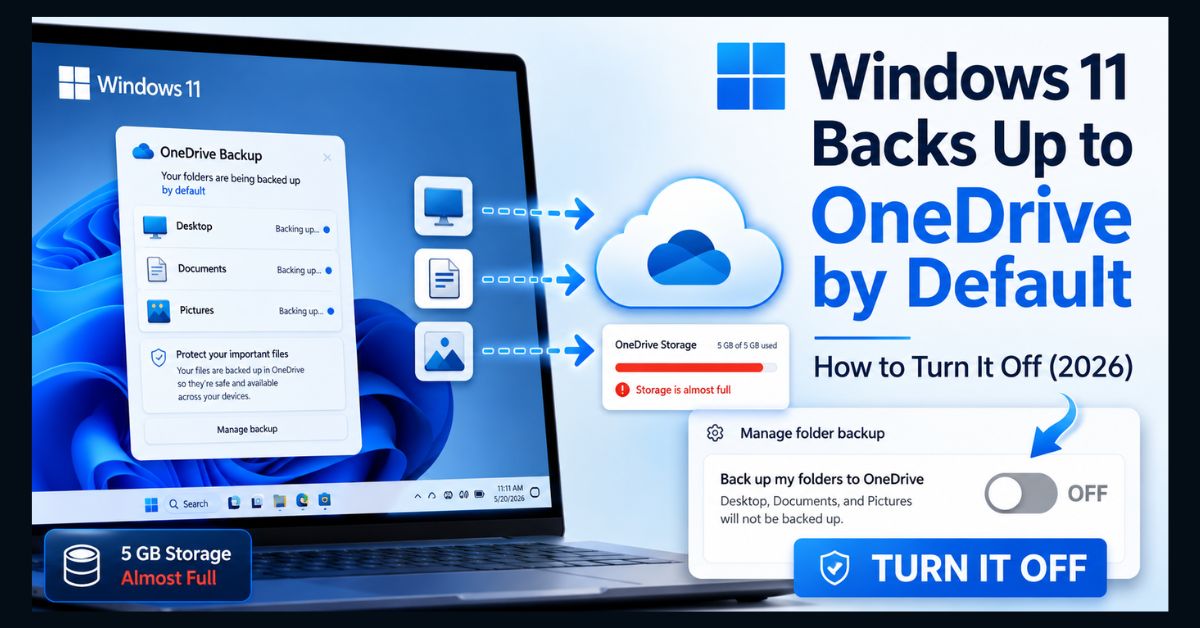
Windows 11 backs up your folders and settings to OneDrive by default when you sign in with a Microsoft account, and with version 26H2 Microsoft is making settings backup on by default for eligible devices outside the EU. To stop it, open OneDrive settings, go to Manage backup, and toggle off the folders you don’t want synced.
- On by default: signing in with a Microsoft account turns on OneDrive backup, moving Desktop, Documents, and Pictures to the cloud
- 26H2 expands it: Windows settings backup becomes on-by-default for eligible devices — EU devices are exempt, so US users are most affected
- It fills your free space: backups count toward the 5GB free OneDrive quota, which prompts you to buy more storage
- To stop it: OneDrive icon → Settings → Sync and backup → Manage backup, then toggle off the folders
- It’s still useful: backup helps recover a lost or reset PC — the real issue is that it’s opt-out, so choose deliberately
If you have ever opened your Desktop or Documents folder on a new Windows 11 PC and found everything already living under “OneDrive,” you have met one of Microsoft’s most quietly aggressive defaults. Windows 11 turns on cloud backup automatically when you sign in with a Microsoft account — and in 2026, that behavior is expanding.
The renewed attention comes from a change in Windows 11 version 26H2. Here is exactly what Windows backs up, why it matters for your storage and privacy, and the step-by-step way to take back control.
What changed with Windows 11 backup in 2026?
Two things are worth separating. The first is longstanding: for a while now, signing into Windows 11 with a Microsoft account has automatically enabled OneDrive folder backup, moving your Desktop, Documents, and Pictures into OneDrive without much fanfare.
The second is new. As The Register reported, with Windows 11 version 26H2 Microsoft is making Windows settings backup and restore on by default for eligible devices — unless they are in the European Union, where regulations such as the Digital Markets Act keep the older opt-in default. In practice, that means users in the United States and most of the world are the ones who get backup switched on automatically, while EU users do not. Microsoft’s stated goal is to make moving to a new PC seamless, so a lost, reset, or replaced device can restore its settings and app list. The catch is that “on by default” means you have to opt out rather than opt in.
What does Windows back up, and where does it go?
Windows 11 has two related backup features, and it helps to know what each one does:
| Feature | What it backs up | Where it goes |
| OneDrive folder backup | Your Desktop, Documents, and Pictures folders (the actual files) | Your OneDrive, counting toward storage |
| Windows settings backup | System settings, Wi-Fi networks, taskbar layout, and your Microsoft Store app list | Your Microsoft account |
The important detail is storage. A free Microsoft account includes just 5GB of OneDrive space, and your file backups count against it. Photos and documents fill that up quickly, at which point Windows begins prompting you to buy a larger OneDrive or Microsoft 365 plan. Your files are not deleted when this happens, but new ones may stop syncing, and the folder shuffle can be confusing.
Why does default-on backup matter?
Three practical reasons. First is control: an opt-out feature moves your data off your device before you have decided you want that. Second is storage: because backups eat into the 5GB free tier, many people hit the limit and face constant upgrade nags — a big driver of the “why is my storage full?” frustration we cover in our guide to freeing up disk space on Windows 11. Third is confusion: when Windows moves your Desktop and Documents into OneDrive, some people open a familiar folder and find it apparently empty, not realizing the files simply relocated.
None of this makes OneDrive backup bad. For someone whose laptop is lost or dies, having settings and files in the cloud is genuinely valuable. The problem is that it happens automatically, so it is worth deciding for yourself rather than letting the default decide for you.
How do you turn off OneDrive folder backup?
This stops Windows from syncing your Desktop, Documents, and Pictures to the cloud, keeping those files stored locally. According to Microsoft’s own guidance, the steps are:
- Click the OneDrive cloud icon in the taskbar (near the clock; click the up arrow to reveal hidden icons if needed).
- Click the gear icon and choose Settings.
- Open the Sync and backup tab, then click Manage backup.
- Toggle off Desktop, Documents, and Pictures (and any other folders you don’t want synced), then confirm.
After turning it off, check where your files ended up. Windows may leave them inside the OneDrive folder, so open OneDrive in File Explorer and move anything you want stored locally back to its original location. If a folder looks empty, your files are most likely still in OneDrive rather than lost.
How do you turn off Windows settings backup?
To stop Windows from syncing your settings, preferences, and app list to your Microsoft account, use the Settings app:
- Open Settings and go to Accounts.
- Select Windows backup.
- Turn off Remember my preferences, and toggle off Remember my apps or the app-list backup option.
If your PC is managed by an employer or school, some of these controls may be locked by your organization’s policy, in which case you will need to ask your IT admin. On personal PCs, you have full control.
Should you turn Windows backup off completely?
Not necessarily. The most balanced approach is to keep what helps and switch off what doesn’t. Backing up your Windows settings and app list is lightweight and makes setting up a new PC far faster, so many people leave that on. The part worth scrutinizing is folder backup, because that is what consumes your limited free OneDrive storage.
If you do turn folder backup off, make sure you have another way to protect your files — an external drive or a dedicated backup service — so you are not left with no safety net. Cloud backup is also one of the better defenses against ransomware and accidental deletion, which is why it is worth having some form of it. If you have already lost files, our guide to recovering deleted files on Windows 11 can help. And if OneDrive syncing in the background is slowing your machine, see our tips on making a laptop faster. The goal is simple: you, and not the default setting, decide what leaves your device and what stays local.
A good middle path is the “3-2-1” habit that data pros recommend: keep at least three copies of anything important, on two different types of storage, with one copy off-site. In practice, that might mean your working files on the PC, a weekly copy to an external drive, and a selective cloud backup of only your most valuable folders. Configured that way, OneDrive becomes a deliberate part of your backup plan rather than a default you never chose. It is also worth signing in and checking your OneDrive usage every few months, since a backup quietly running in the background is easy to forget until the “storage full” warnings arrive at the worst possible moment.
FAQ
Is OneDrive backup on by default in Windows 11?
Yes. When you sign into Windows 11 with a Microsoft account, OneDrive folder backup is enabled automatically, moving your Desktop, Documents, and Pictures into OneDrive. With Windows 11 version 26H2, Microsoft is also making Windows settings backup on by default for eligible devices outside the EU, so you generally have to opt out rather than opt in.
How do I stop Windows 11 from backing up to OneDrive?
Click the OneDrive cloud icon in the taskbar, open Settings, go to the Sync and backup tab, and click Manage backup. Then toggle off Desktop, Documents, and Pictures and confirm. After that, open the OneDrive folder in File Explorer and move any files you want stored locally back to their original folders.
Will I lose my files if I turn off OneDrive backup?
No. Turning off backup does not delete your files. However, files that were moved into OneDrive stay there until you move them back, so a folder may look empty on your PC even though the files are safe in OneDrive. Copy them back to your local folders to keep them stored on the device.
Why does Windows 11 keep asking me to buy more storage?
Because a free Microsoft account includes only 5GB of OneDrive space, and automatic folder backup fills it quickly. Once you are near the limit, Windows prompts you to upgrade to a paid OneDrive or Microsoft 365 plan. Turning off folder backup, or choosing only specific folders to sync, stops the backup from consuming that free space.
Does the 26H2 backup change affect everyone?
No. Reporting indicates the on-by-default settings backup in Windows 11 26H2 applies to eligible devices outside the European Union, where regulations keep the older opt-in behavior. It has been discussed largely in the context of organization-managed PCs, but the broader lesson applies to all Windows 11 users: cloud backup is generally on unless you turn it off.