

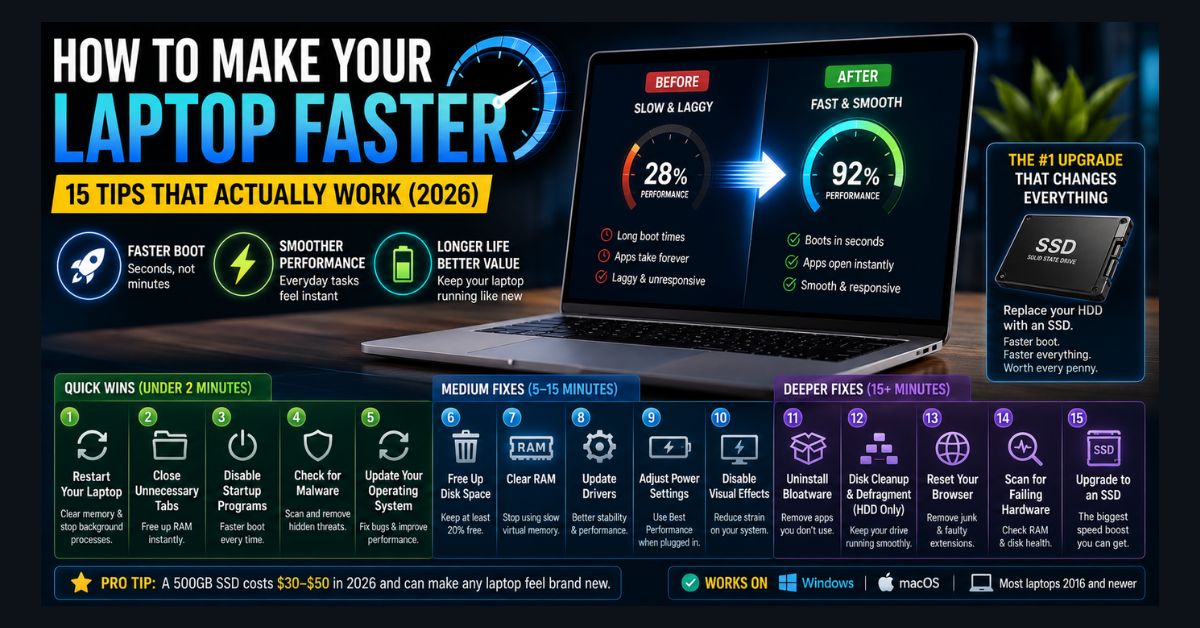
A slow laptop is usually a software problem, not hardware failure. Start with quick wins: restart fully, close excess browser tabs, disable high-impact startup apps, scan for malware, and install updates. If the drive is over 80% full or still a spinning HDD, upgrade to an SSD, the single biggest speed boost.
- Software first: Too many startup apps, a full drive, outdated drivers, and browser bloat cause most slowdowns
- Fastest wins: A full restart, closing tabs, and disabling high-impact startup programs each take under 2 minutes
- Keep 20% free: A drive more than 80% full slows the whole system noticeably
- Biggest upgrade: Replacing an HDD with an SSD is the single most impactful fix (SSD prices rose sharply in 2026)
- When to add RAM: 16 GB is the practical minimum for heavy multitasking in 2026, while 8 GB is workable but tight
A slow laptop doesn’t necessarily mean you need a new one. In most cases, the bottleneck is software — too many startup programs, a cluttered drive, outdated drivers, or a bloated browser eating all your RAM. Even laptops that are 3-5 years old can feel dramatically faster with the right optimizations.
These 15 tips are ordered from quickest wins (30 seconds each) to deeper fixes. Start from the top and work down — most people see noticeable improvement within the first five tips.
Quick Wins (Under 2 Minutes Each)
1. Restart Your Laptop
Not sleep, not hibernate — a full restart. Many people go weeks without actually restarting, letting background processes pile up. On Windows, click Start → Power → Restart (not Shut Down — there’s an important difference). On Mac, click Apple menu → Restart. (On a Mac? Our MacBook running slow guide has Mac-specific steps.)
2. Close Unnecessary Browser Tabs
If you’re reading this, you probably have too many tabs open. Each Chrome tab consumes 70-300 MB of RAM. Thirty tabs can easily use 4-8 GB — half your laptop’s memory. Close tabs you’re not actively using, or enable Chrome’s Memory Saver (Settings → Performance → Memory Saver). If Chrome is crashing with out-of-memory errors, that’s a sign your tab count is the main problem.
3. Disable Startup Programs
Press Ctrl+Shift+Esc (Windows) to open Task Manager → Startup apps. Disable anything with “High” impact that you don’t need at boot. On Mac, go to System Settings → General → Login Items and remove unnecessary apps. This won’t speed up your current session, but your next boot will be noticeably faster.
4. Check for Malware
Malware running in the background can consume CPU, RAM, and network bandwidth without visible symptoms. Run a full scan with Windows Defender (Settings → Privacy & Security → Windows Security → Virus & threat protection) or your Mac’s built-in security tools. Persistent slowness that started suddenly could indicate an infection. For comprehensive protection, check our cybersecurity and data privacy guide.
5. Update Your Operating System
Pending updates can cause background processes that slow your system. On Windows, go to Settings → Windows Update and install any pending updates. On Mac, go to System Settings → General → Software Update. After updating, restart.
Medium Fixes (5-15 Minutes Each)
6. Free Up Disk Space
If your drive is more than 80% full, your laptop will slow down noticeably. On Windows, go to Settings → System → Storage → Temporary files and clean up. On Mac, click Apple menu → About This Mac → Storage → Manage. Delete old downloads, empty the trash, and remove apps you haven’t used in months.
7. Clear RAM
When your RAM is maxed out, your laptop uses the much-slower hard drive as virtual memory, causing dramatic slowdowns. Our guide to clearing RAM on Windows 11 covers seven methods from quick Task Manager fixes to disabling unnecessary services.
8. Update Drivers (Windows)
Outdated graphics, chipset, and network drivers can cause sluggish performance. Go to your laptop manufacturer’s support page (Dell, HP, Lenovo, ASUS), enter your model number, and download the latest drivers. GPU drivers from Nvidia, AMD, or Intel’s sites are particularly important, while Wi-Fi and Ethernet drivers matter for slow browsing, buffering, and unstable downloads. For connection-specific fixes beyond general laptop cleanup, our Windows 11 internet speed optimization guide covers DNS changes, adapter settings, and network tweaks that can improve performance.
9. Adjust Power Settings
Your laptop might be throttling CPU speed to save battery. On Windows, go to Settings → System → Power & Battery → Power mode and set it to “Best performance” when plugged in. On Mac, this is managed automatically, but you can disable “Low Power Mode” in System Settings → Battery.
10. Disable Visual Effects (Windows)
Press Win+R, type “sysdm.cpl,” go to the Advanced tab, click Settings under Performance, and select “Adjust for best performance.” This disables animations and transparency effects that consume GPU resources. The visual change is noticeable but the performance gain on older hardware is real.
Deeper Fixes (15+ Minutes)
11. Uninstall Bloatware
New laptops come loaded with manufacturer software you’ll never use — HP Support Assistant, McAfee trials, Candy Crush, Xbox Game Bar (if you don’t game). Go to Settings → Apps → Installed apps and sort by size. Uninstall anything from the manufacturer that you don’t actively use.
12. Run Disk Cleanup and Defragment (HDD Only)
If your laptop still has a spinning hard drive (HDD), defragmentation can help. Search “Defragment and Optimize Drives” in Windows, select your drive, and click Optimize. Do not defragment an SSD — Windows handles SSD optimization automatically, and manual defragmentation can reduce SSD lifespan.
13. Reset Your Browser
If your browser is the main source of slowness, a full reset can help. In Chrome: Settings → Reset settings → Restore settings to original defaults. This removes all extensions, clears cookies, and resets your homepage. You’ll need to re-add any extensions you actually want.
14. Scan for Failing Hardware
If your laptop freezes, crashes, or shows blue screens alongside being slow, hardware might be failing. On Windows, run a memory diagnostic: search “Windows Memory Diagnostic” and select “Restart now and check for problems.” For disk health, open PowerShell (or Windows Terminal) and run Get-PhysicalDisk — a healthy drive reports “Healthy” under HealthStatus, while “Warning” or “Unhealthy” points to a failing drive. The older wmic diskdrive get status command no longer works on current Windows 11 releases, because Microsoft removed the WMIC utility in the August 2026 update for versions 24H2 and 25H2 and it can no longer be added back, according to Microsoft’s support documentation.
15. The One Upgrade That Changes Everything: Replace HDD with SSD
If your laptop still has a spinning hard drive and you can only do one thing, make it this. Replacing an HDD with an SSD is the single most impactful upgrade possible — it makes everything faster: boot time drops from 2-3 minutes to 15-20 seconds, apps open instantly instead of bouncing for 10 seconds, and file operations that took minutes complete in seconds.
A 500 GB SSD runs roughly $40-70 as of late 2026, though prices climbed through the year because of a NAND flash shortage tied to AI data-center demand, so confirm the current price before buying. You can track live pricing on Tom’s Hardware’s SSD price tracker. Most laptops from the last 8 years support either a 2.5″ SATA SSD or an M.2 NVMe SSD. Check your laptop’s specifications or search your model number plus “SSD upgrade” for specific instructions.
If your laptop already has an SSD and is still slow, the issue is almost certainly software-related — focus on tips 1-13 above. If it has an HDD, skip everything else and do this upgrade first.
FAQ
1. Why is my laptop slow even though it’s new?
New laptops often come loaded with bloatware — pre-installed software from the manufacturer that runs in the background. Follow tip #11 to remove it. Also check that Windows updates have finished installing (tip #5), as initial post-setup updates can consume resources for hours.
2. How do I know if my laptop needs more RAM or a faster drive?
Open Task Manager (Ctrl+Shift+Esc) and check the Performance tab. If Memory is consistently above 85%, you need more RAM. If Disk is at 100% frequently, your drive is the bottleneck — upgrading to an SSD will have the biggest impact. If both are fine but CPU is high, a specific app or process is the problem. If you need to share what you’re seeing with tech support or compare before-and-after results, use our screenshot shortcut reference to capture the Task Manager screen quickly.
3. Does factory resetting make a laptop faster?
Yes, a factory reset returns your laptop to its original state, removing all installed software, accumulated junk files, and potential malware. It’s the nuclear option — back up your files first — but it’s effective when years of accumulated software have slowed things down beyond what targeted fixes can solve.
4. How often should I restart my laptop?
At least once a week. Restarting clears accumulated processes, releases leaked memory, and applies pending updates. Many performance issues build up over days of uptime and resolve with a simple restart.
5. Is 8 GB of RAM enough in 2026?
For basic web browsing, email, and document editing, 8 GB is workable but tight. For multitasking with 15+ browser tabs, video calls, and productivity apps, 16 GB is the practical minimum. If you’re doing any creative work, development, or running virtual machines, 32 GB is recommended.