

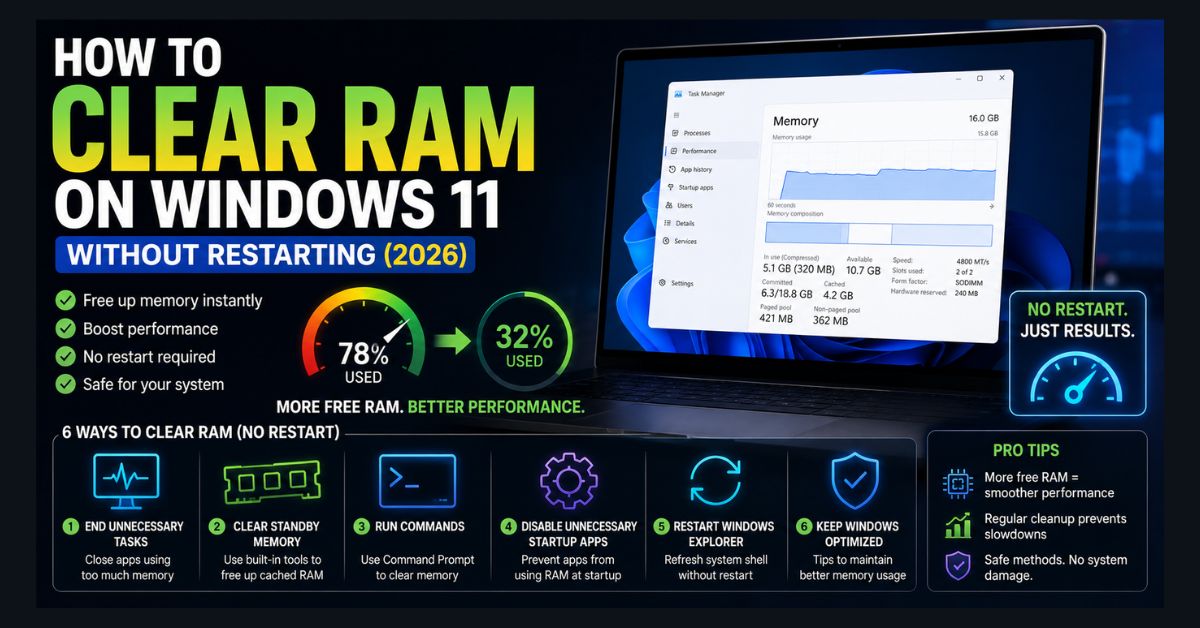
Quick Answer
To clear RAM on Windows 11 without restarting, open Task Manager (Ctrl+Shift+Esc), sort by Memory, and end the apps using the most. For cached “standby” memory, use Microsoft’s free RAMMap tool to empty the standby list. Most high-RAM readings are normal, so check what’s actually using memory before clearing anything.
Key Takeaways
- Most Windows 11 RAM usage is normal: Windows caches data on purpose, and unused RAM is wasted RAM
- The fastest real fix is closing memory-hungry apps in Task Manager, sorted by the Memory column
- RAMMap from Microsoft Sysinternals safely empties the standby cache without a restart
- Leave the page file on automatic in almost all cases; manual sizing usually causes more problems than it solves
- If you fight high usage constantly on 8 GB, adding RAM is the single most effective fix
Your Windows 11 PC feels sluggish, and Task Manager shows RAM sitting at 85%, 90%, or higher even though you’re not running anything demanding. It is one of the most common Windows 11 complaints, and background features like Copilot, Widgets, and expanded services have made it more noticeable.
Restarting is the obvious fix, but sometimes you can’t: unsaved work, a long download, or a virtual machine you don’t want to shut down. These are seven ways to reclaim memory without rebooting, ordered from fastest to most involved. First, though, a reality check that saves a lot of wasted effort.
How much RAM should Windows 11 use?
A freshly booted Windows 11 system normally uses 3-5 GB of RAM with no apps open, covering the operating system, services, antivirus, and cached data. High-looking numbers are usually fine, because Windows deliberately fills spare RAM with cache to speed things up.
The rough idle ranges are predictable, and they are 40-60% on 8 GB, and 20-35% on 16 GB. Usage above those ranges with nothing open suggests something is consuming memory it shouldn’t. Open Task Manager with Ctrl+Shift+Esc and click the Memory column to sort processes by consumption before you close anything. The guiding principle worth remembering: unused RAM is wasted RAM, so a high cache figure alone is not a problem. Only sustained pressure above 85-90% that causes slowdowns or freezes is.
How do I close memory-hungry apps in Task Manager?
Close memory-hungry apps by opening Task Manager, sorting by memory, and ending the biggest offenders. Press Ctrl+Shift+Esc, click the Processes tab, and click the Memory column header to sort.
Look for apps using more than they should. The usual offenders are Chrome or Edge with dozens of tabs, Slack, Microsoft Teams, Discord, Spotify, and creative apps like Photoshop or Premiere Pro. Right-click an app you want to close and select End task. Stick to apps you recognize, and search a process name before ending it if you are unsure, since closing a system process can crash Windows.
Chrome is typically the biggest memory user. With 30 or more tabs open, closing unused ones or turning on Chrome’s Memory Saver makes an immediate difference. If you hit recurring Chrome memory errors, check extensions and background Chrome processes before blaming Windows itself.
How do I stop background apps from using memory?
Stop background apps from using memory in Settings, which can free 500 MB to 2 GB. Go to Settings > Apps > Installed apps, click the three-dot menu next to an app, and choose Advanced options.
Under Background app permissions, change the setting from Always to Never for apps you don’t need running in the background. Apps that are usually safe to limit include Microsoft Teams if you don’t use it, Xbox Game Bar if you don’t game, Weather, News, and most Microsoft Store apps. Don’t restrict security software, OneDrive if you rely on sync, or anything that needs to send you notifications.
How do I disable startup programs to free RAM?
Disable startup programs so they stop loading into memory at boot. Press Ctrl+Shift+Esc, open the Startup apps tab, sort by Startup impact, and disable High or Medium impact items you don’t need immediately.
Common safe-to-disable startup items are Spotify, Discord, Steam, Adobe Creative Cloud if you don’t use it daily, OneDrive if you don’t sync, and manufacturer bloatware like HP Support Assistant, Dell SupportAssist, or Lenovo Vantage. You won’t see the effect until the next restart, but this prevents the problem from returning every boot. This step matters if your PC has been slow since a recent Windows update, since updates sometimes re-enable startup items you had already turned off.
How do I clear the standby memory cache?
Clear the standby cache with RAMMap, Microsoft’s own memory tool, because on lower-RAM systems the standby list can grow large enough to crowd out active apps. This is the closest thing to a real “clear my RAM now” button, and it is safe.
Do it in three steps:
- Download RAMMap from Microsoft’s official Sysinternals page, which is free and official.
- Run it as administrator.
- Click Empty in the menu bar, then choose Empty Standby List.
You’ll see memory usage drop right away. The trade-off is that recently used apps may take slightly longer to reopen, since they reload from disk instead of cache. Only reach for this when the standby list is genuinely large and the system feels sticky. Clearing it out of habit is counterproductive, because Windows just rebuilds the cache it needed. If you want automation, advanced users schedule the separate EmptyStandbyList.exe utility, available in the Microsoft Sysinternals Suite, through Task Scheduler, but for most people the manual RAMMap flush is enough.
Which Windows services can I safely stop to save memory?
A few Windows services can be set to Manual to reduce idle memory use, but the safe move is Manual, not Disabled, so the service still starts when something needs it. Press Win+R, type services.msc, press Enter, then right-click a service, open Properties, and change Startup type to Manual.
Three services are reasonable candidates on memory-constrained machines. They are SysMain, Windows Search, and the Diagnostic Tracking Service.
- SysMain (formerly Superfetch) preloads apps into memory. On an SSD the benefit is small, and setting it to Manual on an 8 GB system can free 500 MB to 1 GB.
- Windows Search (WSearch) indexes files and uses 100-300 MB continuously. Set it to Manual if you rarely search from Windows.
- Diagnostic Tracking Service collects telemetry. It uses little on its own but adds up alongside others.
Don’t touch Windows Audio, Windows Defender, or networking services, and leave anything you’re unsure about alone. Stop here and undo your change if a feature you rely on stops working, because Manual is reversible but Disabled can break dependent features.
Should I change the Windows 11 page file settings?
In almost all cases, leave the page file on automatic, because modern Windows manages it better than a manual value and custom limits often cause memory pressure sooner. This corrects a popular but dated tip. Windows needs a working page file, so the goal is not to shrink or disable it.
To confirm it’s automatic, go to Settings > System > About > Advanced system settings > Performance Settings > Advanced > Virtual Memory > Change, and make sure Automatically manage paging file size is checked. Only set a custom size if you have a specific, tested reason, such as an app that demands a fixed minimum, and even then keep the initial and maximum generous rather than tight. Setting a small manual cap is one of the most common ways people accidentally make memory problems worse, so if in doubt, leave it on automatic.
How do I find a memory leak on Windows 11?
Find a memory leak by watching Task Manager over time for a process whose memory climbs steadily and never releases, eventually reaching 90-95%. A leak means a program keeps allocating memory without giving it back.
Open Task Manager, sort by Memory, and watch which process grows over minutes and hours. If one app’s usage rises every hour, that app is leaking. The fix is to close and reopen it periodically, or update to a version that patches the leak. Common culprits are Chrome with certain extensions, Slack, some Microsoft Office components, and some antivirus tools. If the leak is in a Windows system process such as svchost.exe or dwm.exe, check Windows Update, since Microsoft patches these in cumulative updates. The July 2026 update is one recent example of a memory-related fix shipping this way.
When should I just upgrade my RAM instead?
Upgrade your RAM when you fight high usage constantly despite optimization, because at that point the system simply doesn’t have enough memory for how you use it. The 2026 practical minimums are 8 GB for browsing and office work, 16 GB for multitasking and light creative work, and 32 GB for development, video editing, or virtual machines.
If you’re on 8 GB and regularly hitting 90% or more, moving to 16 GB is the single most impactful upgrade you can make. One timing note for 2026: memory prices have been volatile because of AI-driven demand, which we cover in the memory shortage pushing device prices up and in our guide to whether to buy a laptop now given RAM prices. For broader speedups beyond memory, our guide to making a laptop faster covers startup, storage, and overheating too.
Which RAM fix should I try first?
Match the fix to the symptom instead of running through all seven. This table maps what you’re seeing to the most likely cause and the fastest fix to try.
| Symptom | Most likely cause | Fix to try first |
|---|---|---|
| High usage, specific app is huge in Task Manager | One heavy app (often a browser) | Method 1 (end task) |
| High usage climbing slowly over hours | Memory leak | Method 7 (find the leak) |
| System feels sticky, cache/standby is large | Overgrown standby list | Method 5 (RAMMap) |
| Slow from the moment you boot | Too many startup programs | Method 3 (startup apps) |
| High idle usage right after a clean boot | Background apps or services | Method 2, then Method 6 (services) |
| Always high no matter what you close | Not enough physical RAM | Upgrade RAM |
FAQ
Is it bad to have high RAM usage on Windows 11?
Not necessarily. Windows intentionally uses available RAM for caching to speed up app loading, so 60-70% with apps open is normal and healthy. It is only a problem if usage stays above 85-90% consistently and causes slowdowns, freezes, or crashes. Check what’s actually using memory before you act.
Does closing Chrome tabs actually free RAM?
Yes. Each Chrome tab runs as a separate process using 50-300 MB depending on the page, so closing 20 tabs can free 1-4 GB. If you need tabs accessible but not active, turn on Chrome’s Memory Saver under Settings > Performance, which suspends inactive tabs and reloads them when you return.
Should I use RAM cleaner software?
Generally no. Third-party RAM optimizer or memory cleaner tools often do more harm than good, because they clear the standby cache and force Windows to reload data from the slower disk. The targeted methods in this guide, especially RAMMap for standby memory, are safer and more effective than a generic cleaner running constantly.
Should I set a custom page file size?
For almost everyone, no. Leaving the page file on automatic is the safer and better-performing choice on modern Windows 11, and custom limits are a common cause of memory pressure appearing earlier than it should. Only set a custom size for a specific, tested reason, and keep the values generous rather than tight if you do.
How do I check how much RAM my PC has?
Press Ctrl+Shift+Esc to open Task Manager, click the Performance tab, then click Memory. You’ll see total installed RAM, how much is in use, and how much is available, along with speed and slot details. You can also find the total under Settings > System > About.