

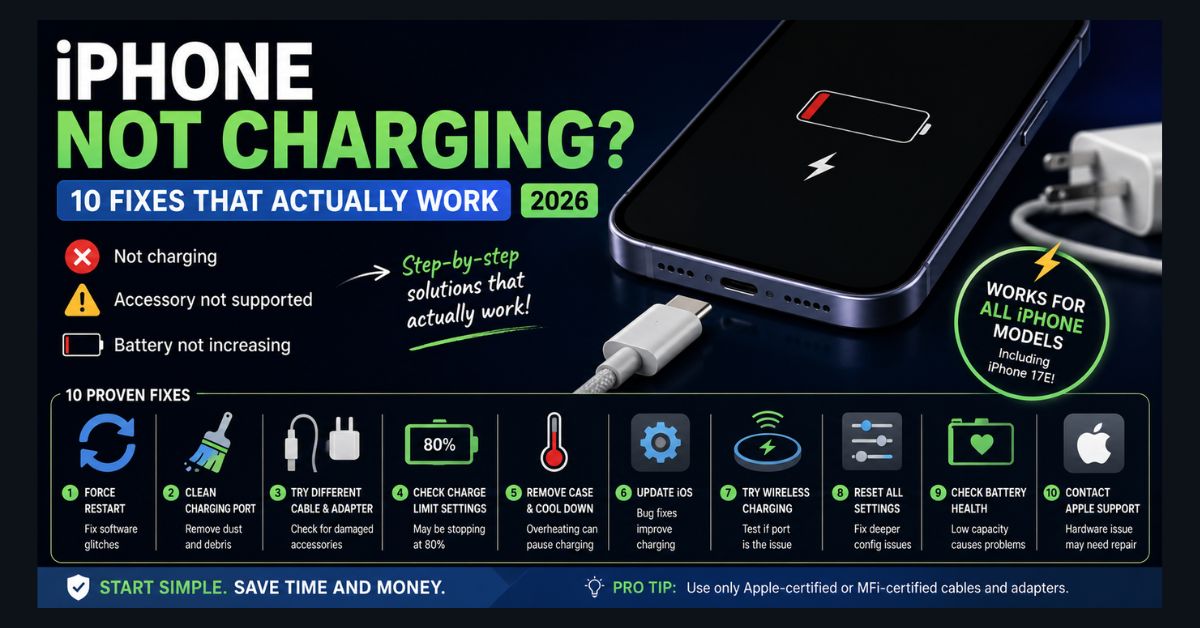
If your iPhone is not charging, start with a force restart, then clean the charging port and try another MFi-certified cable and adapter. An iPhone that stops at 80% is usually working as intended because of Charge Limit or Optimized Battery Charging. Contact Apple Support if nothing works after an hour on the charger.
- Most common cause: Lint in the USB-C or Lightning port blocks the cable, so clean it with a wooden toothpick, never metal
- Stuck at 80%: Charge Limit (iPhone 15 and later) or Optimized Battery Charging is active under Settings → Battery → Charging
- Heat pauses charging: iOS can limit charging above 80% until a warm battery cools down
- Fast charging varies by model: iPhone 17 models reach 50% in about 20 minutes with a 40W or higher adapter
- Worn battery: Apple recommends replacement below 80% Maximum Capacity, at $69–$129 in the US as of September 2026
Your iPhone is plugged in but nothing’s happening — no charging icon, no vibration, just a dead screen staring back at you. Whether you have a new iPhone 18 Pro or an older model, charging issues are one of the most common iPhone problems, and they’re almost always fixable at home without visiting the Apple Store.
In most cases, the problem is something simple: a dirty port, a bad cable, or a software glitch. In this guide, we’ll walk through every working fix, starting with the ones that solve the problem 90% of the time.
Why Your iPhone Won’t Charge
Before jumping into fixes, understanding the most common causes helps you target the right solution.
Dirty charging port is the number one cause. Lint, dust, and pocket debris accumulate in the USB-C (or Lightning) port over time, preventing the cable from making a solid connection. This is the fix that works most often and the one most people overlook.
Damaged or non-certified cable is the second most common cause. Frayed cables, bent connectors, and cheap third-party accessories that aren’t MFi-certified can stop working without warning or trigger an “Accessory Not Supported” alert.
Software glitches can prevent your iPhone from detecting the charger. A simple restart fixes this more often than you’d expect.
Charge Limit settings on iPhone 15 and later can stop charging at 80% (or lower) to preserve battery health. Many users don’t realize this setting exists and think their phone is broken.
Overheating causes iPhones to pause or slow charging to protect internal components. This happens frequently with MagSafe chargers in warm environments.
Battery degradation on older iPhones with maximum capacity below 80% can cause charging issues, slow charging, or unexpected shutdowns.
Fix 1: Force Restart Your iPhone
Start here. A force restart clears temporary software glitches that might be blocking the charging connection. It takes 30 seconds and fixes the problem more often than you’d expect.
For iPhone 8 and later (including all USB-C models): quickly press and release the Volume Up button, quickly press and release the Volume Down button, then press and hold the Side button until the Apple logo appears.
Once it reboots, plug it in and check if the charging indicator appears.
Fix 2: Clean the Charging Port
This is the fix that solves the problem for a surprising number of people. Over months and years, lint and dust pack into the USB-C or Lightning port every time you slide your phone into a pocket or bag. Eventually there’s so much debris that the cable can’t make a proper connection.
Grab a flashlight and look inside the port. If you see debris, use a wooden toothpick or a dry, soft-bristle brush to gently remove it. Work carefully — don’t use anything metal that could damage the internal pins. A can of compressed air can help dislodge stubborn particles, though Apple advises against blowing directly into the port.
After cleaning, plug in your cable. It should click in firmly. If the cable still feels loose, there may be physical damage to the port itself.
Fix 3: Try a Different Cable and Adapter
You need to isolate whether the problem is your cable, your adapter, or your phone. Swap each one individually.
Try a different USB-C cable — ideally an Apple-certified or MFi-certified one. Then try a different wall adapter. Then try plugging into a computer’s USB-C port instead of a wall outlet.
If your iPhone charges fine with a different cable, you’ve found the culprit. If it charges from a computer but not a wall adapter, the adapter is the problem. If it won’t charge from any cable or source, the issue is with the phone itself — continue to the next fixes.
Important: iPhone 15 and later models use USB-C, not Lightning. If you recently upgraded, make sure you’re using a USB-C cable, not your old Lightning cable with an adapter.
Fix 4: Check Your Charge Limit Settings
This catches many iPhone 15, 16, and 17 users off guard. Apple introduced Charge Limit, which intentionally stops charging at 80% (or a custom percentage) to preserve long-term battery health.
Go to Settings → Battery → Charging and check the Charge Limit setting. If it’s set to 80% and your battery is at 80%, your iPhone isn’t broken — it’s working as intended. You can adjust the limit to 85%, 90%, 95%, or 100% if you need a full charge.
There’s also Optimized Battery Charging, which learns your daily routine and delays charging past 80% until it predicts you’ll need it. If your iPhone seems stuck at 80% overnight, this feature is likely active.
Fix 5: Remove Your Case and Let It Cool Down
If your iPhone gets warm during charging, iOS will throttle or pause charging to protect the battery. This is especially common with MagSafe and Qi wireless chargers in warm rooms, during summer, or if you’re using your phone while charging.
Remove your phone case (thick cases trap heat), move to a cooler location, and wait 10-15 minutes before trying again. If you see a temperature warning on screen, your iPhone needs to cool down before it will accept a charge. Apple also notes in its iPhone charging support article that software might limit charging above 80 percent when the battery gets too warm, and that charging resumes once the temperature drops.
For wired charging, using a higher-wattage adapter (30W+) generates more heat than a standard 5W adapter. If overheating is a recurring issue, try a lower-wattage charger or switch to wireless charging.
Fix 6: Update iOS
Apple regularly patches charging bugs in iOS updates. If you’re running an older version, updating could fix the issue.
Go to Settings → General → Software Update. If an update is available, download and install it. Make sure your iPhone has at least 20% battery (or keep it plugged in) during the update.
If your iPhone won’t turn on at all, you can update through a computer: connect to a Mac or PC, open Finder on a Mac or the Apple Devices app on a Windows PC, and the computer will detect the device and offer to update it. Apple now uses the Apple Devices app, rather than iTunes, for iPhone updates on current Windows PCs.
Keeping your iPhone’s software current also helps with security and privacy protection — iOS updates include critical security patches, bug fixes, and newer Apple Intelligence features on supported devices.
Fix 7: Try Wireless Charging
If wired charging isn’t working, MagSafe or Qi wireless charging can help you determine whether the problem is your USB-C port or something else entirely. Every iPhone from the iPhone 8 onward supports wireless charging, and iPhone 12 and later support MagSafe.
Place your iPhone directly on a wireless charging pad — remove any case first, especially thick or metal ones. If wireless charging works but USB-C doesn’t, your port likely needs professional repair.
Recent reports have shown that some iPhone 17 and iPhone Air models have trouble turning back on after the battery completely dies. If your phone went to 0% and won’t respond to wired charging, try placing it on a MagSafe charger and leaving it for 15 minutes before attempting anything else.
Fix 8: Reset All Settings
If the problem seems software-related but a restart didn’t fix it, resetting all settings can resolve deeper configuration issues without deleting your data.
Go to Settings → General → Transfer or Reset iPhone → Reset → Reset All Settings. This resets Wi-Fi passwords, Bluetooth connections, display settings, and other preferences back to defaults — but it does not delete your photos, messages, or apps.
After the reset, your iPhone restarts. Reconnect to Wi-Fi and try charging again.
Fix 9: Check Battery Health
If your iPhone is charging very slowly or the battery drains unusually fast, the battery itself may be the problem.
Go to Settings → Battery → Battery Health (on iPhone 14 and earlier, the option is labeled Battery Health & Charging). Look at “Maximum Capacity” — this shows what percentage of the battery’s original capacity remains. If it’s below 80%, Apple considers the battery degraded and recommends replacement. According to Apple’s battery health guide, iPhone 15 and later batteries are designed to retain 80 percent of their original capacity at 1,000 complete charge cycles under ideal conditions, compared with 500 cycles for iPhone 14 and earlier.
A degraded battery can cause slow charging, unexpected shutdowns, reduced performance, and inaccurate battery percentage readings. As of September 2026, Apple lists out-of-warranty battery service at $69 to $129 in the US depending on the model: $69 for iPhone SE models, $89 for iPhone 12, $99 for iPhone 16, iPhone 17, and iPhone 17e, $119 for iPhone 16 Pro and iPhone 17 Pro models, and $129 for iPhone 18 Pro models. That is significantly cheaper than a new phone.
Fix 10: Contact Apple Support
If none of the above fixes work, your iPhone likely has a hardware issue — a damaged USB-C port, faulty charging circuit, or defective battery that needs professional repair.
Before contacting support, you can also use AI tools to organize your troubleshooting notes, compare repair options, or summarize Apple’s support guidance. For a broader look at which assistant works best for research and problem-solving, see our AI comparison guide.
You can contact Apple Support at support.apple.com via phone, email, or chat. You can also make a Genius Bar appointment at your local Apple Store. If you’re outside warranty, third-party repair shops certified by Apple (Apple Authorized Service Providers) are another option and sometimes offer faster turnaround.
Before visiting, back up your iPhone using iCloud (Settings → [Your Name] → iCloud → iCloud Backup) or a computer, in case the repair requires a device wipe.
How to Prevent iPhone Charging Issues
Use only Apple-certified or MFi-certified cables and adapters — cheap knockoffs cause more problems than they solve. Periodically clean your charging port with a soft brush or wooden toothpick. Avoid charging in extremely hot environments. Don’t use your iPhone heavily while it’s charging, as this generates excess heat. Consider enabling Optimized Battery Charging to extend your battery’s long-term health.
FAQ
1. Why does my iPhone say “Accessory Not Supported”?
The “Accessory Not Supported” alert appears when a cable or adapter is damaged, isn’t Apple-certified (MFi), or isn’t supported by your iPhone, and it can also appear when the iPhone’s charging port is dirty or damaged. Switch to an Apple or MFi-certified cable, update iOS, and gently clean the port; Apple says you might need service if the alert appears with nothing connected.
2. Why does my iPhone stop charging at 80%?
This is likely either Optimized Battery Charging or the Charge Limit feature (iPhone 15+). Check Settings → Battery → Charging to see which is active. You can adjust or disable these features if you need a full charge.
3. Can I use a fast charger on any iPhone?
Fast charging works on iPhone 8 and later, but the adapter you need depends on the model. According to Apple’s fast charging guide, iPhone 17, iPhone 17 Pro, and iPhone 17 Pro Max reach 50% in about 20 minutes with a 40W or higher adapter, iPhone 18 Pro models reach 50% in about 15 minutes with a compatible higher-wattage adapter such as Apple’s 40W Dynamic Power Adapter with 60W Max, iPhone 17e and iPhone Air need a 20W or higher adapter for 50% in about 30 minutes, and iPhone 16 and earlier need an 18W or higher USB-C adapter. Using a fast charger won’t damage your battery — iOS manages charging speed automatically based on temperature and battery health.
4. Should I replace my iPhone battery or buy a new phone?
If your iPhone is less than 3-4 years old and the only issue is battery degradation, replacing the battery ($69-$129 at Apple as of September 2026, depending on the model) is almost always the better value. A new battery restores performance and charging reliability, extending your phone’s useful life by 2-3 years.
5. My iPhone died completely and won’t respond to charging at all. What do I do?
If the battery is completely drained, it can take several minutes for the charging icon to appear. Leave it plugged in for at least 30 minutes. If wired charging doesn’t respond, try a MagSafe or wireless charger instead — some recent iPhone models respond better to wireless charging when recovering from a completely dead battery. If nothing works after an hour, try a force restart while plugged in.
Related guides: If you’re also dealing with device performance or update problems on your computer, see our Windows troubleshooting guide for fixes that can help resolve common Windows 11 issues.