

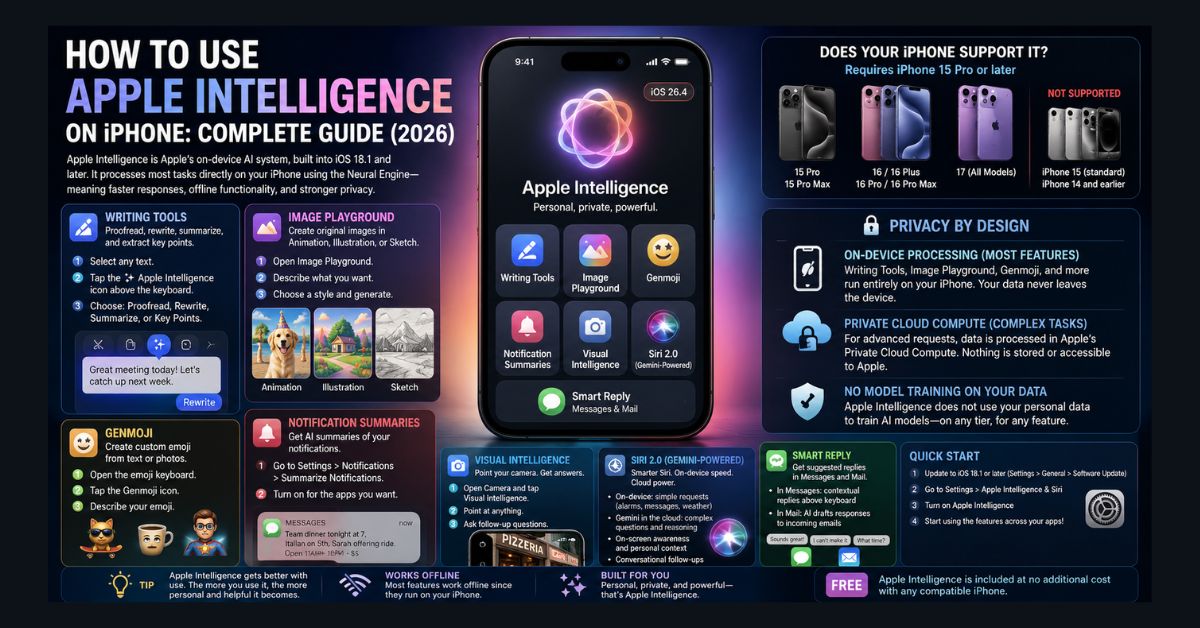
Apple Intelligence is Apple’s on-device AI system, built into iOS 18.1 and later. Unlike Google Gemini or ChatGPT, which run primarily in the cloud, Apple Intelligence processes most tasks directly on your iPhone using the Neural Engine in Apple silicon — meaning faster responses, offline functionality for many features, and significantly stronger privacy. Your data stays on your device rather than being transmitted to external servers.
As of May 2026 (iOS 26.4), Apple Intelligence includes Writing Tools, Image Playground, Genmoji, notification summaries, Visual Intelligence, Smart Replies, and the upgraded Siri 2.0 powered by Google Gemini for complex queries. This guide walks you through every feature with step-by-step instructions.
Check If Your iPhone Supports It
Apple Intelligence requires an iPhone 15 Pro or later. Specifically, any iPhone with an A17 Pro chip or newer:
- iPhone 15 Pro and iPhone 15 Pro Max
- iPhone 16, iPhone 16 Plus, iPhone 16 Pro, iPhone 16 Pro Max
- iPhone 17 (all models)
Older iPhones — including the standard iPhone 15, all iPhone 14 models, and everything before — do not support Apple Intelligence. The Neural Engine in older chips isn’t powerful enough for on-device AI processing.
To check your model: Go to Settings → General → About → Model Name.
To enable Apple Intelligence: Go to Settings → Apple Intelligence & Siri → toggle Apple Intelligence to On. If you don’t see this option, your iPhone doesn’t support it. The first activation may take several minutes as the AI models download to your device.
Writing Tools (Available Everywhere You Type)
Writing Tools is Apple Intelligence’s most immediately useful feature. It works in every text field across iOS — Messages, Mail, Notes, Safari, and third-party apps that use standard text input.
How to use it: Select any text (tap and hold, drag the selection handles), then tap the Apple Intelligence icon (sparkle symbol ✨) in the toolbar above the keyboard. You’ll see four options:
- Proofread fixes grammar, spelling, punctuation, and capitalization throughout the selected text. It shows changes with strikethrough (original) and highlight (correction) so you can review before accepting. Tap “Accept” to apply all changes or “Revert” to keep the original.
- Rewrite changes the tone of your text while keeping the meaning. Choose from Professional (formal, polished), Friendly (casual, warm), or Concise (shorter, direct). Each option regenerates the text with the new tone — swipe between versions to compare.
- Summarize condenses long text into a brief paragraph capturing the essential information. Particularly useful for summarizing long emails, articles, or message threads before responding.
- Key Points extracts the main ideas as bullet points. Useful for pulling action items from meeting notes or identifying the core arguments in a long document.
Practical tip: Writing Tools works offline — it runs entirely on your iPhone’s Neural Engine. You can proofread, rewrite, and summarize text on an airplane, in the subway, or anywhere without internet. This is a significant advantage over cloud-based AI tools that require connectivity.
Image Playground
Image Playground is Apple’s AI image generator, available as a standalone app and integrated into Messages, Notes, and other apps.
How to use it: Open the Image Playground app (it’s pre-installed on compatible iPhones) or tap the Image Playground icon in Messages when composing a message. Describe what you want — “a golden retriever wearing a party hat on a beach” — and Apple Intelligence generates stylized images in three styles:
- Animation — 3D Pixar-like rendered characters and scenes. The most visually polished option.
- Illustration — 2D drawn artwork with clean lines and vibrant colors. Good for social sharing.
- Sketch — Hand-drawn pencil or charcoal style. More artistic and understated.
- Important limitation: Image Playground intentionally does NOT create photorealistic images. Apple made a deliberate design decision to prevent the generation of realistic fake photos — reducing the risk of deepfakes and misinformation. If you need photorealistic AI images, you’ll need third-party tools from our best free AI image generators guide (Google Gemini’s Nano Banana 2 and ChatGPT’s GPT Image 2 both generate photorealistic output).
Creating images from your Photos library: You can create Image Playground images based on people in your Photos library. Select a person, describe a scene, and Image Playground generates a stylized image of that person in the scene — using their real facial features rendered in the chosen style (Animation, Illustration, or Sketch).
Genmoji (Custom Emoji)
Genmoji lets you create custom emoji from text descriptions — filling the gap when the standard emoji keyboard doesn’t have what you need.
How to use it: In any text field, open the emoji keyboard (tap the emoji icon on your keyboard). Tap the Genmoji icon (a smiley face with a sparkle). Type a description: “a cat wearing sunglasses riding a skateboard” or “a coffee cup with a tired face.” Apple Intelligence generates a custom emoji matching your description.
You can also create Genmoji based on people in your Photos library. Select a person and describe a scenario — “Sarah as a superhero” — and Genmoji creates a personalized emoji using that person’s likeness.
Genmoji appear at full size in Messages and are compatible with any platform that supports stickers (they’re technically sticker images, not standard Unicode emoji, so they display as images on non-Apple devices).
Notification Summaries
Apple Intelligence automatically summarizes notification content on your Lock Screen and in Notification Center. Instead of showing the full text of every email, message, and app notification, you see AI-generated one-line summaries that capture the essential information.
How to enable: Go to Settings → Notifications → Summarize Notifications. Toggle on for each app you want summarized. Apple Intelligence processes notifications on-device — the content never leaves your iPhone.
What it looks like in practice: Instead of seeing “Hey, are you coming to the team dinner tonight? We’re meeting at 7 at that Italian place on 5th, and Sarah said she’d drive if you need a ride…” you see: “Team dinner tonight at 7, Italian on 5th, Sarah offering ride.”
Tip: You can toggle summarization on or off per app. Enable it for email and messaging apps where you receive high volumes, and disable it for apps where you want to see the full notification text (like banking or security alerts).
Visual Intelligence (Camera AI)
Visual Intelligence turns your iPhone camera into an AI-powered information tool. Point your camera at anything, and Apple Intelligence identifies it, reads text, translates languages, and answers questions.
How to use it: Open the Camera app and press the Visual Intelligence button (it appears in the viewfinder on supported iPhones). Point your camera at:
- A restaurant — see ratings, hours, menu, and reservation options.
- A storefront — get business information, reviews, and contact details.
- A printed document — extract text via OCR that you can copy, share, or translate.
- A sign in a foreign language — see instant translation overlaid on the camera view.
- A plant or animal — identify the species with details about care or habitat.
- A math equation — solve it step by step.
- A product — find pricing, reviews, and where to buy.
As of iOS 26.4, Visual Intelligence gained conversational follow-up capability. After identifying something, you can ask natural-language questions: “Is this plant safe for cats?” or “What’s the cheapest option online?” The AI answers using a combination of on-device processing and Siri 2.0’s Gemini-powered cloud reasoning.
Siri 2.0 (Gemini-Powered)
The most significant upgrade in Apple Intelligence’s May 2026 update is Siri 2.0 — a fundamental reimagining of Apple’s voice assistant, now powered by Google Gemini for complex queries.
How the dual-layer system works:
For simple requests — timers, alarms, “call Mom,” basic calculations, weather, sending messages — Siri uses Apple Intelligence models running locally on your iPhone. Response is instant, works offline, and no data leaves your device.
For complex queries — detailed questions, multi-step reasoning, research, analysis, creative tasks — Siri routes the request to Google’s Gemini models in the cloud. The query is transmitted under Apple’s privacy framework, processed by Gemini, and the response returns to your iPhone.
New capabilities in Siri 2.0:
- Natural language understanding — you can speak conversationally, not in rigid command syntax. “Remind me about that email from Jason about the budget when I get to work tomorrow” works naturally.
- On-screen awareness — Siri can see and act on what’s currently displayed on your screen. “Send this to Mom” while viewing a photo. “Add this to my calendar” while reading an event invitation. “Translate this” while viewing text in any app.
- Personal context — Siri can reference your Messages, Mail, Calendar, and Notes to provide contextual answers. “What time is my flight tomorrow?” pulls from your confirmation email. “What did Sarah say about the meeting?” searches your Messages history.
- Conversational follow-ups — ask related questions without repeating context. “What’s the weather in Tokyo?” followed by “What about Osaka?” followed by “Will I need an umbrella?” — Siri maintains context across the conversation.
For a detailed comparison of Siri 2.0 vs Google Gemini vs ChatGPT as standalone AI assistants, see our Gemini vs Apple Intelligence comparison and our broader AI platform comparison.
Smart Reply (Messages and Mail)
Apple Intelligence suggests contextually appropriate replies in Messages and Mail based on the content of the conversation.
In Messages, suggested replies appear above the keyboard when you open a conversation with an unread message. The suggestions are contextual — not generic “Thanks!” responses but specific replies that reference the message content. A dinner invitation gets replies like “Sounds great! What time?” or “I can’t make it, sorry. Rain check?”
In Mail, Smart Reply appears when you tap “Reply” on an email. Apple Intelligence reads the incoming email and pre-populates a draft response addressing the sender’s questions or requests. You review, edit, and send.
Privacy: How Apple Intelligence Protects Your Data
Apple Intelligence’s privacy architecture is fundamentally different from cloud-first AI services. Here’s what happens with your data:
- On-device processing (most features): Writing Tools, Image Playground, Genmoji, notification summaries, and most Siri processing run entirely on your iPhone’s Neural Engine. Data never leaves the device. There is no network request, no server involvement, no possibility of data interception or storage.
- Private Cloud Compute (complex tasks): When a request exceeds on-device capability — like Siri 2.0 answering a complex question via Gemini — data is processed in Apple’s Private Cloud Compute infrastructure. These servers process the request without storing data, without making it accessible to Apple employees, and with cryptographic verification that independent security researchers can audit.
- No model training on your data: Apple explicitly states that your personal data is never used to train AI models — not on-device, not in the cloud, not on any tier. This applies to every Apple Intelligence feature.
For broader privacy strategies beyond Apple Intelligence, see our cybersecurity and data privacy guide. If you’re having hardware issues with your iPhone alongside exploring these AI features, our iPhone charging troubleshooting guide covers the most common problems.
FAQ
1. Which iPhones support Apple Intelligence?
iPhone 15 Pro and later only. This includes iPhone 15 Pro, iPhone 15 Pro Max, all iPhone 16 models, and all iPhone 17 models. The standard iPhone 15 and all older iPhones are not supported.
2. Does Apple Intelligence work offline?
Partially. Writing Tools, Image Playground, Genmoji, and notification summaries work fully offline — they run on-device. Siri 2.0’s Gemini-powered features, Visual Intelligence web lookups, and some advanced capabilities require an internet connection. The on-device features alone are useful enough that Apple Intelligence has meaningful value even without connectivity.
3. Does Apple use my data to train AI?
No. Apple explicitly states that Apple Intelligence does not use your personal data to train AI models, on any tier, for any feature. On-device processing keeps data local. Private Cloud Compute processes cloud requests without storing data. This is a structural privacy guarantee, not just a policy promise.
4. Is Apple Intelligence free?
Yes. Apple Intelligence is included at no additional cost with any compatible iPhone, iPad, or Mac. There is no subscription, no premium tier, and no in-app purchase required to unlock any feature. The “cost” is buying a compatible device (iPhone 15 Pro or newer), which starts at $999.
5. Is Siri 2.0 better than ChatGPT or Claude?
Siri 2.0’s reasoning ability matches Gemini’s (since it’s powered by Gemini for complex queries), which puts it competitive with ChatGPT and Claude for general knowledge and reasoning. However, ChatGPT and Claude offer more features through their dedicated apps: image generation, code execution, file analysis, and longer conversations. Siri’s advantage is system-level integration — it works across every iPhone app and responds to voice commands in any context, which no third-party AI app can do.