

Quick Answer
To fix Chrome’s “Aw, Snap! Out of Memory” error, close unneeded tabs and fully quit Chrome, then turn on Memory Saver under Settings > Performance. The error means Chrome ran out of RAM for your workload, usually from too many heavy tabs and extensions, not a broken computer.
Key Takeaways
- The “Out of Memory” error means Chrome exhausted available RAM, not that your PC is broken
- The fastest fixes are closing tabs and fully restarting Chrome, then enabling Memory Saver
- Chrome’s built-in Task Manager (Shift+Esc) shows exactly which tabs and extensions use the most memory
- Heavy web apps like Figma and Google Sheets can use 500 MB to 2 GB per tab, so a few tabs can exhaust RAM
- If you constantly hit the error on 8 GB with 20+ tabs, adding RAM is the most reliable fix
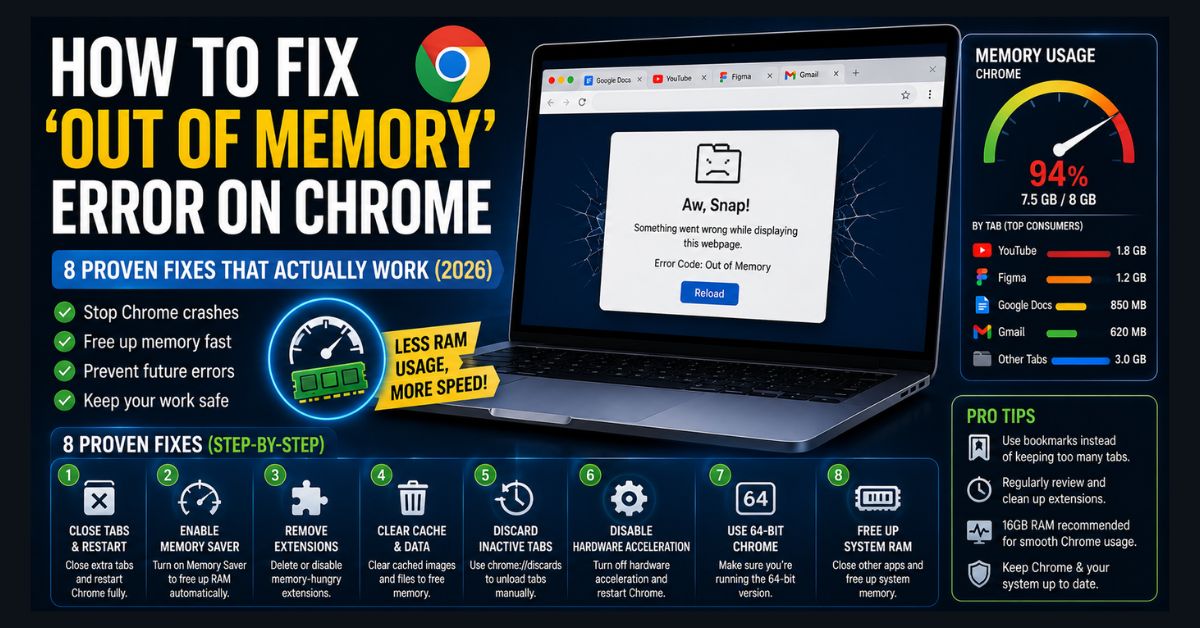
You’re mid-session with several tabs open, a Google Doc in one, a paused video in another, a Figma project in a third, and Chrome crashes with the dreaded “Aw, Snap! Error Code: Out of Memory.” The tab goes blank and any unsaved work vanishes.
The Chrome “Out of Memory” error means Chrome exhausted the available RAM for your current workload, not that your computer is broken. Modern web apps like Figma, Google Sheets, and Miro routinely use 500 MB to 2 GB per tab. Multiply that across 15-20 tabs plus extensions, and Chrome alone can hit 8-12 GB. These are eight fixes, ordered fastest first. Work down the list and stop when the crashes stop.
Why does Chrome use so much memory?
Chrome uses a lot of memory because it isolates each tab, extension, and plugin in its own process. This is a deliberate design choice: if one tab crashes, it doesn’t take down the whole browser. The trade-off is higher memory use than browsers that share processes.
A standard web page tab uses roughly 70-180 MB, but web apps use far more, and Electron-based desktop apps like Discord, Slack, and VS Code each run their own Chromium instance competing for the same RAM. Before trying fixes, run a quick diagnostic: press Shift+Esc on Windows or Linux, or open More Tools > Task Manager from Chrome’s menu, then sort by Memory footprint to see the biggest culprits. There is one piece of good news for 2026, covered below: recent Chrome versions handle memory noticeably better than they used to.
1. What is the fastest fix for the out-of-memory error?
The fastest fix is to close unneeded tabs and fully quit Chrome, not just click the X. Right-click any tab and select “Close other tabs,” then quit Chrome entirely with Alt+F4 on Windows or Cmd+Q on Mac, because closing the window often leaves Chrome processes running in the background.
Relaunch Chrome and open only the tabs you actually need. If the error returns immediately with just one or two tabs open, the cause is more specific than tab overload, so continue with the fixes below.
2. How do I turn on Chrome’s Memory Saver?
Turn on Memory Saver under Settings > Performance, because it is the strongest built-in tool for preventing out-of-memory crashes and most people never enable it. Click the three-dot menu, go to Settings > Performance, and toggle Memory Saver on.
Pick a level from the three Chrome offers, and they are Moderate, Balanced, and Maximum. Moderate deactivates tabs after a longer idle time, Balanced is Google’s recommended default, and Maximum deactivates them fastest for the biggest savings. When Memory Saver deactivates a tab, it stays visible in the tab strip and reloads when you click it. Google describes the levels only by how long a tab stays idle before it becomes inactive (a longer, an optimal, or a shorter period), so Chrome offers no manual inactivity-minute setting to configure. You can read Google’s own description of the levels in its Chrome performance settings help page. Start with Balanced, and move to Maximum only if you still feel pressure. If certain sites must stay live, such as a dashboard or music player, add them under “Always keep these sites active.”
The same Performance page also controls Performance issue alerts, which are on by default. When browsing performance is poor, Chrome sends a notification that recommends deactivating specific tabs, which gives you an early warning before memory runs out completely. To see how much memory each tab uses without opening Task Manager, turn on “Show tab memory usage” under Settings > Appearance on Windows, Linux, and Chromebook, or “Show memory usage on tab hover preview card” on a Mac.
3. How do I stop extensions from eating memory?
Remove memory-hungry extensions at chrome://extensions/, because each extension runs in its own process and a poorly optimized one can use 100-500 MB. Type chrome://extensions/ into the address bar, then disable or remove anything you don’t use regularly.
Common memory offenders are ad blockers running large filter lists, Grammarly, password managers auto-filling on every page, and shopping or coupon extensions. Restart Chrome after removing extensions to reclaim the memory they held. As a habit, keep only the extensions you trust and actually use, and prefer one well-built tool over three overlapping ones.
4. Does clearing the cache reduce Chrome’s memory use?
Clearing the cache can free resources, because a bloated cache forces Chrome to manage more data. Press Ctrl+Shift+Delete (Cmd+Shift+Delete on Mac), set the time range to “All time,” check “Cached images and files,” and click Clear data.
Check “Cookies and other site data” only if you accept being signed out of every website, since that is what it does. After clearing, Chrome re-downloads page resources on first visit, so sites load slightly slower at first, but memory use drops. This is a periodic maintenance step rather than a daily one.
5. How do I manually free memory from specific tabs?
Free memory from specific tabs at chrome://discards/, a built-in page that lets you discard a tab without closing it. Navigate to chrome://discards/ to see a table of every open tab and its memory state, then click Urgent Discard on any tab you’re not using.
The tab stays in your tab bar but releases its memory and reloads when you click it. This is more surgical than Memory Saver because you choose exactly which tabs to discard instead of letting Chrome decide, which is handy when one specific tab is the culprit but you want to keep everything else active.
6. Should I disable hardware acceleration?
Disable hardware acceleration only as a targeted test, because it usually improves performance and should stay on for most systems. On some machines with older or integrated graphics, though, it can cause memory conflicts that trigger the error.
Go to Settings > System and toggle off “Use graphics acceleration when available,” then restart Chrome. If the crashes stop, leave it off. If nothing changes, turn it back on, since keeping it on is the better default for most people. Treat this as a diagnostic switch, not a permanent recommendation.
7. Do I have the 32-bit version of Chrome?
Check for 32-bit Chrome on a 64-bit system, because the 32-bit build can only address about 4 GB of RAM total, which modern browsing exceeds easily. Go to chrome://settings/help to see your version.
If it says 32-bit, download the 64-bit version from google.com/chrome. The 64-bit build manages memory better and is more stable with many tabs. This is rare on modern installs but worth a 10-second check if you’re hitting the error constantly on an older setup.
8. How do I free up system RAM for Chrome?
Free up system RAM by closing other memory-heavy apps, because the out-of-memory error can fire when your whole system is low on memory, not just Chrome. When the OS has no memory to give, it denies Chrome’s allocation requests.
Quit Electron apps like Discord, Slack, and Spotify, close other browsers, and pause background downloads. For a full walkthrough, our guide to freeing up RAM on Windows 11 covers services and standby memory, and on a Mac our MacBook running slow fix covers the equivalent steps. These also help make your laptop faster overall if Chrome is part of a broader slowdown.
Which fix should I try first?
Match the fix to what you’re seeing rather than working through all eight. This table maps the common situations to the most likely cause and the fastest fix.
| Situation | Most likely cause | Fix to try first |
|---|---|---|
| Crash after opening many tabs | Tab overload | Fix 1 (close tabs, restart), then Fix 2 (Memory Saver) |
| Crash returns with only 1-2 tabs | A heavy extension | Fix 3 (remove extensions) |
| One specific tab is huge in Task Manager | A single heavy web app | Fix 5 (chrome://discards/) |
| Crashes with old or integrated graphics | Hardware acceleration conflict | Fix 6 (test disabling it) |
| Constant crashes on an older PC | 32-bit Chrome memory ceiling | Fix 7 (check version) |
| Crashes when other apps are open too | Whole system low on RAM | Fix 8 (free system RAM) |
How do I prevent out-of-memory crashes long term?
Prevent future crashes by keeping Memory Saver on permanently and controlling tab and extension buildup. These habits stop the problem before it starts rather than reacting to a crash.
Keep Memory Saver enabled, audit your extensions about once a month, and use bookmarks or a tab-group workflow instead of leaving 30 or more tabs open. Close Electron apps when you’re not using them, and if you rely on Chrome extensions like weather widgets, choose lightweight ones. Chrome itself has improved here: current versions include the three Memory Saver levels, Performance issue alerts, and a per-tab memory usage display noted above, so keeping Chrome updated is part of the fix. If your whole system has been slow since a recent Windows update, that update may have introduced a leak affecting every app, not just Chrome.
When should I just add more RAM?
Add more RAM when you consistently hit the error despite every fix, because at that point your system doesn’t have enough memory for how you browse. For Chrome-heavy workflows with 20 or more tabs, 16 GB is the practical minimum in 2026.
If you’re on 8 GB, moving to 16 GB eliminates most out-of-memory errors on its own. One 2026 timing note: RAM prices have been volatile because of AI-driven demand, so it’s worth checking our guide on whether to buy now given RAM prices before you upgrade. For the browser-side mechanics, Google’s Chrome developer documentation on Memory Saver and tab discarding explains exactly how discards work, but hardware is the durable fix once software tuning runs out.
FAQ
Why does Chrome use so much more RAM than Firefox or Edge?
Chrome uses a lot of RAM because its multi-process design isolates tabs for stability and security, and Firefox and Edge now isolate pages in a similar way. Firefox runs sites in processes dedicated to their origin (Mozilla’s Site Isolation, released in Firefox 95), while Microsoft Edge is built on Chromium and adds sleeping tabs, which freeze background tabs after 2 hours of inactivity by default and resume them without a full reload. If RAM is your main concern, test your own tab set in each browser, because the difference depends more on the sites and extensions you run than on the browser alone.
Does Chrome’s Memory Saver affect website functionality?
Chrome’s Memory Saver mostly does not affect website functionality. Discarded tabs reload when you click them, which takes a few seconds and is seamless for most sites. Web apps with active connections, such as chat or collaboration tools, can lose their real-time state or unsaved form data when discarded, so add those to “Always keep these sites active” to protect them.
How many Chrome tabs can I open with 8, 16, or 32 GB of RAM?
The number of Chrome tabs you can open depends on the content, but as rough guidance 8 GB handles 10-15 standard tabs comfortably, 16 GB handles 25-40, and 32 GB handles 50 or more plus heavy web apps. The numbers vary widely by content, since a news article uses about 70 MB while a Figma project can use 2 GB. A useful rule is that if Chrome’s total sits above half your installed RAM, you’re near the edge.
Will reinstalling Chrome fix the out-of-memory error?
Reinstalling Chrome sometimes fixes the out-of-memory error. A fresh install removes corrupted profile data and all extensions for a clean start. Try the fixes above first, though, since they are faster and don’t require reconfiguring your browser. Reinstalling is a last resort, not a first step.
Is high Chrome memory usage always a problem?
High Chrome memory usage is not always a problem. Chrome uses available memory to keep pages fast, so a high number is only a problem when it causes crashes, freezes, or the out-of-memory error. If Chrome runs smoothly, a large memory figure by itself is not something to fix.