

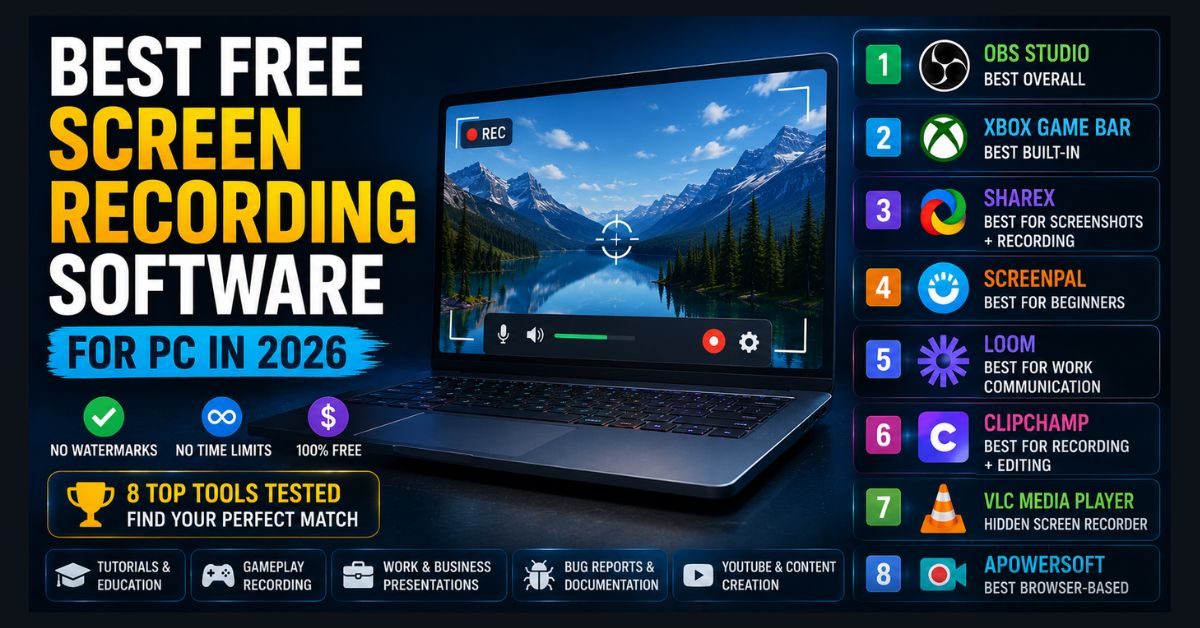
The best free screen recording software for most Windows PCs is OBS Studio, which is open-source and adds no watermark or time limit. Xbox Game Bar (Win+G) is the fastest built-in option for a single app, ShareX adds GIF capture, and Clipchamp combines recording with editing, although Clipchamp limits each recording to 30 minutes.
- Best overall: OBS Studio is free, open-source, and has no watermark or time limit
- Built into Windows 11: Xbox Game Bar records one app window; Snipping Tool (Win+Shift+R) records any screen area
- Free-tier time limits: Loom 5 minutes, ScreenPal 15 minutes, Clipchamp 30 minutes per recording
- Watermarks: Loom free videos carry Loom branding; ScreenPal and Clipchamp add none
- Safety: Download OBS Studio only from obsproject.com to avoid bundled malware
You need to record your screen — maybe a tutorial, a bug report, a presentation, a gameplay clip, or a video for work. You search for screen recording software and find a sea of options, most of which either slap a watermark on your video, limit recording to 5 minutes, or try to upsell you after every click.
We compared the major free screen recorders for Windows in 2026 on the limits that matter, using each developer’s own documentation and pricing pages: watermarks, recording time caps, output formats and paywalls. Here are the eight that are genuinely free to use.
Free Screen Recorders Compared
| Recorder | Best for | Watermark | Time limit (free) |
|---|---|---|---|
| OBS Studio | Best overall, full control | None | None |
| Xbox Game Bar | Built into Windows, one app or game | None | Up to 4 hours |
| ShareX | Recording plus GIFs and screenshots | None | None |
| ScreenPal | Beginners | None | 15 minutes |
| Loom | Quick work videos with a share link | Loom branding | 5 minutes |
| Clipchamp | Recording plus editing | None | 30 minutes |
| VLC Media Player | Already installed, basic capture | None | None |
| Apowersoft Online | Recording from the browser | None | None (desktop app advised over 30 minutes) |
Windows 11 also has a recorder in Snipping Tool: press Win+Shift+R to record any area of the screen.
1. OBS Studio — Best Overall (Free, Open-Source)
Watermark: None | Time limit: None | Output: MP4, MKV, FLV
OBS Studio is the gold standard for free screen recording. It’s open-source, completely free, has no watermarks, no time limits, and no premium tier trying to upsell you. It’s the same tool that professional streamers and content creators use. OBS Studio 32.2.2, the current release as of September 2026 according to the official OBS site, runs on Windows 10 and Windows 11 as well as macOS and Linux.
OBS can record your full screen, a specific window, or a custom region. It supports multiple audio sources (mic + system audio), scene switching, overlays, and even live streaming to Twitch/YouTube. Output quality is excellent at 1080p 60fps with minimal performance impact if configured correctly.
The downside is complexity. OBS has a learning curve — first-time users face a settings screen with bitrate options, encoder choices, and audio routing that can be overwhelming. But for anyone willing to spend 15 minutes learning the interface, it’s the most capable free option by a wide margin.
Best for: Tutorials, gameplay, presentations, streaming, any recording that needs professional quality.
2. Xbox Game Bar — Best Built-In Option (Windows 11)
Watermark: None | Time limit: Up to 4 hours | Output: MP4
Already installed on every Windows 11 PC. Press Win+G to open it, click the record button, and you’re capturing. No download, no setup, no account creation.
Xbox Game Bar records the active window (not the full desktop) with system audio and optional microphone input. Quality is solid at 1080p 30fps (adjustable to 60fps in Settings → Gaming → Captures).
Limitations: it can only record one window at a time (can’t capture the whole desktop or switch between windows during recording), and it can’t record File Explorer or the desktop itself. But for quick recordings of a single app or game, it’s the fastest path from “I need to record this” to “done.” If you only need to capture a still image rather than a full video, you can use Windows’ built-in tools or take a screenshot instead.
Windows 11 also includes a second built-in recorder that avoids the single-window limitation. According to Microsoft’s Snipping Tool guide, pressing Win+Shift+R opens the Snipping Tool overlay, where you select any area of the screen and click Start; the finished clip can be saved as-is or opened in Clipchamp for editing. Snipping Tool is a sensible choice for short desktop or File Explorer demonstrations, although it offers far fewer capture settings than OBS Studio.
Best for: Quick captures, game clips, single-app recordings.
3. ShareX — Best for Screenshots + Recording (Free, Open-Source)
Watermark: None | Time limit: None | Output: MP4, GIF
ShareX is primarily a screenshot tool, but its screen recording feature is excellent — and often overlooked. It can record any region of your screen, the full desktop, or a specific window, with or without audio.
The standout feature is GIF recording. Select a region, hit record, and ShareX creates an animated GIF that’s perfect for quick demonstrations, bug reports, and documentation. No video editing required.
ShareX also includes annotation tools, auto-upload to image hosts, and OCR. It’s a Swiss Army knife for screen capture.
Best for: Documentation, bug reports, GIF creation, technical communication.
4. ScreenPal (formerly Screencast-O-Matic) — Best for Beginners
Watermark: None on free tier (as of 2026) | Time limit: 15 minutes on free | Output: MP4, WebM
ScreenPal removed its watermark from the free tier in 2025, making it one of the simplest free options for beginners. The interface is clean and self-explanatory — choose your recording area, toggle mic/webcam, and click record.
The free tier limits recordings to 15 minutes, which is sufficient for most tutorials and presentations. According to ScreenPal’s plans page, the paid Deluxe plan ($4/month billed annually, as of September 2026) removes the time limit and adds video editing features.
Best for: Beginners who want the simplest possible experience.
5. Loom — Best for Work Communication
Watermark: Loom branding | Time limit: 5 minutes on free | Output: Cloud-hosted
Loom is designed for work communication — record a quick video message instead of typing a long email or scheduling a meeting. It records your screen plus webcam in a bubble overlay, uploads automatically to Loom’s cloud, and generates a shareable link.
The free Starter plan limits screen recordings to 5 minutes and 25 videos per person, and shared videos carry Loom branding. As of September 2026, Loom’s pricing page lists the Business plan at $18 per user per month billed monthly, with up to 17% saved on annual billing, and that plan removes those limits. Despite the restrictions, Loom’s frictionless sharing makes it the best tool for async workplace communication.
Best for: Quick workplace updates, feedback, async communication.
6. Clipchamp — Best for Recording + Editing
Watermark: None | Time limit: 30 minutes per recording | Output: MP4
Microsoft’s Clipchamp (built into Windows 11) combines screen recording with a full video editor. Record your screen, then trim, add text, transitions, and background music — all in one tool without installing anything additional.
The free tier exports at up to 1080p, and Microsoft states that Clipchamp does not add a watermark to exported videos; 4K export requires a paid Clipchamp plan or a Microsoft 365 Personal or Family subscription. Microsoft also limits screen and webcam recordings made in the Clipchamp editor to 30 minutes each, so longer sessions need to be split into several recordings. It’s the best choice if you need to edit your recording after capturing it. The recording quality and options are more limited than OBS, but the integrated editing workflow saves significant time.
Best for: Tutorials that need editing, social media content, presentation recordings.
7. VLC Media Player — Hidden Screen Recorder
Watermark: None | Time limit: None | Output: MP4, AVI
Most people don’t know that VLC — the media player installed on millions of PCs — can record your screen. Go to Media → Open Capture Device → Capture mode: Desktop, set your frame rate (15-30fps works for most uses), and click Play. Then go to View → Advanced Controls and click the record button.
Quality is basic (no audio mixing, limited frame rate options), but it’s a solid emergency option when you need a screen recording and don’t want to install new software. If you already have VLC, you already have a screen recorder.
Best for: Emergency recordings when you don’t want to install anything.
8. Apowersoft Free Online Screen Recorder — Best Browser-Based
Watermark: None | Time limit: None (desktop app advised over 30 minutes) | Output: MP4, WebM
For near-zero-install recording, Apowersoft’s web-based recorder runs from your browser, but Apowersoft’s recorder page now asks you to install a small online launcher (or its Chrome extension) before the first recording. After that, visit the site, grant screen capture permission, and record. Apowersoft recommends its desktop version for recordings longer than 30 minutes, because extra-long online recordings may fail to save.
Quality is decent for web-based recording, and it captures system audio on supported browsers. The trade-off is less control over settings compared to desktop apps.
Best for: One-time recordings, shared computers, Chromebook users.
Which Should You Choose?
Need professional quality and don’t mind learning: OBS Studio. Need something instant with zero setup: Xbox Game Bar. Need GIFs and screenshots too: ShareX. Need recording + editing in one tool: Clipchamp. Need quick work communication videos: Loom.
For recordings that need AI-generated visuals rather than screen capture, check our Sora AI video generator guide or our AI video generators comparison. If you need thumbnails for your recordings, our AI image generators guide covers free tools that create professional-looking thumbnails.
One practical note: if you plan to record while using Chrome with many tabs open, Chrome’s RAM usage combined with screen recording software can cause performance issues. Check our Chrome out-of-memory fix guide to prevent crashes during recording sessions.
FAQ
1. Which free screen recorder has no watermark and no time limit?
OBS Studio, ShareX, Xbox Game Bar (4-hour limit), VLC, and Clipchamp (30-minute recordings) all offer free recording with no watermarks. OBS and ShareX have no time limits at all.
2. Can I record my screen with audio on Windows 11 for free?
Yes. OBS Studio, Xbox Game Bar, and Clipchamp all capture system audio and microphone audio for free on Windows 11. OBS gives the most control over audio sources and mixing.
3. What’s the best screen recorder for gaming?
OBS Studio for high-quality, customizable recording. Xbox Game Bar for quick clips with zero setup. Both capture at 1080p 60fps with minimal performance impact when configured correctly.
4. Is OBS Studio safe to download?
Yes. OBS Studio is open-source software maintained by a large community. Download only from the official website (obsproject.com) to avoid bundled malware from third-party download sites.