

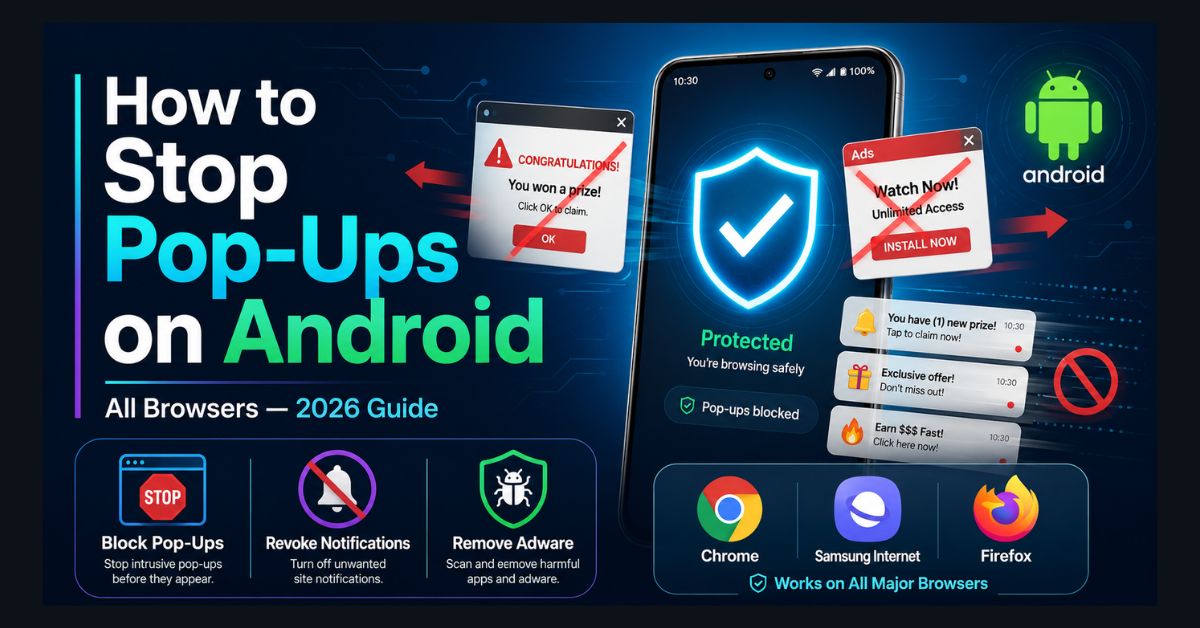
To stop pop-ups on an Android phone, block Pop-ups and redirects and turn on Intrusive ads in Chrome’s Site settings, then remove notification permission from any website you do not recognize. If ads appear on the home screen or inside other apps, uninstall recently installed suspicious apps and confirm that Google Play Protect is turned on.
- Browser switch: Chrome blocks pop-ups in Settings > Site settings > Pop-ups and redirects; Samsung Internet keeps Block pop-ups in its Privacy dashboard
- Most common cause: Many “pop-ups” are notifications from websites you once allowed, so review Site settings > Notifications
- Automatic cleanup: Since October 2025, Chrome removes notification permission from rarely visited sites that send many notifications
- Adware sign: Pop-ups outside the browser point to an installed app; Safe mode helps you find and remove it
- Safer option: Built-in browser blockers are safer than third-party pop-up blocker apps, some of which are adware
Pop-ups on Android phones come from three sources: browser settings that allow pop-ups by default, websites that abuse notification permissions, and in rare cases, adware apps installed on your phone. Each source requires a different fix.
This guide covers all three, with specific instructions for Chrome, Samsung Internet, Firefox, and system-level notification blocking.
Block Pop-Ups in Chrome (Android)
Open Chrome, tap the three-dot menu → Settings → Site settings → Pop-ups and redirects. Turn the Pop-ups and redirects switch off. When the switch is off, Chrome blocks pop-ups; if a site you trust needs one, Chrome shows an “Always show” option at the bottom of the screen for that site only, according to Google’s Chrome Help page.
Also check Settings → Site settings → Notifications. This is where most “pop-up” ads actually come from — websites you accidentally allowed to send notifications. Tap “Notifications” and review the list. Remove any website you don’t recognize by tapping it and selecting “Block” or “Remove.”
Chrome now also cleans up part of this list automatically. Since October 2025, Chrome on Android and desktop removes notification permission from sites you have not engaged with recently that send a high volume of notifications, and it also revokes permission from sites that have repeatedly triggered suspicious-notification warnings. Google reported that fewer than 1% of all notifications receive any interaction from users. Chrome tells you when it removes a permission, and you can review or restore removed permissions in Safety Check. This feature reduces spam, but it does not remove every site you allowed, so a manual review of the Notifications list is still the most reliable fix.
For an extra layer of protection, go to Settings → Site settings → Intrusive ads (listed under “Content”) and make sure the setting blocks intrusive ads.
If pop-ups persist after these settings, the issue may be a rogue extension or a deeper Chrome problem. Our Chrome troubleshooting guide covers how to reset Chrome to a clean state.
Block Pop-Ups in Samsung Internet
Open Samsung Internet, tap the menu (three lines) → Settings → Privacy dashboard and turn on the Block pop-ups switch. Samsung’s support page places this switch in the Privacy dashboard in current versions of Samsung Internet; older versions listed it under Sites and downloads.
Also check Settings → Sites and downloads → Notifications. Like Chrome, review the list and block any suspicious websites.
Samsung Internet supports ad-blocker add-ons directly from the browser menu. Tap the menu (three lines) → Ad blockers, then tap Install next to one of the listed options (AdBlock for Samsung Internet is recommended). Samsung notes that an installed ad blocker is turned on automatically and that not every listed ad blocker is free.
Block Pop-Ups in Firefox
Open Firefox, tap the three-dot menu → Settings → Enhanced Tracking Protection. Set it to Strict for maximum pop-up and tracker blocking.
Firefox’s Strict mode blocks more aggressively than Chrome’s default settings, including cross-site tracking cookies, cryptominers, and fingerprinters. This sometimes breaks website functionality — if a site doesn’t work correctly, tap the shield icon in the address bar to disable protection for that specific site.
Block Notification Pop-Ups (System Level)
The most common source of “pop-ups” on Android phones in 2026 is actually browser notification spam — you visited a website, it asked “Allow notifications?” and you tapped Allow without thinking. Now it sends you ad notifications that look like pop-ups.
Go to Settings → Notifications → App notifications. Find your browser (Chrome, Samsung Internet, etc.). Tap it, then scroll through the notification categories. Look for any website names and toggle them off. Alternatively, tap “Notification categories” and disable “Sites” entirely.
For a more aggressive approach: Settings → Apps → [your browser] → Notifications → disable all notifications except the ones you actually want.
Check for Adware Apps
If pop-ups appear outside your browser — on your home screen, in other apps, or as full-screen ads — you likely have an adware app installed.
Go to Settings → Apps and sort by “Recently installed.” Look for apps you don’t recognize, apps with generic names (like “Cleaner,” “Booster,” “Free VPN”), or apps with no icon. Uninstall anything suspicious.
Run a scan with Google Play Protect: open Google Play Store → tap your profile icon → Play Protect → Scan. This checks all installed apps for malware and adware. On the same screen, tap Settings and confirm that Scan apps with Play Protect is turned on, because Google says Play Protect checks apps when you install them and also scans your device periodically.
If you cannot tell which app is responsible, Google recommends restarting the phone in Safe mode (press and hold the power button, then touch and hold Power off and confirm the Safe mode prompt). Remove recently downloaded apps one at a time, restarting normally after each removal, until the pop-ups stop; you can then reinstall the apps that were not responsible.
If pop-ups started after installing a specific app, uninstall that app immediately — even if it seemed legitimate. Some apps from the Play Store contain hidden adware that activates days after installation. For broader protection strategies, see our cybersecurity and privacy guide.
Enable Chrome’s Built-In Ad Blocker
Chrome for Android includes a built-in ad filter called Intrusive ads. To check it: open Chrome, tap the three-dot menu → Settings → Site settings, then under “Content,” tap Intrusive ads and turn it on if it has been switched off. An earlier version of this guide pointed to a chrome://flags setting called “Block insecure content,” which does not control ads, so use the Site settings option instead.
According to Google’s Chrome Help page, the Intrusive ads filter removes ads from sites with poor ad experiences, such as too many ads, flashing or autoplaying ads, and ad walls that appear before the content. The filter does not remove most ordinary ads or stop tracking, so readers who want broader blocking can use a browser with built-in ad blocking, as described in the prevention section below.
Prevention: How to Avoid Future Pop-Ups
Never tap “Allow” on notification permission requests from websites you don’t trust. Review your notification permissions monthly (Settings → Notifications). Only install apps from the Google Play Store, and check reviews before installing. Keep your phone’s OS updated — Android updates include security patches that block new adware techniques. Consider using a browser with built-in ad blocking (Firefox with Strict protection, Samsung Internet with ad blocker, or Brave Browser).
FAQ
1. Why am I getting pop-ups even with a pop-up blocker enabled?
Most “pop-ups” in 2026 aren’t actually pop-ups — they’re browser notifications from websites you previously allowed. Check Settings → Apps → [Browser] → Notifications and revoke permissions for any suspicious websites.
2. Are pop-up blocker apps safe?
Some are, but many are adware themselves. Stick to built-in browser features (Chrome’s pop-up blocker, Samsung’s ad blocker, Firefox’s Enhanced Tracking Protection) rather than installing third-party apps.
3. Can pop-ups install malware on my Android phone?
Pop-ups themselves rarely install malware automatically on Android. However, they can trick you into tapping “Download” or “Install” buttons that lead to malicious APK files. Never download APK files from pop-ups or unfamiliar websites.
4. How do I stop pop-ups on a specific website?
To stop pop-ups on a specific website in Chrome, navigate to the website, tap the Page info icon to the left of the address bar, tap “Permissions,” and block Notifications and Pop-ups for that specific site.