

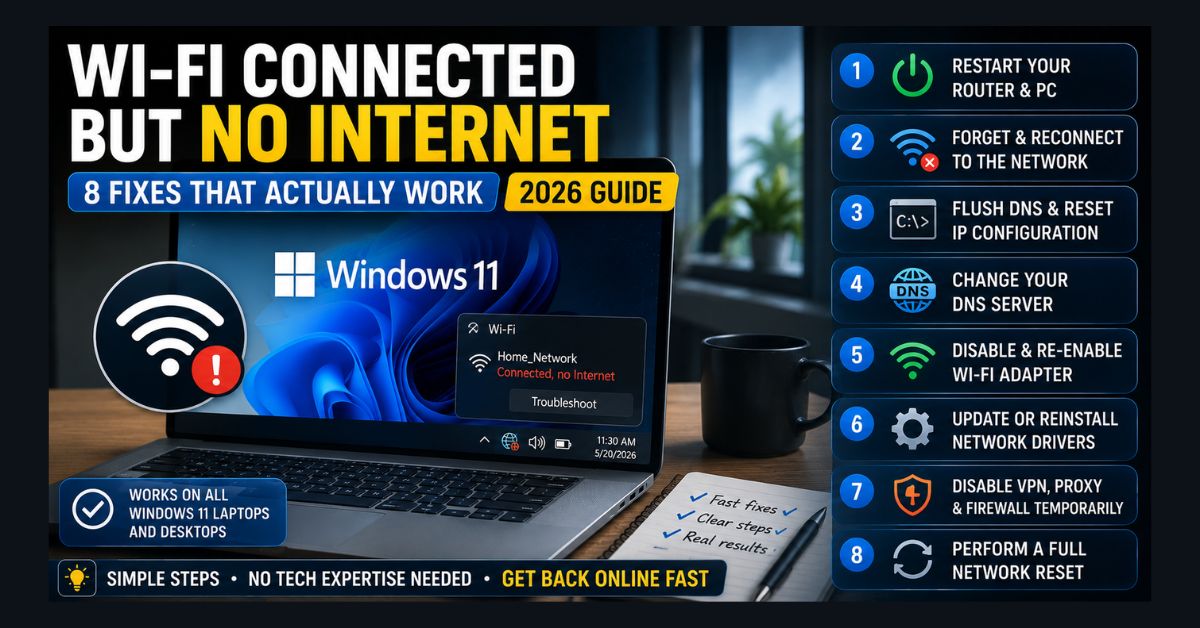
If your Windows 11 PC shows “Connected, no internet,” first restart your router and PC. If that fails, open Command Prompt as admin and run ipconfig /flushdns, then release and renew your IP and reset Winsock. Switching your DNS to Cloudflare (1.1.1.1) or Google (8.8.8.8) fixes most remaining cases. The PC reaches your router but not the internet.
- Try first: Restart the router (unplug 30s) and restart (not shut down) your PC
- Most effective fix: Flush DNS + release/renew IP + reset Winsock in Command Prompt
- Fast DNS fix: Switch DNS to 1.1.1.1 (Cloudflare) or 8.8.8.8 (Google)
- After an update? Reinstall your Wi-Fi driver from the manufacturer’s site
- All devices affected? The problem is your router or ISP, not Windows
Your Windows 11 laptop shows a Wi-Fi connection with full signal bars, but nothing loads — no websites, no email, no streaming. The system tray might show a small globe icon instead of the normal Wi-Fi icon, or you might see the dreaded “No Internet” text under your network name.
This “connected but no internet” problem is one of the most common and most confusing Windows 11 networking issues. Your laptop is successfully connected to your router (that’s why it shows a connection), but it can’t reach the actual internet beyond your router. The disconnect can happen at multiple points — your DNS settings, your network adapter’s IP configuration, your router’s internet connection, or a Windows service that’s stalled.
Here are eight fixes, starting with the fastest. Microsoft’s official Wi-Fi troubleshooting guidance recommends the same basic sequence: restart devices, check the network adapter, and use Windows’ built-in network diagnostics before moving to deeper fixes. In current Windows 11 versions, that built-in diagnostic is the Network and Internet troubleshooter in the Get Help app, which runs automated checks and attempts common repairs before you change any settings manually.
Fix 1: Restart Your Router and PC
This is the IT support cliché for a reason — it resolves a large share of temporary connection faults. Unplug your router’s power cable, wait 30 seconds, and plug it back in. Wait 2-3 minutes for it to fully boot and establish an internet connection (check the router’s status lights).
While the router is rebooting, restart your PC — use Restart, not Shut Down, as there’s an important difference in how Windows handles each.
After both devices are back up, try connecting again. If this fixes it, the issue was temporary — a stale connection, an IP conflict, or a router firmware hiccup.
Fix 2: Forget and Reconnect to the Network
Sometimes the saved network profile becomes corrupted. Forgetting the network and reconnecting forces a fresh configuration.
Go to Settings → Network & Internet → Wi-Fi → Manage known networks. Find your network, click it, and select “Forget.” Then reconnect by clicking the Wi-Fi icon in the system tray, selecting your network, and entering the password again.
Fix 3: Flush DNS and Reset IP Configuration
Stale or corrupted DNS cache is one of the most common causes of “connected but no internet.” Flushing it forces Windows to get fresh DNS records.
Open Command Prompt as administrator (press Win+S, type “cmd,” right-click, select “Run as administrator”). Run these commands one at a time:
ipconfig /flushdnsipconfig /releaseipconfig /renewnetsh winsock resetnetsh int ip reset
After running all five commands, restart your PC. This combination clears the DNS cache, releases and renews your IP address, and resets the network socket configuration. It resolves a large majority of “connected but no internet” cases. Microsoft’s Wi-Fi troubleshooting guide lists the same five commands, which matters because each one repairs a different layer of the connection: the DNS cache, the IP lease from your router, and the Windows network stack.
Fix 4: Change Your DNS Server
Your ISP’s default DNS server may be slow, overloaded, or experiencing issues. Switching to a public DNS server can restore internet access immediately.
Go to Settings → Network & Internet → Wi-Fi → [your network name] → Hardware properties → DNS server assignment → Edit. Change from “Automatic (DHCP)” to “Manual.” Enable IPv4 and enter:
- Preferred DNS: 8.8.8.8 (Google) or 1.1.1.1 (Cloudflare)
- Alternate DNS: 8.8.4.4 (Google) or 1.0.0.1 (Cloudflare)
Click Save. If internet access returns immediately, your ISP’s DNS was the problem. Google’s Public DNS setup guide explains how to use 8.8.8.8 and 8.8.4.4 when your default ISP DNS is unreliable. Cloudflare (1.1.1.1) is generally the fastest; Google (8.8.8.8) is the most reliable. Cloudflare’s 1.1.1.1 documentation is also useful if you want the privacy-focused resolver option instead.
Fix 5: Disable and Re-enable the Wi-Fi Adapter
This is the software equivalent of unplugging and replugging your network card.
Go to Settings → Network & Internet → Advanced network settings. Under “Network adapters,” find your Wi-Fi adapter and click “Disable.” Wait 10 seconds, then click “Enable.”
Alternatively, in Device Manager (right-click Start → Device Manager), expand “Network adapters,” right-click your Wi-Fi adapter, select “Disable device,” wait 10 seconds, then right-click again and select “Enable device.”
Fix 6: Update or Reinstall Network Drivers
If this problem started after a Windows update, the update may have installed a generic or incompatible Wi-Fi driver. This is the same issue that causes Bluetooth to stop working after updates — Windows replaces vendor-specific drivers with generic ones.
Go to your laptop manufacturer’s support page, enter your model number, and download the latest Wi-Fi driver. Install it manually. This is more reliable than using Windows Update’s “Search automatically for drivers” option, which often installs the same generic driver that’s causing the problem.
Fix 7: Disable VPN, Proxy, and Firewall Temporarily
VPNs, proxy settings, and overly aggressive firewall rules can block internet traffic while maintaining the local Wi-Fi connection — resulting in exactly this “connected but no internet” symptom.
Disconnect your VPN if one is active. Go to Settings → Network & Internet → Proxy and make sure “Use a proxy server” is turned off. Temporarily disable your third-party firewall or antivirus to test if it’s blocking connections (re-enable it after testing). For more on how security software can affect connectivity, see our cybersecurity and privacy guide.
Fix 8: Full Network Reset
If nothing above works, a full network reset returns all network settings to factory defaults.
Go to Settings → Network & Internet → Advanced network settings → Network reset. Click “Reset now.” Your PC will restart, and all network adapters will be reinstalled. You’ll need to reconnect to Wi-Fi (re-enter your password), and Microsoft notes that you may need to reinstall VPN client software or virtual switches such as Hyper-V. Known networks can also switch to the Public profile, which makes the PC undiscoverable on the local network, so set your home network back to Private if you use file or printer sharing.
This resolves issues caused by deeply corrupted network stack configuration, conflicting adapter settings, or registry-level misconfigurations that individual fixes can’t reach.
Once the connection is working again, it is worth checking whether the problem was only an outage or part of a broader performance issue. DNS changes, driver updates, router placement, and background Windows settings can all affect speed even after access returns, so our guide to speed up your internet on Windows 11 covers the next set of fixes for slow downloads, buffering, and high ping.
If the Problem Is Your Router, Not Windows
If multiple devices (phone, tablet, other laptops) also show “connected but no internet” on the same Wi-Fi network, the issue is your router’s internet connection, not your Windows PC.
Check if your router’s “Internet” or “WAN” light is off or blinking abnormally — this indicates the connection between your router and your ISP is down. Contact your ISP to check for outages in your area. Try connecting your PC directly to the modem via Ethernet cable to determine whether the issue is the router or the ISP.
An IP address that begins with 169.254 is another useful clue. Microsoft explains that this address means Windows could not get an IP address from the router, so check that DHCP is turned on in the router’s settings before changing anything else on the PC. You can see the address by running ipconfig in Command Prompt and reading the IPv4 Address line for your Wi-Fi adapter.
FAQ
1. Why does my PC say “Connected, no internet” but my phone works fine?
A PC that says “Connected, no internet” while your phone works fine points to a Windows-specific configuration issue rather than a router/ISP problem. The most common causes are stale DNS cache (Fix 3), a corrupted saved network profile (Fix 2), or an incompatible network driver (Fix 6). Run through the fixes above in order.
2. Can a Windows update cause “connected but no internet”?
Yes, a Windows update can cause “connected but no internet.” Windows updates can install generic network drivers that don’t work properly with your specific Wi-Fi adapter, reset DNS settings, or change firewall rules. If the problem started immediately after an update, try Fix 6 (reinstall drivers) first, or roll back the update via Settings → Windows Update → Update history → Uninstall updates. If the problem began after a stuck Windows update, fix the update process first before changing deeper network settings.
3. Should I use Google DNS (8.8.8.8) or Cloudflare DNS (1.1.1.1)?
Both Google DNS (8.8.8.8) and Cloudflare DNS (1.1.1.1) are reliable choices for most users. Cloudflare (1.1.1.1) is generally faster in speed tests. Google (8.8.8.8) has a longer track record and is more widely used. Either will be significantly more reliable than most ISP DNS servers. You can also use Quad9 (9.9.9.9), which blocks lookups of known malicious domains.
4. Will network reset delete my files?
No, a network reset does not delete your files. Network reset only affects network settings — saved Wi-Fi networks and passwords, VPN configurations, and network adapter settings. Your files, apps, and other system settings remain untouched.