

Quick Answer
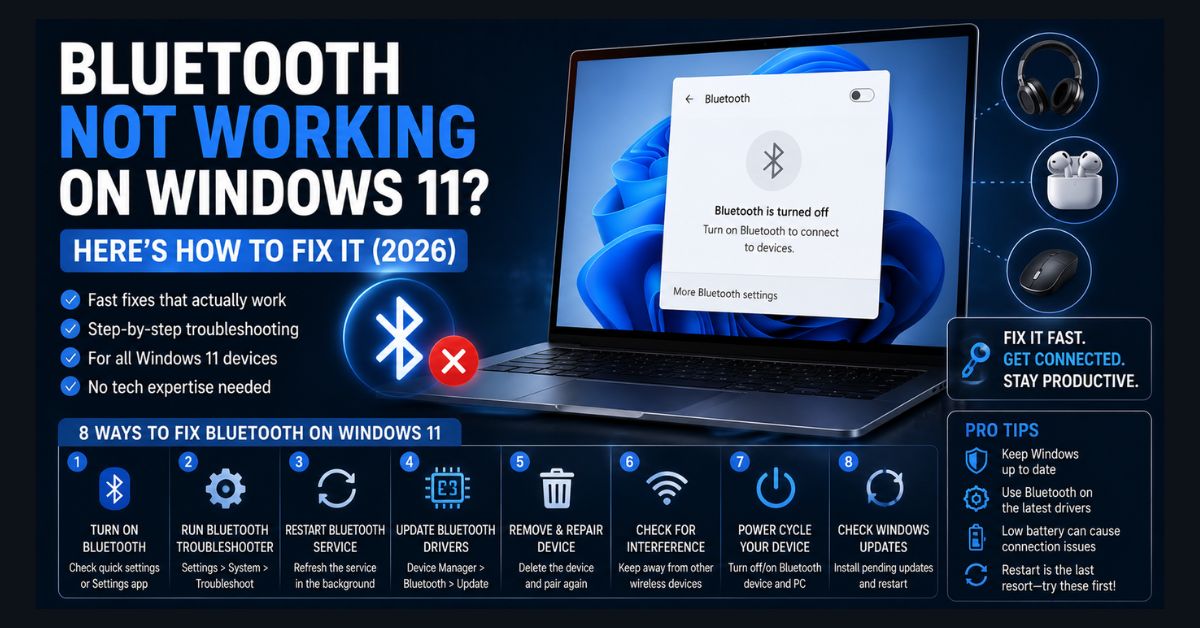
Bluetooth not working on Windows 11 is almost always a software problem, not failed hardware. The fastest fixes are toggling Bluetooth off and on, running the Get Help troubleshooter, restarting the Bluetooth Support Service, and reinstalling the adapter driver. A recent Windows update is the single most common trigger.
Key Takeaways
- Most Bluetooth failures on Windows 11 are software-related and fixable without replacing any hardware
- The most common cause of Bluetooth breaking suddenly is a Windows update that replaced or reset the driver
- Start with the fastest fixes: toggle, troubleshooter, service restart, then driver reinstall
- A March 2026 Windows 11 24H2/25H2 bug hid connected Bluetooth devices from Settings while they kept working
- If Bluetooth and Wi-Fi failed together, suspect the shared wireless card, not Bluetooth alone
You open Settings, go to Bluetooth & Devices, and the Bluetooth toggle is missing, grayed out, or your device simply will not connect. Bluetooth problems on Windows 11 are frustrating because a dozen different things can cause them, from a driver that silently broke after an update to a hardware switch you did not know existed.
The reassuring part is that Bluetooth problems on Windows 11 are almost always software-related and fixable without replacing hardware. Below are nine fixes, ordered fastest first. Work down the list and stop when Bluetooth returns.
What is the fastest fix when Bluetooth stops working?
The fastest fix is to toggle Bluetooth off and back on. Click the network, sound and battery icon cluster at the bottom-right of the taskbar to open Quick Settings, click the Bluetooth tile to turn it off, wait 10 seconds, then click it again to turn it back on.
Restart the Bluetooth device too if a specific accessory will not connect. If the Bluetooth tile is not visible in Quick Settings, click the pencil icon to edit the panel and add it. If Bluetooth does not appear as an available tile at all, skip to Fix 4, because the cause is likely a disabled service, a hardware switch, or a missing driver.
How do I run the Windows 11 Bluetooth troubleshooter?
Run the Bluetooth troubleshooter through the Get Help app, which is the path Microsoft now points to. Open the Get Help app from the Start menu, search for the Bluetooth troubleshooter, and let it run its automated diagnostics and repairs.
Microsoft’s Bluetooth support page lists two routes to the troubleshooter: the “Run the troubleshooter in Get Help” link, and Settings > System > Troubleshoot > Other troubleshooters, where you select Run next to Bluetooth. The automated tool checks your Bluetooth adapter, services and drivers, and fixes common problems such as a stalled service or corrupted pairing without further input. It resolves the issue a meaningful share of the time, particularly when a service has stalled.
How do I restart the Bluetooth Support Service?
Restart the Bluetooth Support Service from the Services console, because Bluetooth will not function if that service has stopped. Press Win+R, type services.msc, and press Enter.
Scroll to Bluetooth Support Service, right-click it, and select Restart. Click Start instead if it is stopped. Check the Startup type while you are there: it should be set to Automatic. Right-click, choose Properties, and change it to Automatic if it reads Manual or Disabled, then start the service. Restart Bluetooth User Support Service as well if it appears in the list.
Why does Bluetooth not appear in Windows 11 at all?
Bluetooth often does not appear because a physical wireless switch or keyboard shortcut turned the radio off. Many laptops have a hardware switch or an Fn key combination (usually F2, F3, or a key with an antenna icon) that disables the wireless radios entirely. When that switch is off, Bluetooth shows no toggle and no settings at all.
Check the edges of your laptop for a physical switch. Press Fn plus each function key while watching the taskbar for a wireless icon change, and check for an airplane-mode shortcut (Fn+F12 is common) that disables all radios. On a desktop, confirm your USB Bluetooth adapter is seated firmly, or that the motherboard’s Wi-Fi and Bluetooth antenna cable is attached to the rear I/O panel.
How do I fix a broken Bluetooth driver on Windows 11?
Fix a broken Bluetooth driver by reinstalling it through Device Manager, because outdated or corrupted drivers are the most common cause of persistent Bluetooth problems, especially after a Windows update. If your PC has also been slow or buggy since a recent update, the same update likely broke the Bluetooth driver.
Work through the driver in three stages, from quickest to most thorough:
- Update the driver. Right-click Start, open Device Manager, expand Bluetooth, right-click your adapter (often named Intel Wireless Bluetooth, Realtek Bluetooth, or similar), choose Update driver, then Search automatically for drivers.
- Reinstall the driver. Right-click the adapter, choose Uninstall device, tick “Attempt to remove the driver for this device” if offered, click Uninstall, and restart. Windows reinstalls the driver automatically on boot.
- Install the manufacturer’s driver. Download the latest driver directly from your laptop maker’s support page (Dell, HP, Lenovo, ASUS) or your chipset maker’s site (Intel, Realtek, Qualcomm) for your exact model. Manufacturer drivers are usually more reliable than the generic ones Windows Update installs.
Stop here and contact your PC maker’s support if reinstalling the driver disables Bluetooth further or Device Manager reports a code you cannot clear. Do not edit the registry to force a driver; a wrong value can break more than Bluetooth.
Could Airplane Mode be disabling Bluetooth?
Airplane Mode disables every wireless radio, Bluetooth included, so check it before assuming a deeper fault. Go to Settings, Network & Internet, Airplane mode, and confirm it is off.
Check the individual Bluetooth toggle inside that section too, because Airplane Mode can be off while Bluetooth is still switched off underneath it. A quick tell: look at the taskbar icons at the bottom-right, and if an airplane icon is showing, Airplane Mode is on.
How do I fix a Bluetooth device that pairs but won’t work?
Remove and re-pair the device, because corrupted pairing data is the usual cause when Bluetooth itself works but one device will not connect. Go to Settings, Bluetooth & Devices, Devices, find the problem device, click the three-dot menu, and choose Remove device. Put the device back into pairing mode (check its manual) and pair it fresh.
Route the audio manually for headphones or speakers. After re-pairing, open Settings, System, Sound and select the Bluetooth device as the output, since Windows sometimes pairs an audio device without switching playback to it.
Did a Windows update break your Bluetooth?
A recent Windows update is the most common trigger for Bluetooth that stopped working suddenly, because updates can replace vendor drivers with generic ones or reset Bluetooth services. Open Settings, Windows Update, Update history, and note the last install date. If Bluetooth failed around that date, the update is the likely cause.
This is not hypothetical in 2026. Microsoft confirmed a bug affecting Windows 11 versions 24H2 and 25H2 in which Bluetooth devices did not appear on the Bluetooth & devices page or in Quick Settings even though they were connected and working. Microsoft shipped an out-of-band hotpatch, KB5084897, on March 16, 2026 to fix it — but that hotpatch reached only hotpatch-enabled Windows 11 Enterprise systems, so home users received the correction through the regular monthly cumulative updates instead. Separately, some users reported Bluetooth vanishing after the January 2026 security update KB5074109. In both cases the fix arrived in a later patch.
Microsoft’s most recent round of Bluetooth fixes arrived in the September 22, 2026 preview update, KB5124010, for Windows 11 24H2 and 25H2. According to Microsoft’s release notes, the update resolves an issue where the Bluetooth radio could be turned off while the toggle on the Bluetooth and devices page still showed as on, fixes a crash with error code 0x139 while streaming Bluetooth audio, and improves microphone compatibility with certain Bluetooth Classic accessories and reliability with LE Audio accessories. This matters because a toggle that reads On while the radio is off looks like a pairing or driver fault, which can send you through the wrong fixes. KB5124010 is an optional non-security preview, and Microsoft lists these Bluetooth changes under a gradual rollout, so not every PC receives them immediately after installing it. Install it from Settings > Windows Update > Advanced options > Optional updates if your symptoms match.
You have two options. Install any pending updates, since Microsoft often ships a quick follow-up patch for update-caused breakages. Or roll back the update that caused it through Settings, Windows Update, Update history, Uninstall updates. If the update also hurt system performance, our guide to clearing RAM on Windows 11 can restore responsiveness while you troubleshoot. The July 2026 cumulative update is covered in our breakdown of KB5101650.
What does a network reset do, and when should I use it?
A network reset restores every network adapter to factory defaults and is the last software fix to try, because it clears deep configuration problems that individual fixes cannot reach. Go to Settings, Network & Internet, Advanced network settings, Network reset, and click Reset now.
Back up nothing special first, but know what you are giving up: the reset removes all network adapters and reinstalls them, so Wi-Fi passwords, Bluetooth pairings and VPN settings all need reconfiguring afterward. Your PC restarts to finish. This is the nuclear option, and it resolves issues from a corrupted network stack, conflicting drivers, or registry-level misconfiguration that targeted fixes miss.
Which Bluetooth fix should I try first?
Match the fix to the symptom rather than working blindly through all nine. This table maps the common symptoms to their most likely cause and the fastest fix to confirm it.
| Symptom | Most likely cause | Fix to try first |
|---|---|---|
| Bluetooth toggle missing entirely | Hardware switch, disabled service, or missing driver | Fix 4 (hardware switch), then Fix 3 (service) |
| Toggle present but grayed out | Stopped Bluetooth Support Service or driver fault | Fix 3 (restart service), then Fix 5 (driver) |
| Stopped working right after an update | Update replaced or reset the driver | Fix 8 (update rollback or newer patch) |
| Toggle shows On, but Bluetooth does not work | Known Windows bug where the radio is off while Settings shows it on | Fix 8 (September 22, 2026 preview update KB5124010) |
| One device won’t connect, others fine | Corrupted pairing data | Fix 7 (remove and re-pair) |
| Device connects but no sound | Audio routing, not Bluetooth | Fix 7 (set as sound output) |
| Bluetooth and Wi-Fi both dead | Shared wireless card fault | Hardware section below |
What if Bluetooth still doesn’t work after every fix?
The Bluetooth adapter itself may have failed if all nine fixes do nothing, though hardware failure is uncommon. The tell is whether Wi-Fi went down with it.
On laptops, the Bluetooth chip is usually built into the Wi-Fi card. If Bluetooth and Wi-Fi both stopped at the same time, the card is the likely culprit and is typically a $20–40 M.2 module, replaceable on most laptops. Stop and use a repair service if you are not comfortable opening the chassis, because a mis-seated antenna cable is easy to damage.
On desktops, the simplest fix is a USB Bluetooth adapter for around $10–15 in any USB port. These work immediately with the drivers built into Windows 11 and sidestep motherboard Bluetooth entirely. Prices are approximate and vary by brand and region.
How do I keep Bluetooth secure on Windows 11?
Turn Bluetooth off when you are not using it, especially in public, because Bluetooth vulnerabilities have been used for proximity attacks, unauthorized data access and device tracking. Leaving the radio off when idle removes the attack surface entirely.
Keep your Bluetooth driver current, since security fixes ship in driver updates as well as feature improvements. If you handle sensitive information on the move, broader data privacy practices extend to your wireless connections too.
FAQ
Why did my Bluetooth disappear from Windows 11 settings after an update?
Windows updates can install generic Bluetooth drivers that are incompatible with your hardware, or reset Bluetooth services to Disabled. A confirmed 2026 bug on Windows 11 24H2 and 25H2 also hid connected devices from Settings while they kept working, fixed in a later patch. Reinstall the driver (Fix 5) and restart the Bluetooth Support Service (Fix 3) to restore it, and install any pending updates.
Can I use Bluetooth 5.0 or 5.3 devices with an older Bluetooth adapter?
Yes. Bluetooth is backward compatible, so a Bluetooth 5.3 headset connects to an older 4.0 adapter. You lose newer features such as lower latency, extended range and improved audio quality, but the connection works. Upgrade to a Bluetooth 5.0 or newer adapter if connection quality with newer devices is poor.
Why does my Bluetooth device connect but produce no sound?
A Bluetooth device that connects with no sound is usually a Windows audio routing issue, not a Bluetooth fault. Open Settings, System, Sound and select the Bluetooth device as the output. Confirm the audio-related Bluetooth services are running in services.msc if it still stays silent.
Does Windows 11 support Bluetooth LE (Low Energy)?
Yes, Windows 11 supports Bluetooth LE natively, but some older adapters do not. If an LE-only device such as a fitness tracker or smart-home sensor will not pair, your adapter may lack LE support. Check Device Manager, Bluetooth, to see your adapter’s supported version.
How do I know if my Bluetooth adapter is working in Device Manager?
Open Device Manager and expand Bluetooth. If your adapter appears without a yellow warning triangle, Windows recognizes it and it is functional. A yellow triangle means a driver problem. If Bluetooth does not appear as a category at all, Windows cannot detect the adapter or it is disabled in BIOS/UEFI.