

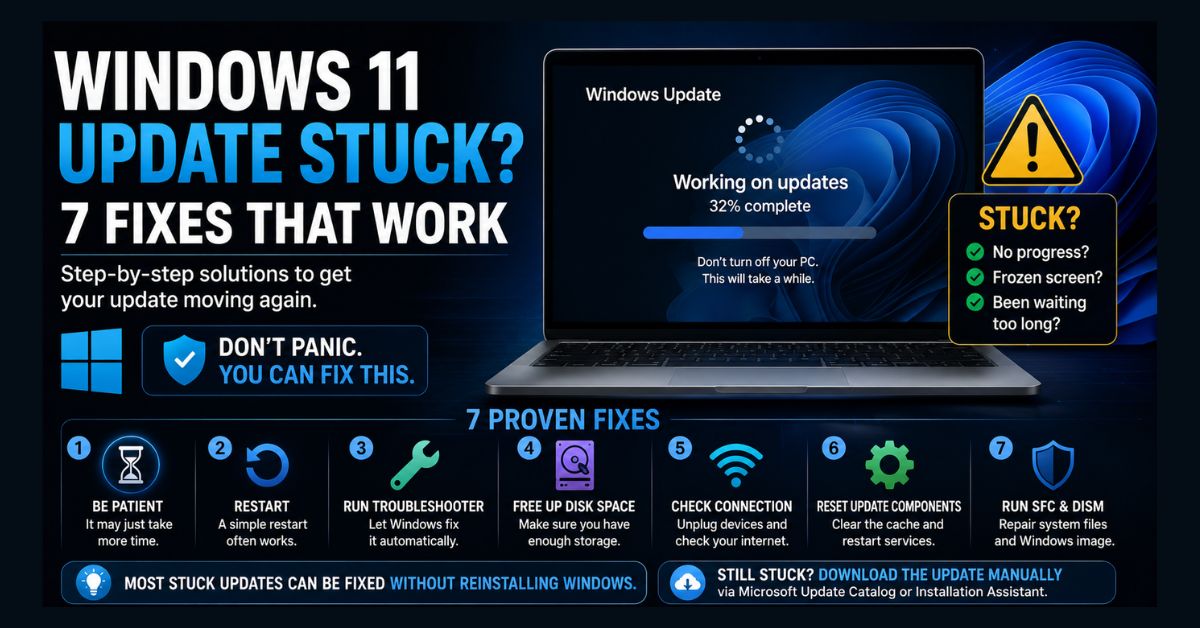
If your Windows 11 update is stuck, first wait 2–3 hours, since large updates can stall at a percentage for a long time. If it’s truly frozen, restart your PC, run the Windows Update Troubleshooter (Settings > System > Troubleshoot), free up disk space, then reset Windows Update components by clearing the SoftwareDistribution folder. These steps fix the vast majority of stuck updates.
- Be patient first: Many “stuck” updates are just slow — wait before acting
- Easiest fix: Restart and run the built-in Windows Update Troubleshooter
- Most effective fix: Reset Windows Update components (clear SoftwareDistribution)
- Common causes: Low disk space, weak connection, corrupted update files, or malware
- Last resort: Install the update manually from the Microsoft Update Catalog
A stuck Windows 11 update is one of the most frustrating PC problems: the screen sits at “Downloading 0%” or “Working on updates 32%” for what feels like forever, and you’re afraid to touch anything in case you break something. The good news is that stuck updates are almost always fixable, and you rarely need to reinstall Windows. This guide walks through 7 fixes in order, from the simplest (just wait) to the more advanced (resetting Windows Update’s internals), so you can stop at whichever one works.
Before you start, one reassurance: it’s usually safe to restart a PC that’s genuinely stuck, as long as you’ve given it enough time first. Windows is designed to recover from an interrupted update. Work through these fixes in order, and don’t jump to the advanced steps until you’ve tried the easy ones.
Why do Windows 11 updates get stuck?
Updates stall for a handful of common reasons: a slow or dropping internet connection, not enough free disk space, corrupted update files in Windows’ download cache, conflicts with third-party antivirus or peripherals, or interference from malware. Sometimes the update isn’t actually stuck at all, it’s just a large download crawling on a slow connection. Identifying which cause you’re facing is what the steps below are designed to do, starting with the least disruptive.
Fix 1: Be patient and confirm it’s actually stuck
Before anything else, give it time. Major Windows 11 feature updates can take one to three hours, and progress bars often sit at the same percentage (like 32% or 99%) for a long stretch before jumping. A number that hasn’t moved for 15 minutes is not necessarily stuck.
How to tell if it’s truly frozen: watch your storage drive activity light (it should flicker if work is happening) and listen for disk activity. On the lock screen, the spinning dots usually keep moving during a real install. As a rule of thumb, wait at least 2–3 hours on a feature update before assuming it’s stuck. If you’re on a slow connection, that’s often the entire problem, and our guide on speeding up your internet on Windows 11 can help downloads finish faster.
Fix 2: Restart your PC and run the update again
If the update is genuinely frozen, a restart clears the stuck state more often than any other single step. If Windows won’t restart normally, hold the physical power button for about 10 seconds to force a shutdown, wait a moment, then power back on.
After rebooting, go to Settings > Windows Update > Check for updates and let it try again. In many cases the update simply resumes and completes. This alone resolves a large share of stuck-update cases, which is why it’s the first thing to try after waiting.
Fix 3: Run the Windows Update Troubleshooter
Windows 11 includes a built-in tool that automatically finds and fixes common update problems. To run it: open Settings > System > Troubleshoot > Other troubleshooters, find Windows Update, and click Run. On current Windows 11 builds this launches the troubleshooter through the Get Help app, which runs diagnostics and applies fixes automatically. Restart your device when it finishes, then check for updates again.
This is the safest automated fix, it resets stuck services and clears minor corruption without any manual commands. Microsoft’s own guide to troubleshooting Windows updates recommends starting here before moving to manual steps.
Fix 4: Free up disk space
Windows updates, especially feature updates, need a substantial amount of free space to download and stage the files. Microsoft’s update troubleshooting guide states that a device needs at least 20 GB of free space to upgrade a 64-bit operating system, and every Windows 11 installation is 64-bit. If your drive is nearly full, the update can stall indefinitely.
Check your space in Settings > System > Storage. If you’re low, run the built-in Storage Sense or Disk Cleanup tool, delete temporary files, empty the Recycle Bin, and uninstall apps you don’t use. Clearing previous Windows installation files and temporary update files can free up several gigabytes. If your PC is generally sluggish and cramped, our guide on making your laptop faster covers more ways to reclaim space and speed.
Fix 5: Disconnect peripherals and check your connection
Two external factors frequently derail updates. First, unplug unnecessary peripherals, external drives, docks, USB hubs, printers, and the like, since a faulty or incompatible device or driver can cause an update to hang. Leave only your keyboard, mouse, and monitor connected, then retry.
Second, verify your internet connection is stable. A stuck download usually means a connectivity problem, not an update problem. If your Wi-Fi shows connected but nothing loads, our guide on fixing Wi-Fi connected but no internet on Windows 11 walks through the fix. Where possible, switch to a wired Ethernet connection for the duration of a large update, it’s faster and far more reliable than Wi-Fi.
Fix 6: Reset Windows Update components (the most effective fix)
This is the fix that resolves stubborn cases the troubleshooter can’t. It works by stopping the update services, clearing the SoftwareDistribution folder where Windows stores downloaded update files (corruption here is a leading cause of stuck updates), and restarting the services so Windows re-downloads everything cleanly.
Open Command Prompt as administrator (type “cmd” in the Start search box, then choose Run as administrator) and run these commands one line at a time:
net stop wuauserv
net stop bits
net stop cryptSvc
ren C:\Windows\SoftwareDistribution SoftwareDistribution.old
ren C:\Windows\System32\catroot2 catroot2.old
net start wuauserv
net start bits
net start cryptSvc
These commands stop the Windows Update, Background Intelligent Transfer, and Cryptographic services; rename the two cache folders (Windows rebuilds them automatically); and restart the services. Restart your PC afterward and check for updates again, Windows will download fresh, uncorrupted files. This single procedure fixes the majority of persistent stuck updates.
Fix 7: Run SFC and DISM scans to repair system files
If updates still won’t install, corrupted Windows system files may be the culprit. Two built-in command-line tools repair them. In an administrator Command Prompt, run:
sfc /scannow
Let it finish (it scans and repairs protected system files), then run the DISM tool to repair the underlying Windows image:
DISM /Online /Cleanup-Image /RestoreHealth
DISM may take 10–20 minutes and needs an internet connection, since it pulls clean files from Windows Update. When both finish, restart and try the update once more. If you’d rather rule out malware as the cause of damaged files first, our guide to removing malware from Windows 11 free is worth a quick run, infections are an underrated cause of update failures, and aggressive third-party antivirus software can sometimes block updates too.
Still stuck? Install the update manually
If none of the above works, you can bypass Windows Update entirely. Note the KB number of the failing update (shown in your update history), then download it directly from the official Microsoft Update Catalog and install it yourself. For a full feature update, Microsoft’s Windows 11 Installation Assistant does the same job. As of September 2026, Microsoft’s download page lists Windows 11 version 25H2 as the current release, and the Installation Assistant works only on x64 processors, so it is not an option on Arm-based PCs. Microsoft’s help page for upgrade and installation errors lists the specific error codes and what each one means, useful if you’re seeing a code like 0x80070002.
Windows 11 also includes a repair option that sits between these fixes and a full reset. According to Microsoft’s guide to fixing issues by reinstalling the current version of Windows, going to Settings > System > Recovery and selecting Reinstall now under Fix problems using Windows Update reinstalls the current version of Windows while preserving your apps, files, and settings. The option requires Windows 11 version 22H2 or later with the February 2024 optional update or a later update, and it is unavailable on some work or school PCs whose updates are managed by an organization. Microsoft advises keeping the PC connected to power and the internet during the entire reinstallation, and backing up important files first remains the sensible precaution.
Before any major update or repair, it’s smart to back up your important files, and if something does go missing after an update, our guide on recovering deleted files in Windows 11 can help. With these seven fixes, the overwhelming majority of stuck Windows 11 updates can be resolved without reinstalling the operating system or losing your data.
FAQ
How long should I wait before assuming a Windows 11 update is stuck?
Wait at least 2–3 hours for a major feature update before assuming it’s stuck, as updates often pause at a fixed percentage for long stretches. Watch your drive activity light and the spinning dots on the lock screen, if there’s activity, it’s still working. Only intervene once there’s been no progress or disk activity for a long period.
Is it safe to restart my PC during a stuck Windows update?
Yes, as long as you’ve given the update enough time first (2–3 hours for a feature update). Windows is designed to recover from interrupted updates. If it won’t restart normally, hold the power button for about 10 seconds to force a shutdown, then power back on and let the update resume.
What does clearing the SoftwareDistribution folder do?
The SoftwareDistribution folder stores Windows Update’s downloaded files. If those files become corrupted, updates can get stuck. Stopping the update services, renaming this folder, and restarting the services forces Windows to download fresh, clean update files, which fixes most persistent stuck updates.
Why does my Windows 11 update keep failing with an error code?
Windows 11 update error codes usually point to corrupted update files, insufficient disk space, a connection problem, or system file damage. Microsoft’s upgrade error guide describes 0x80070002 as a file the system cannot find and says 0x800f0922 can mean the PC could not connect to the Windows Update servers. Run the Windows Update Troubleshooter, free up disk space, reset Windows Update components, and run SFC and DISM scans. Microsoft’s support pages explain what each specific error code means.
Can antivirus or malware cause Windows updates to get stuck?
Yes. Malware can interfere with or block Windows updates, and some aggressive third-party antivirus programs can do the same. Running a malware scan and temporarily disabling third-party security software during the update can resolve cases where the built-in fixes don’t work.