

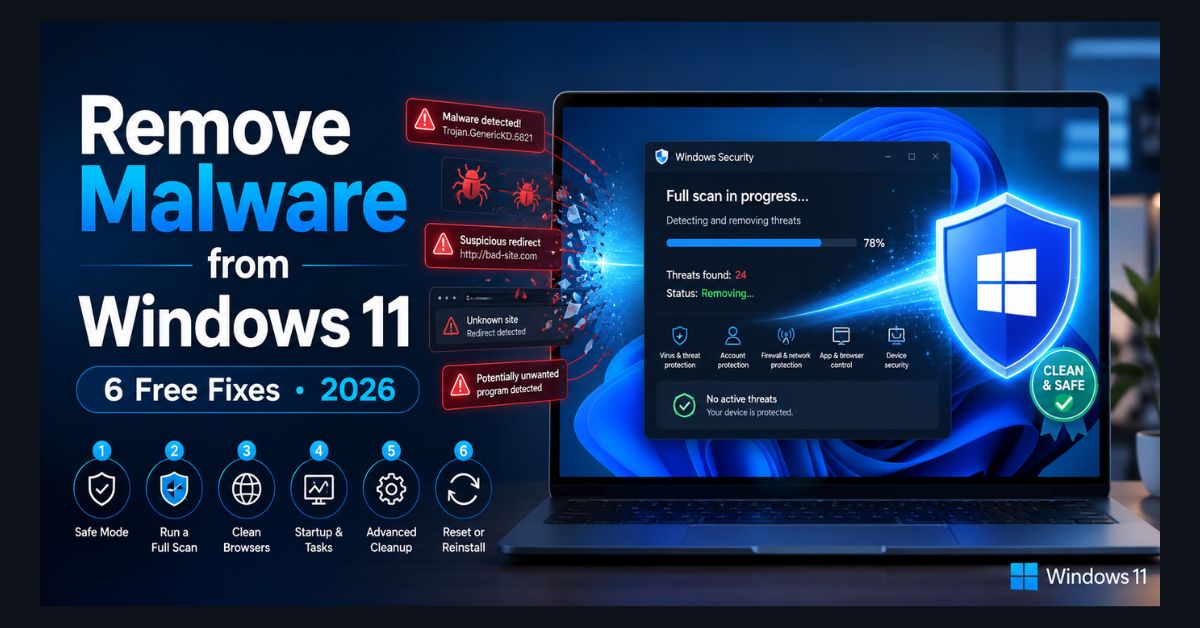
Your Windows 11 PC is behaving strangely — random pop-ups appearing out of nowhere, sluggish performance that wasn’t there last week, your browser redirecting to sites you didn’t visit, unfamiliar programs running in Task Manager, or your antivirus mysteriously disabled. These are classic signs of a malware infection, and you don’t need to pay $60/year for an antivirus subscription to fix it.
Windows 11 includes built-in tools that can handle most malware, and one free third-party scanner fills the gap for what Windows Defender misses. Here are six steps in the order you should follow them — skipping ahead often means the malware reinstalls itself.
Before You Start: Disconnect From the Internet
Pull the plug first. Many malware variants maintain active connections to remote command servers, downloading additional payloads, exfiltrating your personal data, or receiving instructions to spread to other devices on your network. Disconnecting Wi-Fi or unplugging your Ethernet cable stops this communication cold while you clean.
On Windows 11: click the Wi-Fi icon in the system tray and click “Disconnect,” or toggle the Wi-Fi tile to off. For Ethernet, physically unplug the cable.
Step 1: Boot Into Safe Mode
Safe Mode loads Windows with only essential drivers and services — the bare minimum needed to run the operating system. Most malware depends on normal Windows services to run and hide. In Safe Mode, those services don’t load, which exposes the malware and prevents it from blocking your cleanup efforts.
Press Win+I → System → Recovery → Advanced startup → Restart now. When your PC restarts, select Troubleshoot → Advanced options → Startup Settings → Restart. Press 4 or F4 for “Safe Mode,” or 5/F5 for “Safe Mode with Networking” (use this only if you need to download Malwarebytes in Step 3).
You’ll know you’re in Safe Mode when “Safe Mode” appears in each corner of the screen and the desktop background turns black.
Step 2: Run Windows Defender Full Scan
Windows Defender is a genuinely capable antivirus — it consistently scores 99-100% malware detection rates in independent testing by AV-TEST and AV-Comparatives. In Safe Mode, many malware processes that would normally block or evade Defender are inactive, making the scan more effective.
Open Windows Security (search “Windows Security” in the Start menu). Go to Virus & threat protection → Scan options → Full scan → Scan now. A full scan examines every file on your system drive and takes 30-90 minutes depending on drive size and speed.
Don’t interrupt the scan. When it finishes, Defender shows a list of detected threats with recommended actions. Click Remove or Quarantine for every item found. If Defender recommends “Allow” for anything, don’t — that’s usually a false negative or a PUP (potentially unwanted program) trying to whitelist itself.
After the scan completes, restart normally and check if symptoms persist. If they do, continue to Step 3.
Step 3: Run Malwarebytes Free (Second Opinion Scanner)
Malwarebytes catches what traditional antivirus sometimes misses: adware, browser hijackers, PUPs (potentially unwanted programs), and toolbars that aren’t technically viruses but still compromise your system. It’s the industry-standard second-opinion scanner, and the on-demand version is free forever — no trial period, no expiration.
Download Malwarebytes Free from malwarebytes.com (use Safe Mode with Networking if your normal browser is compromised). Install it, select Threat Scan, and let it run. Remove everything it finds.
Important: Malwarebytes Free does NOT include real-time protection — that’s the paid tier ($5/month). The free version is an on-demand scanner only. This is actually ideal for use alongside Windows Defender: Defender handles real-time protection, Malwarebytes handles periodic deep cleans. The two don’t conflict because they’re not both trying to do real-time scanning.
Step 4: Clean Up Browser Extensions and Reset
Malware frequently survives system cleaning by hiding in browser extensions. Even after Defender and Malwarebytes have cleaned your system files, a malicious browser extension can redirect searches, inject ads, steal passwords, and reinfect your system.
In Chrome: Navigate to chrome://extensions/ and review every installed extension. Remove anything you don’t recognize, didn’t install yourself, or don’t actively use. Then go to Settings → Reset settings → Restore settings to their original defaults. This wipes all extensions, resets your homepage and search engine, and clears temporary data. You’ll need to re-enable the extensions you actually want.
In Edge: Navigate to edge://extensions/ and do the same review. Then Settings → Reset settings → Restore settings to their default values.
In Firefox: Navigate to about:addons and remove suspicious extensions. Then Help → More troubleshooting information → Refresh Firefox.
If you’ve been experiencing Chrome memory issues alongside the malware symptoms, cleaning up extensions often resolves both problems simultaneously — malicious extensions can consume enormous amounts of RAM.
Step 5: Check for Persistent Threats
Sophisticated malware survives standard cleaning by embedding itself in startup entries, scheduled tasks, or system services. Even after Steps 1-4, you may have residual infection points that will reactivate the malware on your next restart.
Check startup programs: Press Ctrl+Shift+Esc → Startup apps tab. Look for entries with unfamiliar names, blank publisher fields, or file paths pointing to Temp folders, AppData, or randomly named directories. Disable anything suspicious.
Check scheduled tasks: Search “Task Scheduler” in Start. Browse the Task Scheduler Library for tasks with suspicious names (random strings of characters), tasks created around the date your symptoms started, or tasks that reference executable files in unusual locations. Right-click and Delete anything that shouldn’t be there.
Check installed programs: Go to Settings → Apps → Installed apps. Sort by “Install date” and examine anything installed around when your symptoms began. Uninstall programs you don’t recognize — particularly anything with a generic name like “System Optimizer,” “Driver Updater,” “PC Cleaner,” or “Search Manager.”
Check your hosts file: Some malware modifies your hosts file to redirect legitimate websites to malicious servers. Open Notepad as administrator, then open C:\Windows\System32\drivers\etc\hosts. The file should only contain comment lines (starting with #) and possibly a localhost entry. If you see entries redirecting real domains (google.com, facebook.com, your bank) to IP addresses, delete those lines and save.
Step 6: The Nuclear Option — Clean Windows Reinstall
If malware symptoms persist after all five previous steps, you may be dealing with a rootkit, bootkit, or deeply embedded threat that survives standard removal techniques. At this point, a clean Windows reinstall is the most reliable solution.
Before reinstalling: Back up your important files to an external drive (scan the backup drive with Malwarebytes afterward to ensure you’re not carrying the infection). Note which programs you use — you’ll need to reinstall them.
Go to Settings → System → Recovery → Reset this PC → Remove everything. Choose “Cloud download” for a clean copy of Windows from Microsoft’s servers (the local reinstall option uses files from your current infected installation, which is risky). This erases everything and gives you a guaranteed clean system.
After reinstalling, immediately run Windows Update to install security patches before doing anything else. Then reinstall your applications from official sources only.
How to Prevent Future Infections
Prevention is significantly easier than cleanup. Keep Windows updated — security patches close the exact vulnerabilities malware exploits. If your PC has been slow after a recent update, don’t skip future updates because of the inconvenience — the temporary slowdown is far less painful than a malware infection.
Enable Windows Defender real-time protection — it’s on by default, and you should never disable it. Defender is enough for most home users, but it is still worth knowing which free antivirus options add useful second-opinion scanning, browser protection, or cleanup tools without pushing you into a paid subscription. Don’t download software from random websites — use the Microsoft Store or official vendor sites. Be cautious with email attachments, even from known contacts — compromised accounts frequently send malware to the victim’s contact list. And never click “Enable macros” on a document unless you’re 100% certain of its source.
For a comprehensive security strategy beyond malware removal, see our cybersecurity and data privacy guide and our data privacy management tools review.
FAQ
1. Is Windows Defender enough, or do I need paid antivirus in 2026?
For most home users, Windows Defender provides excellent protection. It consistently scores 99-100% in independent detection tests by AV-TEST and matches or exceeds paid antivirus products in real-world protection rates. Paid antivirus adds convenience features (bundled VPN, password manager, identity monitoring) but isn’t necessary for core malware defense. Pair Defender with periodic Malwarebytes Free scans for a robust, free security setup.
2. How do I know if my PC actually has malware vs just being slow?
Common malware signs: unexpected pop-ups or ads (especially outside your browser), browser redirecting to unknown sites, programs you didn’t install, antivirus disabled without your action, dramatic and sudden slowdown, and unusual network activity. If your PC is just gradually getting slower over time without these symptoms, it’s more likely a performance issue — check our laptop speed guide for optimization tips.
3. Can malware survive a PC restart?
Yes. Most modern malware persists across restarts by installing itself in startup entries, scheduled tasks, system services, or the Windows registry. Some advanced malware (rootkits) embeds itself in the boot process itself. That’s why Safe Mode scanning (Step 1-2) and checking persistent locations (Step 5) are critical — simply restarting doesn’t clean anything.
4. Should I pay for malware removal services?
In most cases, no. The free tools in this guide (Windows Defender + Malwarebytes Free) handle the vast majority of infections. If those tools can’t clean it, a clean Windows reinstall (Step 6) is free and guarantees complete removal. Paid removal services make sense only for businesses that need to preserve complex server configurations where reinstallation isn’t practical.
5. Can malware spread to other devices on my network?
Yes — some malware variants (worms, network-spreading ransomware) can propagate to other computers on the same network. This is why Step 0 (disconnect from the internet/network) is critical. After cleaning your PC, scan other devices on the same network as a precaution, especially if they share files or folders with the infected machine.