

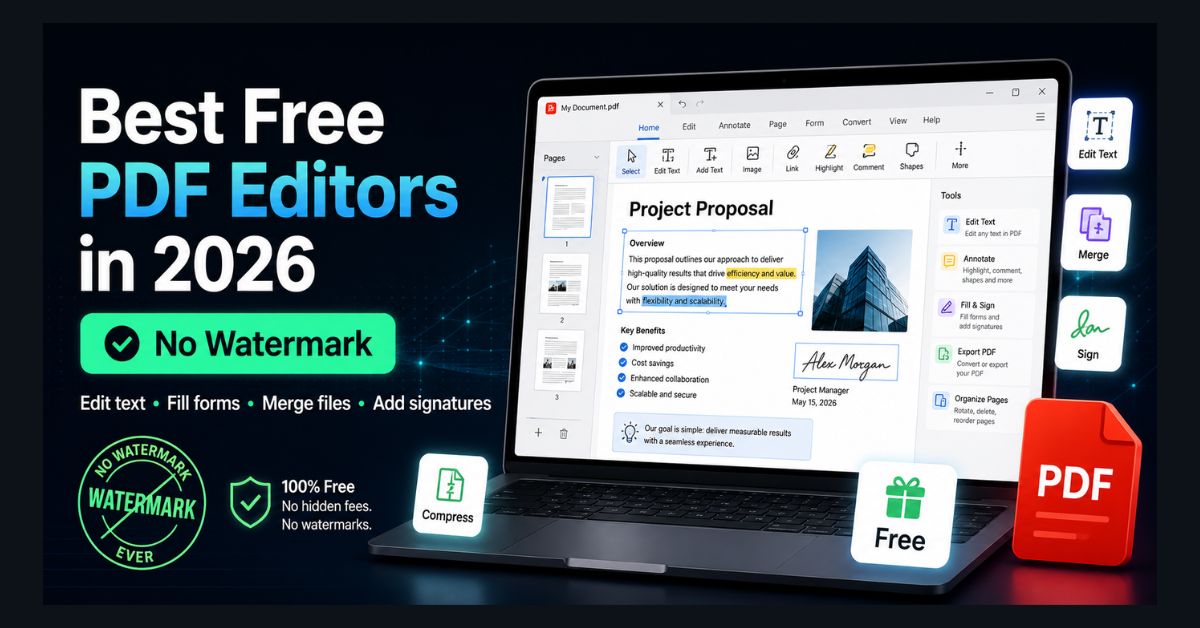
The best free PDF editor for most people is LibreOffice Draw, which edits existing text with no watermark, account or usage limits. For quick form filling and signing, use Microsoft Edge on Windows or Preview on a Mac. Sejda is the best browser option for changing text, within its free limits.
- Best overall: LibreOffice Draw edits existing PDF text for free, with no watermark
- No install: Microsoft Edge and Mac Preview annotate, sign and fill forms but can’t change the original text
- Best web editor: Sejda edits text free up to 200 pages, 50 MB and 3 tasks per hour
- Watch for watermarks: PDF-XChange Editor’s licensed tools stamp one on the output
- Avoid cracked Acrobat: pirated copies are a common source of malware
You need to edit a PDF — change some text, fill a form, merge two files, or add a signature — but Adobe Acrobat Pro costs US$19.99/month on an annual plan or US$29.99 month to month (as of September 2026, per Adobe’s pricing page), and most “free” alternatives stamp an ugly watermark across your document. Finding a truly free PDF editor with no watermark, no time limits, and no hidden paywalls is surprisingly difficult.
We compared the major free PDF editors in 2026 on three questions: can it actually edit existing text (not just annotate)? Does it add a watermark? And does it work without creating an account? No single free tool does everything, so here are the eight best, with what each one can and can’t do.
Free PDF Editors Compared
| Editor | Edit existing text | Watermark | Account needed | Platform |
|---|---|---|---|---|
| LibreOffice Draw | Yes | None | No | Windows, Mac, Linux |
| Microsoft Edge | No (add text, draw, sign, fill forms) | None | No | Windows, Mac |
| Smallpdf | Add text and images | None | Optional (daily task limit) | Web |
| Sejda | Yes (not in scanned PDFs) | None within free limits | No | Web, desktop |
| PDF-XChange Editor | Depends on the tool (licensed tools add a watermark) | None on free tools | No | Windows |
| Preview | No (annotate, sign, fill forms) | None | No | Mac |
| Google Docs | Yes, by converting the PDF (layout may change) | None | Google account | Web |
| iLovePDF | Limited | None | Optional | Web |
1. LibreOffice Draw — Best for Full PDF Editing (Free, Desktop)
Watermark: None | Sign-up required: No | Platform: Windows, Mac, Linux
LibreOffice Draw can open PDFs and edit them like a document — change text, move images, add or delete pages, modify formatting. It’s the closest you’ll get to Adobe Acrobat’s editing capabilities for free.
Open LibreOffice Draw, then File → Open → select your PDF. Each page loads as an editable canvas. Click on text to edit it, drag images to reposition them, and use the drawing tools to add shapes or annotations. Save as PDF when done.
Limitations: complex PDFs with advanced formatting may not render perfectly, and font substitution can occur if the original fonts aren’t installed on your system. For simple text edits, form filling, and basic layout changes, it’s excellent.
2. Microsoft Edge — Best Built-In Editor (Free, No Install)
Watermark: None | Sign-up required: No | Platform: Windows, Mac
Microsoft Edge has a surprisingly capable built-in PDF editor that most people don’t know about. Open any PDF in Edge and you can add text, highlight, draw or sign with ink, add text notes, fill basic form fields, rotate the view, and have the document read aloud, according to Microsoft’s PDF reader documentation.
Right-click any PDF → Open with → Microsoft Edge. Use the toolbar that appears at the top. It’s not full editing (you can’t change existing text, and Microsoft does not list page deletion or reordering among the reader’s features), but for annotations, form filling, and signing, it’s the fastest zero-install option.
3. Smallpdf — Best Web-Based Editor (Free, Browser)
Watermark: None (on free tier) | Sign-up required: Optional | Platform: Web (any browser)
Smallpdf offers the most polished web-based PDF editing experience. Upload your PDF, and you can add text, images, shapes, signatures, and annotations. The free plan adds no watermark but has a daily task limit, according to Smallpdf’s pricing page.
Additional tools include merge, split, compress, and convert (PDF to Word, Excel, PowerPoint and vice versa). The daily task limit is the main restriction; Smallpdf Pro removes it and starts with a 7-day free trial.
4. Sejda — Best for Batch Operations (Free, Web + Desktop)
Watermark: None (under 200 pages/50 MB) | Sign-up required: No | Platform: Web + Windows, Mac, Linux
Sejda stands out for its generous free tier limits — documents up to 200 pages or 50 MB and 3 tasks per hour, with no watermark and no account required, according to Sejda’s online editor page. Sejda says files uploaded to the web version are automatically deleted after 2 hours. It offers genuine text editing (change existing text in the PDF), not just annotation, although Sejda does not support changing existing text inside scanned documents.
The web version handles most tasks, but the desktop app processes files locally for better privacy with sensitive documents.
5. PDF-XChange Editor — Best Desktop Editor for Windows (Free)
Watermark: None on core features | Sign-up required: No | Platform: Windows only
PDF-XChange Editor is the most feature-rich free desktop PDF editor for Windows, and the free version is allowed for both personal and commercial use. Viewing, commenting and form filling work without restrictions. Tools marked as licensed in the menus still work, but PDF-XChange says they stamp a watermark on the output, so check for the licensed icon before using a tool on an important document, and work on a copy.
6. Preview — Best for Mac (Free, Built-In)
Watermark: None | Sign-up required: No | Platform: Mac only
macOS Preview can annotate PDFs, fill forms, add signatures, merge documents (drag pages between PDF thumbnails), crop pages, and add text. It can’t edit existing text, but for annotation and form-filling workflows, it’s seamless.
Open any PDF with Preview (default on Mac). Use the Markup toolbar (click the pen icon) for all editing tools. For merging: open both PDFs, show thumbnails (View → Thumbnails), and drag pages between documents.
7. Google Docs — Best for Converting PDF to Editable Text (Free)
Watermark: None | Sign-up required: Google account | Platform: Web
Upload a PDF to Google Drive, right-click → Open with → Google Docs. Google converts the PDF to an editable document. Edit freely, then download as PDF (File → Download → PDF). This works best for text-heavy PDFs without complex formatting.
For students who live in Google Workspace, this pairs naturally with our AI tools for students guide — use Google Docs for PDF editing and Gemini for content assistance.
8. ILovePDF — Best for Merge, Split, and Compress (Free, Web)
Watermark: None | Sign-up required: Optional | Platform: Web
ILovePDF isn’t the best for editing text, but it’s the best free tool for PDF management — merging multiple PDFs, splitting pages, compressing file size, rotating pages, and converting formats. The free tier allows multiple operations per day.
Which Free PDF Editor Should You Use?
- Change existing text: LibreOffice Draw on a desktop, or Sejda in the browser. Both edit the original text rather than adding a box on top.
- Fill in a form or sign: Microsoft Edge on Windows or Preview on a Mac. Nothing to install, nothing uploaded.
- Merge, split, compress or rotate: iLovePDF or Sejda in the browser, or Preview on a Mac.
- Edit a scanned PDF: open it with Google Docs from Google Drive, which converts the scan into editable text. Expect to fix some formatting.
- Sensitive documents: stick to desktop apps (LibreOffice Draw, PDF-XChange Editor, Preview) so the file never leaves your computer.
Is There a Completely Free PDF Editor With No Watermark?
Yes. LibreOffice Draw is open source with no watermark, no account and no usage limits, and it can change existing text. Microsoft Edge, Preview on a Mac and Google Docs are also free with no watermark, though Edge and Preview can’t edit the original text. The web tools (Smallpdf, Sejda, iLovePDF) add no watermark either, but cap how much you can do on the free plan: Sejda, for example, allows documents up to 200 pages or 50 MB and 3 tasks per hour.
How to Edit a PDF on a Mac for Free
On a Mac, start with Preview, which is already installed. Open the PDF, click the pen icon to show the Markup toolbar, and you can add text, sign, highlight, fill forms, and rearrange or delete pages in the sidebar. To change the original text, use LibreOffice Draw (it runs on macOS) or Sejda in the browser. Our step-by-step guide to editing a PDF on a Mac for free walks through each method, and our roundup of the best free PDF editors for Mac compares the Mac-only options.
Avoid Cracked “Free Acrobat” Downloads
Searches for a free copy of Adobe Acrobat Pro often lead to torrent and “cracked” download sites. Skip them: pirated software is a common way to spread malware, and an infected PDF editor sees every document you open. If you need Acrobat itself, Adobe offers the free Acrobat Reader for viewing, commenting and signing, plus a free trial of Acrobat Pro. For most editing jobs, the free tools above do the work legally.
FAQ
1. Which free PDF editor can change existing text?
LibreOffice Draw and Sejda can modify existing text in PDFs for free, and Google Docs can by converting the PDF into a document. PDF-XChange Editor has text editing too, but check whether the tool is marked as licensed, since licensed tools add a watermark. Most other free tools only add new text on top.
2. Are online PDF editors safe for sensitive documents?
For sensitive documents, use desktop apps (LibreOffice Draw, PDF-XChange Editor, Preview) that process files locally. Web-based editors upload your files to their servers — check privacy policies before uploading confidential documents.
3. Can I merge PDFs for free?
Yes. iLovePDF, Sejda, Smallpdf and macOS Preview all merge PDFs for free with no watermark. The web tools limit how many tasks you can run on the free plan, and Preview merges by dragging pages between two open PDFs.
4. Is there a free alternative to Adobe Acrobat?
LibreOffice Draw is the closest free alternative for full PDF editing. For lighter tasks (annotations, forms, signatures), Microsoft Edge and macOS Preview handle most needs without installing anything. Adobe’s own Acrobat Pro costs US$19.99/month on an annual plan as of September 2026.
5. Is Sejda PDF editor free?
Yes, within limits. Sejda’s free online editor handles documents up to 200 pages or 50 MB and 3 tasks per hour, with no watermark and no account, and it deletes uploaded files after 2 hours. It can change existing text, but not text inside scanned documents. Paid plans remove the limits.
6. Is there a completely free PDF editor with no watermark?
Yes. LibreOffice Draw is open source, adds no watermark, needs no account and has no usage limits, and it can edit existing text. Microsoft Edge, macOS Preview and Google Docs are also free with no watermark for annotating, signing and form filling.
7. How can I edit a PDF on a Mac for free?
Use Preview, which comes with every Mac: open the PDF, click the pen icon and use the Markup tools to add text, sign, highlight or fill forms. To change existing text, use LibreOffice Draw for Mac or Sejda’s web editor.