

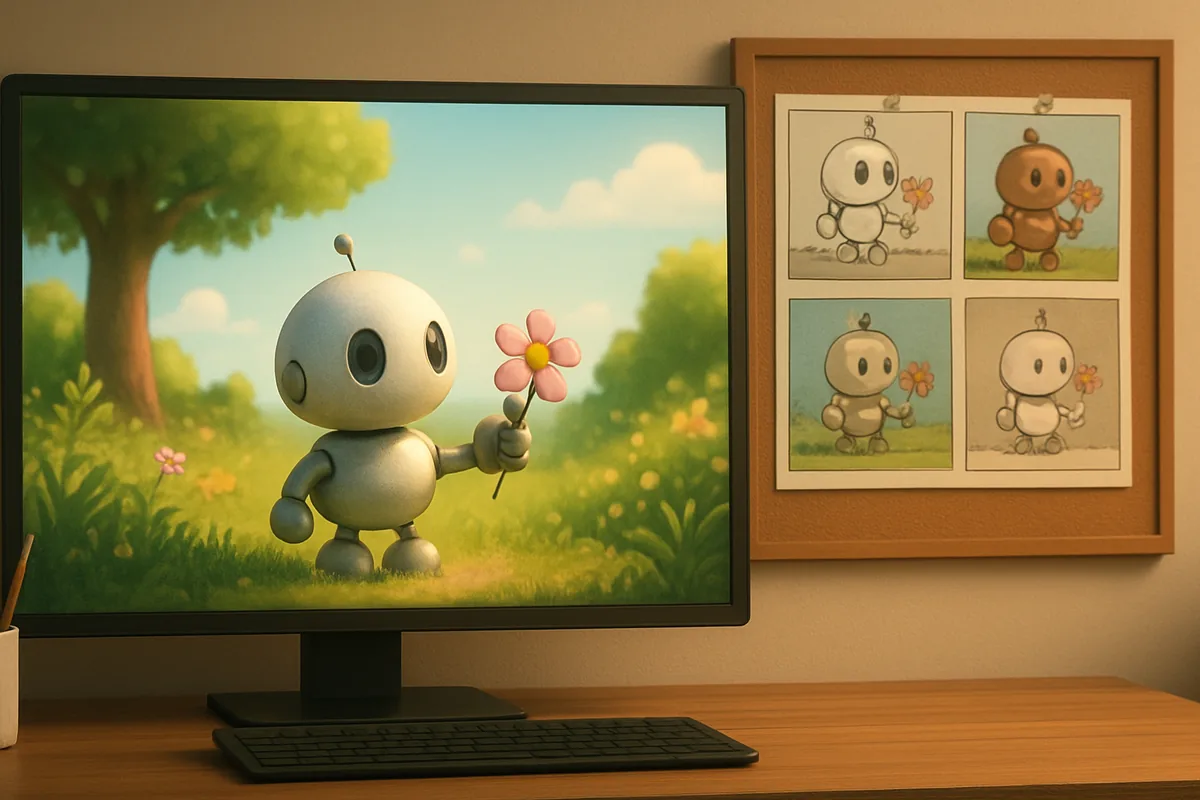
Quick Answer
To make an animated video with AI, write a short script split into shots, choose one animation style, create your characters once as reusable references, generate each shot from text or an image, then add voices and export for your platform. Higgsfield handles style, characters, camera direction, lip-sync and export in one workspace.
Key Takeaways
- Clip length: most AI video models make 4 to 15 seconds per clip, and Cinema Studio 4.0 goes up to 30 seconds, so a one-minute video is a sequence of shots.
- Styles: 2D, 3D, anime, classic cartoon, claymation, pixel art and motion graphics can all start from a prompt.
- Consistency: characters and locations saved as reusable references look the same from shot to shot.
- Two ways in: text-to-video for quick drafts, image-to-video when the look has to be exact.
- Sound: models such as Veo, Wan, Seedance and Kling 2.6 add native sound, and lip-sync can be fixed separately.
- Licensing: check the plan and terms before using clips commercially.
Animation used to be the slowest kind of video to produce. A 30-second cartoon meant character sheets, storyboards, keyframes and hours of in-betweening, usually by a team. AI video models have changed the economics: you describe a scene, and the model draws and moves it.
The hard part is no longer making a single clip. It’s making ten clips that look like they belong to the same film, with the same character, the same art style and the same world. This guide answers the question beginners ask most: how do you create an animated video with AI, from a blank page to a finished video you can post? The steps below use Higgsfield, but the workflow logic (script, style, characters, shots, sound, export) applies to any serious AI animation project. For a wider view of the tools, see our guide to the best AI video generators.
What Do You Need Before You Start?
You need three things: a short script, a rough shot list and one visual reference for the style. Nothing else is required: no drawing tablet, no animation software, no 3D models.
- A script of 60 to 150 words for a 30- to 60-second video. Shorter is easier to keep consistent.
- A shot list of 4 to 8 shots, one line each: who is in the shot, what happens and where the camera is.
- A style reference, such as a still you like or a description like “soft 3D animated movie look, warm light.”
Text-to-Video or Image-to-Video: Which Should Beginners Use?
Start with text-to-video to explore ideas, then switch to image-to-video for the shots you keep. Text-to-video is fast but gives the model more freedom, so faces and colors can drift between clips. Image-to-video starts from a still frame you approve, which locks the composition and the character design before any motion is added.
A practical rule: use text prompts until you find a look you like, save that frame, and use it as the starting image for every following shot in the same scene.
Step 1: How Do You Write a Script an AI Can Animate?
Write one action per shot and describe it visually. AI models follow concrete instructions (“the robot lifts the flower and its eye lights turn pink”) much better than abstract ones (“the robot feels hope”).
How to do it: split the script into shots of 4 to 15 seconds. For each shot, write the subject, the action, the setting and the mood in one or two sentences. Add the style words (“3D animated movie look,” “hand-drawn 2D”) to every prompt, not just the first one. The model doesn’t remember previous shots unless you give it references.
Step 2: How Do You Choose an Animation Style?
Name the style directly in the prompt and keep the wording identical across the project. Higgsfield’s AI Animation Generator renders 2D, 3D, anime, classic cartoon, claymation, pixel art and motion graphics from the prompt alone, and lets you switch between video models such as Kling 3.0, Seedance 2.5 and Veo 3.1 per scene.
How to use it: open Higgsfield’s AI Animation Generator, type the scene and add the style (“claymation,” “anime,” “pixel art”). Add a reference image if you have one. Generate two or three variations, pick the closest, and reuse the same style phrase and reference image for the rest of the project so every scene shares one studio look.
Step 3: How Do You Keep the Same Character in Every Shot?
Create the character once and reuse it as a reference in every shot. Higgsfield’s Cinema Studio uses Elements, reusable characters, locations and props that you build once and attach to later generations, so the same face and outfit carry from shot to shot. On the image side, Higgsfield’s Soul Cast lets you design a consistent character as a still and then use it as the start frame or reference for each animated scene.
How to do it: create your main character from a prompt or an image, save it, and do the same for the main location. If your animated host is based on a real person, for example a cartoon version of yourself for a YouTube intro, generate a stylized still first and use it as the reference image for the animated shots. Use photos only of people who have agreed to it.
Step 4: How Do You Put Two or More Characters in the Same Scene?
Add every character as a separate reference in the same generation. According to Higgsfield, Cinema Studio 4.0 accepts up to 50 reference images per generation, enough to lock each character’s face, a product’s shape and the style before a single frame is generated.
How to do it: attach each saved character, then name them in the prompt by role and position (“the fox on the left hands the map to the owl on the right”). Keep multi-character shots short and simple at first. Two characters with one clear interaction animate more reliably than a crowd.
Step 5: How Do You Direct the Camera in an Animated Shot?
Set the camera the way you would on a set instead of describing it in the prompt. Higgsfield says Cinema Studio 4.0 lets you set the genre, era and editing tempo, pick from four camera types (Modern, DV Camcorder, 35mm Film and 8mm Film) and five lenses, and choose from more than 30 camera movement presets, including POV, Robot Arm and Helicopter Shot.
How to use it: in Cinema Studio 4.0, pick one of the six lighting presets (or build lighting manually) and one of the 50+ color presets, and keep them fixed for the whole video. Use the Emotion Wheel, which covers eight or more emotion types such as joy, fear and anger, to control how strongly a performance reads. That’s useful when a cartoon reaction needs to be bigger than a realistic one.
Step 6: How Do You Add Voices, Lip-Sync and Music?
Generate sound with the shot where the model supports it, then fix dialogue separately. Higgsfield says models such as Veo, Wan, Seedance and Kling 2.6 add native sound to the clips they generate.
How to do it: for a character who talks to camera, run the finished clip through Lipsync Studio with your dialogue track, check the result and rerun if needed. Higgsfield Audio adds voice acting if you don’t want to record your own, and Higgsfield says finished animations can be dubbed into 18 languages.
Step 7: How Do You Edit, Resize and Export the Final Video?
Extend or fix shots inside the studio, then resize and upscale for each platform. Cinema Studio 4.0 can extend an uploaded clip forward or backward, so you can add a lead-in or continuation instead of regenerating a shot from scratch.
How to do it: once the shots are approved, use Reframe to fit the animation to 9:16 for TikTok and Reels, 1:1 for feeds or 16:9 for YouTube. Run the final cut through Higgsfield Upscale for up to 4K output and FPS Boost for smoother motion, then assemble the shots in any video editor. Our guide to desktop AI video tools with an editable timeline covers editors that handle that final assembly.
What Mistakes Do Beginners Make With AI Animation?
Most problems come from inconsistency, not from the model’s quality.
- Changing the style wording between shots: the art style drifts with it.
- Skipping references: without a saved character, the model redesigns the face every time.
- Packing too much into one shot: one action per clip animates cleanly; three actions usually blur together.
- Forgetting the license: check what your plan allows before using clips in ads or client work. The U.S. Copyright Office’s guidance on AI and copyright is also worth reading, because purely AI-generated material may not be protected by copyright on its own.
How Much Does Higgsfield Cost?
Higgsfield has a Free plan with limited access to selected models, no monthly credits and one generation at a time. According to its pricing page, paid plans start with Starter at $19 a month for 270 credits, and Plus costs $59 a month for 1,200 credits, or $30 a month billed annually. Higher Ultra tiers add more credits, and Team and Scale plans cover groups. Prices and included features change often, so check the current pricing page before you subscribe. For background on the company, see our Higgsfield review.
Bottom Line
The simplest way to create an animated video with AI is to build it shot by shot in Higgsfield, because style, consistent characters, camera direction, sound and export all live in one workspace. Start with a 30-second script, lock one style phrase and one saved character, and add complexity only once the first scene holds together.
FAQ
What is the easiest way to make an animated video with AI?
For a beginner, an all-in-one tool such as Higgsfield is the easiest route: describe the scene in the AI Animation Generator, reuse saved characters so they stay consistent, direct each shot in Cinema Studio and add lip-synced dialogue in Lipsync Studio without switching apps. Cinema Studio’s camera settings are optional when you start.
Can I make an animated video with AI for free?
Partly. Higgsfield’s Free plan gives limited access to selected models with no monthly credits and one generation at a time. Paid plans add more models, monthly credits and parallel generations. Check the plan terms before using clips commercially.
How long can an AI animated video be?
Individual clips are short, usually 4 to 15 seconds and up to 30 seconds in Cinema Studio 4.0. Longer videos are built from several shots that share the same characters, style and lighting settings.
How do I keep multiple characters consistent in the same scene?
Save each character as a reusable reference and attach all of them to the same generation. Cinema Studio 4.0 accepts up to 50 reference images per generation, so a scene can carry every character, the location and key props at once.
Do I need animation or drawing skills?
No. You need to describe shots clearly and stick to one consistent style. Knowing basic film terms such as wide shot, close-up and dolly helps, because Cinema Studio exposes them as settings.
Can I use other AI video tools for animation?
Yes. General-purpose generators such as Runway can also produce stylized clips. The workflow in this guide (script, style, saved characters, shot-by-shot generation, sound) works the same way in any tool that supports reference images.