

Quick Answer
Windows 11’s July 2026 update replaces the old pause dropdown with a calendar picker in Settings, then Windows Update. You can pause updates for any date up to 35 days out, and extend it repeatedly, which effectively pauses updates indefinitely. It works, but leaving security updates off long-term exposes your PC, so pause with a plan, not forever.
Key Takeaways
- The new calendar picker arrived with the July 2026 update, KB5101650, on Windows 11 versions 24H2 and 25H2
- The hard limit is still 35 days per pause, but you can extend it as many times as you want
- Pausing cancels downloads and update restarts, even an update that is mid-install
- A paused PC stops getting security patches, which is the real risk of holding out too long
- The best use is timing when the next update lands, not freezing Windows permanently
What changed with Windows 11 update pausing?
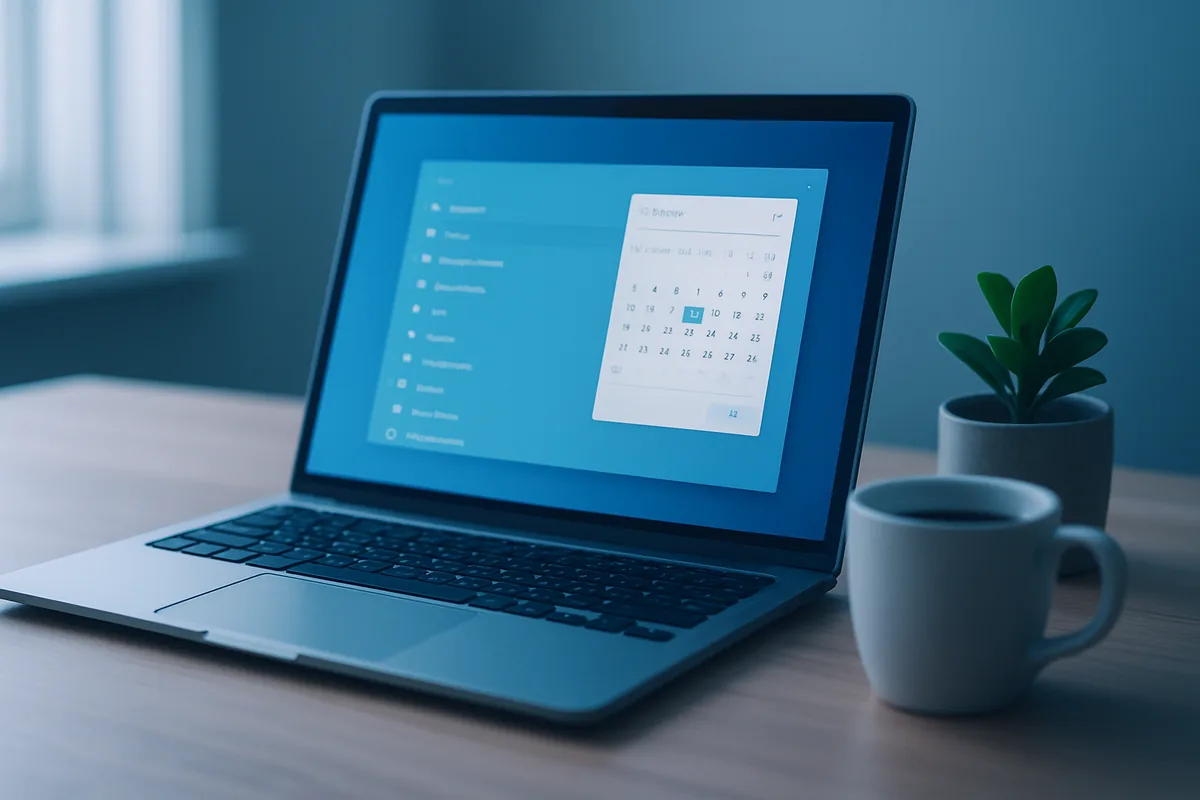
Windows 11 now lets you pick an exact date to pause updates, instead of choosing from fixed one-to-five-week options. The July 2026 security update, KB5101650, replaced the old dropdown under Settings, then Windows Update, with a calendar picker. You select a day, and updates pause until then.
Two things make this more powerful than the old control. The calendar still caps a single pause at 35 days ahead, so you cannot pick a date further out than that in one go. But you can return before the deadline and choose a new date, and there is no limit on how many times you extend, as Digital Trends reported. Extend it every month and Windows can, in practice, run indefinitely without installing an update.
This change came from user feedback and is available on Windows 11 versions 24H2 and 25H2, as Windows Central reported. Microsoft rolls features out gradually through Controlled Feature Rollout, so the calendar may take a few days to appear even after you install July’s update.
How do you pause Windows 11 updates with the calendar?
Start by making sure July’s update is installed, then set the pause. The whole process takes under a minute once the feature has reached your PC.
- Open Settings and go to Windows Update.
- Select Check for updates and install KB5101650 if it is not already on. Confirm the build reads 26200.8875 (25H2) or 26100.8875 (24H2) under Settings, then System, then About.
- Under the Pause updates heading, open the date picker.
- Pick an end date up to 35 days away.
- To extend later, return to this page before the date passes and choose a new one. You do not have to install the pending updates first.
If the calendar has not appeared yet, that is the gradual rollout, not a fault. Wait a few days and check again. If updates will not install at all so you cannot get KB5101650, our fixes for a stuck Windows 11 update cover the usual causes.
What exactly does pausing stop?
Pausing halts the whole update pipeline while it is active, not just the restart. That is a cleaner block than many people expect.
While a pause is on, updates do not download and do not install, and update-related restarts do not happen. If an update is already mid-install when you pause, it is cancelled until the pause ends. Both quality updates, the monthly fixes, and feature updates, the bigger version jumps, are held. When the pause expires, Windows checks again and may re-download and install whatever was waiting.
One button behaves differently and catches people out. Clicking Resume updates does not just end the pause, it immediately triggers an update check and starts installing pending updates right away. Use the calendar to extend a pause. Only click Resume when you actually want updates now.
Should you pause Windows updates indefinitely?
Pause for a reason and a defined window, not forever. The feature gives you real control, and the sensible uses are specific and temporary rather than permanent.
These are good reasons to pause, and how long fits each:
- A known-bad update is causing problems for other users, and you want to wait a week for a fix
- You are mid-project or travelling and cannot afford a restart or a driver change right now
- Your hardware was hit by a specific update bug, like the Dell shutdown issue, and you are waiting for the corrected patch
- You want every monthly update to land on the same planned day rather than whenever Windows decides
The reason not to pause permanently is security. A paused PC stops receiving the monthly security patches that close real vulnerabilities, and July’s update alone fixed a large batch of them. The longer a machine sits unpatched, the softer a target it becomes. Pausing to control timing is smart. Pausing to avoid updates entirely trades a minor convenience for a growing risk.
What are the risks of leaving updates paused too long?
The core risk is falling behind on security, and a few related problems follow from it. Match the risk against how long you actually intend to hold out.
| Risk | Why it happens | How to limit it |
|---|---|---|
| Unpatched security holes | Paused PCs miss monthly vulnerability fixes | Resume at least monthly; never skip a Patch Tuesday for long |
| A pile-up of updates later | Everything deferred installs at once when you resume | Resume on a day you can spare time for restarts |
| Missing a critical zero-day fix | Actively exploited bugs are patched in monthly updates | Resume immediately when a zero-day is in the news |
| Forgetting the pause is on | The 35-day window lapses or gets extended by habit | Set a recurring 30-day calendar reminder |
The pattern is clear: the danger is not the pause itself, it is losing track of it. A pause you manage deliberately is a useful tool. A pause you forget about quietly turns into an unpatched machine.
What if you want the opposite, updates that just work?
Most people are better served by leaving updates on and managing the timing, rather than fighting the system. If your reason for wanting to pause is that updates keep interrupting you at bad moments, a couple of settings solve that without going dark on security.
Set your active hours under Settings, then Windows Update, then Advanced options, so Windows never restarts during the times you use the PC. Turn on notify me when a restart is required so a reboot never surprises you. These give you control over when updates land without leaving the machine unpatched. If updates are slow or failing rather than badly timed, the fix is different. Our guides to fixing a slow PC after an update and freeing up disk space address the usual root causes, since a full drive is a common reason updates stall.
Stop here and rethink a long pause if the reason is simply that you dislike updating. The safer route is a working update process, not a frozen one. For a fuller picture of what July’s update actually delivered, including the new recovery tools, see our rundown of the Windows 11 July 2026 update and the new Point-in-time Restore feature.
FAQ
Can you pause Windows 11 updates indefinitely?
Effectively yes, by extending the pause repeatedly: each pause is capped at 35 days, but you can pick a new date before the deadline without installing pending updates, with no limit on extensions. There is no true permanent setting, so it needs action at least once every 35 days.
How do I pause Windows 11 updates?
Open Settings, then Windows Update, and use the date picker under Pause updates to choose an end date up to 35 days away. This arrived with the July 2026 update, KB5101650, on Windows 11 versions 24H2 and 25H2, so install that update first if the calendar is not showing.
Does pausing updates stop a restart mid-install?
Yes: when you pause, updates stop downloading and installing, restarts are held, and an update that is already mid-install is cancelled until the pause ends. Clicking Resume updates, however, immediately triggers an update check and installs what was pending.
Is it safe to pause Windows updates for a long time?
Not for long, because a paused PC stops receiving monthly security patches that fix real, sometimes actively exploited, vulnerabilities. Pausing to control timing or wait out a bad update is reasonable, but leaving a machine unpatched for months makes it a softer target over time.
Why is the pause calendar not showing on my PC?
Most likely because the feature has not reached your device yet, since Microsoft uses a gradual Controlled Feature Rollout that can take a few days even after you install July’s update. Confirm KB5101650 is installed, then check again in a few days.