

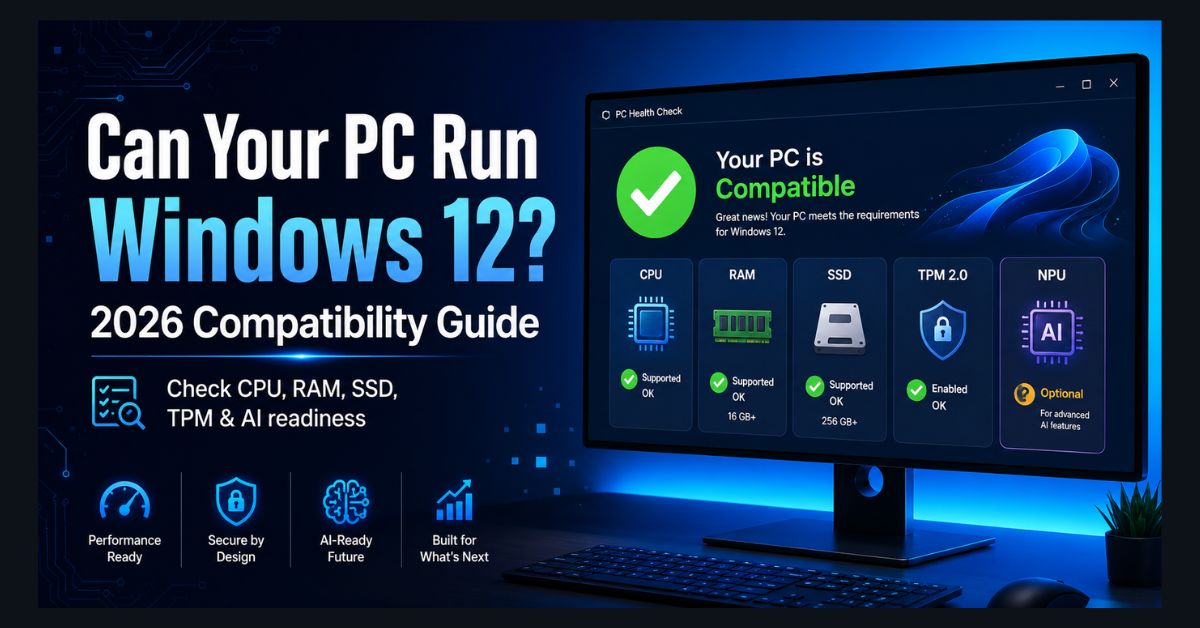
Windows 12 hasn’t been officially announced yet — but that hasn’t stopped the speculation. Microsoft is expected to unveil its next major operating system in late 2026 or early 2027 (internally codenamed “Project Hudson Valley”), and based on leaked requirements, hardware industry trends, and Microsoft’s push toward AI-integrated computing, we have a clear picture of what your PC will likely need to run it.
The big question for most people: will your current PC make the cut, or will you need to upgrade? Here’s how to check, component by component.
Expected Windows 12 Requirements
Based on leaks, industry reports, and Microsoft’s trajectory from Windows 11, here are the likely minimum requirements:
| Component | Minimum Required | Recommended |
|---|---|---|
| Processor | 64-bit, 2+ cores, Intel 8th Gen / AMD Ryzen 2000+ | Intel 12th Gen+ / AMD Ryzen 7000+ |
| RAM | 8 GB | 16 GB |
| Storage | 64 GB SSD (HDD likely blocked) | 128-256 GB NVMe SSD |
| TPM | 2.0 (mandatory) | 2.0 |
| Secure Boot | Required | Required |
| GPU | DirectX 12 compatible | DirectX 12 with WDDM 2.0+ |
| NPU | Not required for base OS | 40+ TOPS for AI features (Copilot+) |
| Display | 9″ or larger, 720p+ | 1080p+ |
Important disclaimer: Microsoft has NOT officially confirmed Windows 12 requirements. These are based on credible leaks and industry analysis. Actual requirements may differ. We’ll update this article when official specs are announced.
How to Check Your PC Right Now
Check 1: Processor (CPU)
Press Ctrl+Shift+Esc → Performance tab → CPU. Note your processor model. Or go to Settings → System → About and look at “Processor.”
- You’re likely fine if: You have Intel 8th Gen (Coffee Lake, 2017) or newer, or AMD Ryzen 2000 series (2018) or newer. These are the same CPUs that Windows 11 requires.
- You might need to upgrade if: You have Intel 7th Gen or older, or AMD Ryzen 1000 series. These were excluded from Windows 11 and will almost certainly be excluded from Windows 12.
AMD’s new Ryzen AI 400 series processors include built-in NPUs that meet the Copilot+ requirements — if you’re buying new, look for “AI PC” branding.
Check 2: RAM
Press Ctrl+Shift+Esc → Performance tab → Memory. Check “Installed RAM.”
- You’re fine if: You have 8 GB or more. Windows 12 is expected to raise the minimum from 4 GB (Windows 11) to 8 GB.
- Upgrade needed if: You have 4 GB. This is the biggest change from Windows 11’s requirements. For comfortable daily use in 2026, 16 GB is strongly recommended — see our RAM management guide for optimizing what you have.
RAM upgrades are typically $20-40 for laptops that support them. Check your model’s specifications for upgrade compatibility.
Check 3: Storage (SSD vs HDD)
Press Ctrl+Shift+Esc → Performance tab → Disk. Check if your drive type says “SSD” or “HDD.”
- You’re fine if: You have an SSD with 64+ GB free space.
- Upgrade critical if: You still have a spinning hard drive (HDD). Leaks suggest Windows 12 may block installation on HDDs entirely. Even if it doesn’t, Windows on an HDD is painfully slow in 2026. Upgrading to an SSD ($30-50 for 500 GB) is the single most impactful upgrade you can make — see our laptop speed guide.
Check 4: TPM 2.0
Press Win+R, type tpm.msc, press Enter. If you see “The TPM is ready for use” with “Specification Version: 2.0,” you’re good. If you get an error or see version 1.2, your system may not meet the requirement.
Most PCs manufactured after 2016 have TPM 2.0, though it may be disabled in BIOS. If tpm.msc shows no TPM, restart your PC, enter BIOS (usually F2 or Del during boot), and look for a TPM, Security, or Intel PTT / AMD fTPM setting to enable.
While you’re in BIOS, also confirm that Secure Boot is enabled. Windows 12 is expected to keep Secure Boot as a hard requirement, and Microsoft’s upcoming certificate transition makes it worth understanding what the Secure Boot 2026 deadline means for your PC before the next major Windows upgrade cycle.
Check 5: NPU (Neural Processing Unit)
This is the new and most confusing requirement. An NPU is a dedicated chip for AI tasks — separate from your CPU and GPU.
- The good news: An NPU will likely NOT be required to install and run Windows 12 base version. It will be required for advanced AI features (Copilot+ features like Recall, Smart Clipboard, and on-device AI processing).
- How to check: Open Task Manager → Performance tab. If you see an “NPU” entry alongside CPU, GPU, and Memory, your PC has one. If not, you don’t.
- Current PCs with NPUs: Intel Core Ultra (Meteor Lake, Arrow Lake), AMD Ryzen AI 300/7000 series with NPU, Qualcomm Snapdragon X Elite/Plus. All laptops marketed as “Copilot+ PCs” have NPUs.
Quick Check: Use Microsoft’s PC Health Check
Download “PC Health Check” from Microsoft’s website. Run it — it was designed to check Windows 11 compatibility, but since Windows 12 requirements are expected to be similar (with the 8 GB RAM increase), it gives you a useful baseline. If your PC passes the Windows 11 check and has 8+ GB RAM, you’re likely Windows 12-ready for the base version.
What If Your PC Doesn’t Meet Requirements?
- Cheapest path to compatibility: Upgrade RAM to 8+ GB ($20-40) and replace HDD with SSD ($30-50). These two upgrades cost under $100 and solve the most common compatibility issues.
- If your CPU is too old: Unfortunately, there’s no upgrading the CPU on most laptops. You’ll need a new device. If you’re considering alternatives to Windows entirely, Google’s Aluminium OS launches on Googlebook laptops in Q3 2026 as a third option alongside Windows and Mac.
- If you need a new laptop: Wait for our upcoming best laptops guide, or check laptop optimization tips to squeeze more life from your current machine while you plan.
- Don’t rush: Windows 11 will receive security updates through at least 2031. There’s no urgency to upgrade to Windows 12 on day one. Let early adopters work out the bugs — updates can cause problems — and upgrade when the ecosystem is stable.
FAQ
1. When is Windows 12 coming out?
Most leaks and industry analysts point to late 2026 or early 2027 for the official launch. Microsoft hasn’t confirmed any date. The company has been gradually adding Windows 12 components into Windows 11 updates (25H2, 26H2) as a bridge.
2. Will Windows 12 be a free upgrade?
Likely yes for Windows 11 users, following Microsoft’s pattern of free upgrades from Windows 10 to 11. Windows 10 users may face hardware compatibility barriers even if the upgrade itself is free.
3. Do I need an NPU for Windows 12?
Probably not for the base OS. Microsoft is expected to offer two tiers: a base version that runs on current Windows 11-compatible hardware (with 8 GB RAM), and a Copilot+ tier that requires a 40+ TOPS NPU for advanced AI features. The base version will work without an NPU.
4. Will Windows 12 work on my Windows 10 PC?
Only if it meets the hardware requirements — primarily TPM 2.0, a supported CPU (Intel 8th Gen+ / AMD Ryzen 2000+), 8 GB RAM, and an SSD. Many Windows 10 PCs that couldn’t upgrade to Windows 11 will also be incompatible with Windows 12 for the same reasons.
5. Should I buy a new PC now or wait for Windows 12?
If you need a PC now, buy one that meets the expected requirements: Intel 12th Gen+/AMD Ryzen 7000+, 16 GB RAM, SSD, and ideally an NPU (look for “Copilot+ PC” branding). This ensures compatibility with Windows 12 whenever it launches.