

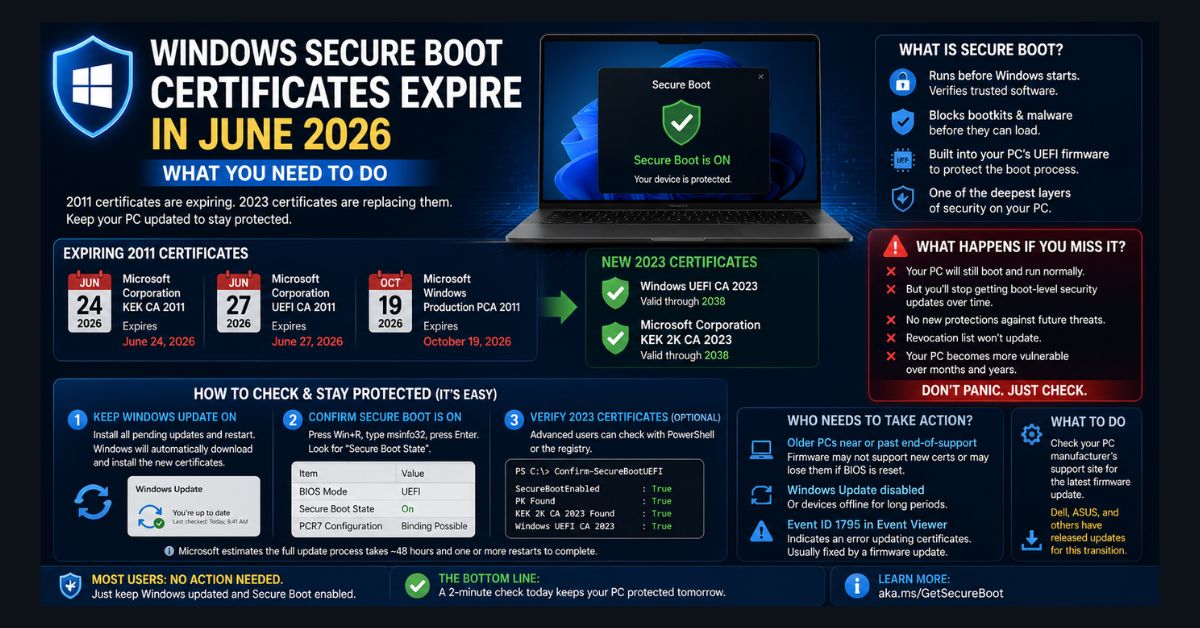
Windows Secure Boot certificates from 2011 expired between June 24 and October 19, 2026, and Microsoft is replacing them with 2023 certificates through Windows Update. PCs that keep Windows Update on and Secure Boot enabled get the swap automatically. PCs that missed it start normally but no longer receive boot-level security updates. The Windows Security app shows the status.
- Key dates (all passed): KEK CA expired June 24, UEFI CA June 27, Production PCA Oct 19, 2026
- Not a cliff: Your PC still boots normally — it just stops getting boot-level security fixes
- The fix: Keep Windows Update on with Secure Boot enabled; it updates automatically
- Quick check: Open Windows Security > Device security > Secure Boot, or run msinfo32 and confirm “Secure Boot State” is On
- Affects both: Windows 10 and Windows 11; many post-2024 PCs already have the new certs
Windows Secure Boot certificates first issued in 2011 began expiring in June 2026, and the last of them, Microsoft Windows Production PCA 2011, expired on October 19, 2026. Microsoft is replacing them with new 2023 certificates. If your PC keeps up with Windows Update, you almost certainly don’t need to do anything — the swap happens automatically. But devices that miss the transition will quietly stop receiving boot-level security protections, leaving them exposed to threats over time. Here’s what’s happening and how to make sure your PC has the new certificates.
This sounds technical, and the underlying machinery is — but the action you need to take (if any) is simple. Let’s break down what Secure Boot is, what changed between June and October 2026, and the quick check that tells you whether you’re covered.
What is Secure Boot, and why does it have an expiration date?
Secure Boot is a security feature built into the UEFI firmware of virtually every PC sold since around 2012. It runs before Windows loads and verifies that the bootloader and early startup components are signed by a trusted authority. If something tries to sneak into the boot sequence that isn’t on the trust list — a bootkit like the well-known BlackLotus, for example — Secure Boot refuses to let it run. It’s one of the deepest layers of defense your PC has, guarding the moment before your operating system even starts.
That pre-OS layer is why BIOS and firmware security guidance treats firmware integrity as a separate security concern from normal operating-system protection.
That trust is established through cryptographic certificates baked into your motherboard’s firmware. Like all security certificates, they have expiration dates. The ones doing this job today were issued back in 2011, when Windows 8 was still on the horizon — and after roughly 15 years, they’re reaching the end of their cryptographic life. Microsoft has created a 2023 generation of certificates to replace them, valid through 2038, with a separate post-quantum upgrade planned around 2030 for future hardware.
What exactly expires in June 2026?
Three specific 2011-era certificates aged out on a staggered schedule, and all three dates have now passed:
Microsoft Corporation KEK CA 2011 expired on June 24, 2026. Microsoft Corporation UEFI CA 2011 expired on June 27, 2026. Microsoft Windows Production PCA 2011, which signs the Windows boot loader, expired on October 19, 2026.
These are replaced by their 2023 equivalents, including Windows UEFI CA 2023 and Microsoft Corporation KEK 2K CA 2023. The transition affects both Windows 10 and Windows 11 devices. Importantly, Microsoft began rolling the new certificates out in phases back in 2024, and many PCs manufactured since then already have them — so a large share of users are already covered without realizing it.
What happens if my PC doesn’t get the new certificates?
This is the key question, and the good news is that it’s not a Y2K-style cliff. Your PC will not suddenly refuse to start. According to Microsoft, Dell, and other vendors, a device that reaches the deadline without the 2023 certificates will still boot and operate normally, and standard Windows updates will keep installing.
The problem is slower and quieter. Without the updated certificates, your PC stops receiving new security protections for the early boot process — that means no future updates to the Windows Boot Manager, the Secure Boot databases, or the revocation list (the blacklist of known-malicious bootloaders), and no mitigations for newly discovered boot-level vulnerabilities. Over months and years, that leaves a growing gap in one of your system’s most important defenses, and it can affect things like BitLocker hardening and third-party bootloaders. You won’t notice anything day to day — which is exactly what makes it worth checking now rather than later.
Microsoft also states in its guidance on what happens when Secure Boot certificates expire that Secure Boot should not be disabled to work around certificate expiration. Turning Secure Boot off removes the boot-level check entirely, which leaves the PC less protected than an outdated certificate does, so the safer response is to install the update rather than switch the feature off.
For the bigger security picture, our guide to cybersecurity and data privacy covers how boot-level protection fits into a layered defense, and our walkthrough on removing malware from Windows 11 free handles the threats Secure Boot is designed to block.
How do I check if my PC already has the 2023 certificates?
For most people, the answer is reassuring. Here’s how to verify your status:
Step 1 — Keep Windows Update on. The single most important thing is simply to keep your PC updated. Go to Settings > Windows Update, install everything pending, and restart. Supported devices with Secure Boot enabled download and apply the new certificates and updated Boot Manager automatically. If your Windows updates have been failing, our guide on fixing Windows 11 after a problem update can get them flowing again. Start there too if a Windows update gets stuck before the Secure Boot certificate rollout can finish.
Step 2 — Confirm Secure Boot is actually on. Press Windows + R, type msinfo32, and press Enter. In System Information, look for Secure Boot State — it should say On. If it’s Off, the automatic certificate update can’t reach your firmware.
Check the status in Windows Security. Windows 11 and Windows 10 now report the certificate status directly under Windows Security > Device security > Secure Boot. According to Microsoft’s Windows Security app guide, a fully updated PC reads “Secure Boot is on and all required certificate updates have been applied.” A yellow warning means the device still uses the older boot trust configuration and should install the latest updates, while a red “requires action” status means the device can no longer receive required updates for the Windows boot experience. Microsoft advises against dismissing these warnings before the certificates are installed. The display is turned off by default on enterprise-managed devices, so work PCs should be checked with the IT department.
Step 3 — Check the certificate itself (optional, for the cautious). Advanced users can verify the 2023 certificates are present using a PowerShell command or the registry, following Microsoft’s official guidance at its Secure Boot resource page (aka.ms/GetSecureBoot). Microsoft estimates the full update process takes roughly 48 hours and one or more restarts to complete, since the Boot Manager swap is deferred until your next natural reboot — so don’t expect it to finish in one sitting.
One reassurance: if you’ve noticed a new Secure Boot-related folder appear on your Windows 11 system, Microsoft has confirmed that’s part of this rollout and not a bug — don’t delete it.
Which PCs actually need manual action?
Most modern, regularly-updated PCs will handle this entirely on their own. The devices most likely to need a hands-on fix are:
Older PCs, especially those near or past their end-of-service-life, whose firmware may not support or retain the new certificates — particularly if the BIOS gets reset to defaults. Devices with Windows Update disabled or that have been offline for long stretches. Windows 10 PCs outside the ESU program: Windows 10 support ended on October 14, 2025, and Microsoft’s home user guidance points Windows 10 users to the Extended Security Updates (ESU) program to keep receiving security updates, including those for Secure Boot. Systems showing Event ID 1795 in Event Viewer, which signals an error handing the certificate off to firmware — usually fixed with an OEM firmware update.
If you fall into one of these groups, check your manufacturer’s support site. Dell, ASUS, and other major OEMs are publishing firmware updates specifically for this transition. If you’re already wondering whether an aging machine is worth maintaining, our guide on whether your PC can run Windows 12 is a useful companion for deciding between updating and upgrading — and our tips on making an old laptop faster can buy you more time either way.
Should you be worried?
Honestly, no — but you should be aware. For the vast majority of users, this is a non-event handled silently by Windows Update. The reason it’s worth a few minutes of attention is that the downside is invisible: a PC that misses the transition looks and works exactly the same while slowly falling behind on boot-level security. A two-minute check now — confirm updates are installed and Secure Boot is On — is cheap insurance against a problem you’d otherwise never see coming.
It’s also a reminder that the security foundations under our devices are aging infrastructure with real deadlines, much like the broader shifts reshaping Windows itself, from Microsoft’s push into AI agents to ongoing changes in how the OS protects you. And as always, before any firmware-level change, it’s smart to have your important files backed up — our guide on recovering deleted files in Windows 11 is a good safety net to know about.
FAQ
1. Will my computer stop working when Secure Boot certificates expire in 2026?
No. Your PC will continue to boot and operate normally, and regular Windows updates will keep installing. The only change is that a device without the new 2023 certificates will stop receiving boot-level security updates over time, gradually weakening its protection against new threats.
2. How do I update my Secure Boot certificates?
For most people it’s automatic — just keep Windows Update enabled with Secure Boot turned on, install all pending updates, and restart. Supported devices download and apply the 2023 certificates and updated Boot Manager on their own, a process that can take around 48 hours and one or more reboots.
3. How do I check if my PC has the new 2023 certificates?
The easiest way to check for the 2023 certificates is Windows Security > Device security > Secure Boot, which reads “all required certificate updates have been applied” on an updated PC. You can also press Windows + R, type msinfo32, and confirm “Secure Boot State” shows On, and advanced users can verify the certificates with PowerShell following Microsoft’s guidance at aka.ms/GetSecureBoot.
4. Does this affect Windows 10 or only Windows 11?
The Secure Boot certificate change affects both Windows 10 and Windows 11 devices, since the 2011 certificates were used across many years of PCs. Machines made since 2024 often already include the 2023 certificates, and Windows 10 PCs need the ESU program to keep receiving Secure Boot security updates after support ended on October 14, 2025.
5. Is the new Secure Boot folder in Windows 11 a virus?
No. Microsoft has confirmed that a new Secure Boot-related folder appearing on Windows 11 is part of the legitimate certificate rollout and is not a bug or malware. You should not delete it.