

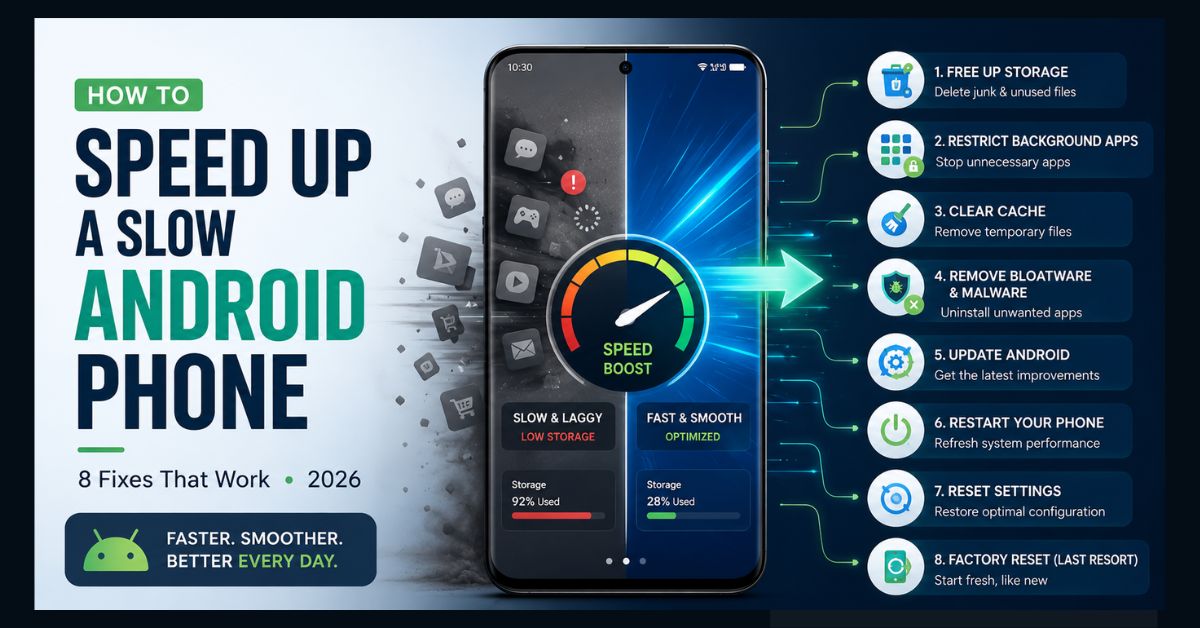
To speed up a slow Android phone, restart it, free up storage until at least 10–20% is empty, uninstall or restrict background apps, clear cached data, and remove bloatware, adware, or malware. Then update to the latest Android version and your apps. If it’s still slow, a factory reset is the last resort.
- Storage is the #1 culprit: a nearly full phone slows down — keep at least 10–20% free
- Background apps eat RAM: uninstall what you don’t use and restrict the rest
- Clearing cache gives a quick, temporary boost with zero risk to your data
- Android 17 helps automatically with new app memory limits that cap RAM-hungry apps
- Last resorts: a weekly restart and reduced animations first; a factory reset only after backing up
A phone that used to feel instant can start to stutter after a year or two of apps, photos, and updates. The good news: most Android slowdowns are software, not hardware, which means they are fixable in a few minutes and without spending anything.
This guide walks through eight fixes in order, from the fastest wins to the last resort. Exact menu names vary a little between phones — a Pixel running stock Android looks slightly different from a Samsung Galaxy on One UI — so treat the paths below as a close guide and search your Settings if a label differs.
Why is your Android phone slow?
Before fixing it, it helps to know what usually causes the lag. Slowdowns almost always trace back to a handful of things: storage that is nearly full, too many apps running in the background, accumulated cached files, pre-installed bloatware or sneaky adware, outdated software, or simply an aging battery that throttles performance to stay stable.
Here is how the most common causes map to the fix and how long each takes:
| Cause | Fix | Time |
| Storage nearly full | Delete or offload files and apps | 10 min |
| Too many background apps | Uninstall or restrict them | 5 min |
| Cache buildup | Clear app cache | 2 min |
| Bloatware / adware / malware | Disable or remove it | 10 min |
| Outdated software | Update Android and apps | 15 min |
| Temporary glitches | Restart the phone | 1 min |
How do you speed up a slow Android phone?
Work through these eight steps in order. The first few solve most cases, so you may not need all of them.
1. Restart your phone. It sounds too simple, but a restart clears temporary memory and closes stuck background processes. If you never power your phone off, that alone can explain gradual slowdown. Make a habit of restarting once a week.
2. Free up storage space. This is the single biggest fix. When internal storage drops below roughly 10% free, Android has little room to manage temporary files and performance falls off a cliff. Go to Settings > Storage to see what is using space, then delete large videos, clear the Downloads folder, and offload photos to a cloud service or computer. Aim to keep at least 10–20% of your storage empty.
3. Uninstall and restrict background apps. Every installed app can wake up, sync, and consume memory. Uninstall anything you have not opened in months (long-press the icon, then Uninstall). For apps you want to keep but rarely use, open Settings > Apps, select the app, and set its background activity or battery usage to restricted.
4. Clear cached data. Cache is temporary data apps store to load faster, but it can bloat over time. Go to Settings > Apps, choose a heavy app like your browser or social media, tap Storage, and select Clear cache. This is safe — it does not delete your logins or personal data, and the cache simply rebuilds as needed.
How do you remove bloatware, adware, and malware?
Pre-installed “bloatware” apps you never chose can run in the background and clog storage. You usually cannot fully uninstall carrier or manufacturer apps, but you can disable them: open Settings > Apps, select the app, and tap Disable so it stops running.
More serious slowdowns can come from adware or malware, often picked up from apps installed outside the Google Play Store. If you are suddenly seeing pop-up ads, our guide to stopping pop-ups on an Android phone walks through removing the culprit. If the phone is overheating, draining fast, or behaving strangely, follow our steps to detect and remove phone spyware. As a routine check, run Play Protect from the Google Play Store to scan for harmful apps.
Does updating Android make your phone faster?
Often, yes. Updates include performance and security fixes, and skipping them leaves known slowdowns unpatched. Go to Settings > System > Software update to check, and update your apps in the Play Store under Manage apps.
The 2026 update matters more than usual. According to Google’s official Android 17 announcement, the release introduces app memory limits that stop any single app from hogging too much RAM, which Google says improves overall speed and battery life. Android 17 began rolling out to Pixel phones in June 2026, with Samsung, Motorola, and other brands following throughout the year. If your phone is eligible, updating is one of the easiest speed wins available.
What about animations and a factory reset?
Two final levers can help once the basics are done.
5. Update apps (covered above) and 6. remove or disable bloatware (covered above) handle most remaining drag. If you want a snappier feel, try 7. reducing animations: enable Developer Options (Settings > About phone, tap Build number seven times), then in Developer Options set Window, Transition, and Animator scales to 0.5x. Your phone is not actually faster, but it responds more instantly.
8. Factory reset — the last resort. If nothing else works, a factory reset wipes years of buildup and returns the phone to like-new speed. Back up everything first (photos, contacts, app data), then go to Settings > System > Reset options > Erase all data. Reinstall only the apps you actually use, and the difference can be dramatic.
When is it time to replace your phone instead?
Software fixes have limits. If your phone is more than four or five years old, a worn battery and dated processor can cap performance no matter what you do — and once a phone stops receiving security updates, it is safer as well as faster to move on. A quick tell: if the phone still lags right after a factory reset, the bottleneck is likely hardware, not software.
Battery health is a big and often overlooked factor. As a lithium battery ages, it can no longer supply peak power cleanly, and some phones respond by throttling the processor to prevent unexpected shutdowns — which feels exactly like a “slow” phone. On many devices you can check battery health or cycle count in Settings > Battery. If it is badly degraded, a battery replacement is far cheaper than a new phone and can restore both speed and screen-on time. Persistent overheating during light use is another sign the hardware, not your apps, is the limit.
The same performance logic applies across your devices. If your computer feels sluggish too, see our guides to making a laptop faster and fixing a slow MacBook.
FAQ
Why is my Android phone so slow all of a sudden?
A sudden slowdown usually points to a specific trigger: storage that just filled up, a recently installed app running in the background, a buggy update, or malware or adware from a sideloaded app. Restart the phone first, then check storage and recently installed apps. If pop-ups or overheating appear, scan for adware or spyware.
Does clearing the cache speed up an Android phone?
Yes, temporarily. Clearing an app’s cache removes bloated temporary files and can make that app load faster, without deleting your logins or personal data. The cache rebuilds over time, so it is a quick maintenance step rather than a permanent fix. Clearing cache for a few heavy apps is more effective than doing it for every app.
How much free storage should I keep on my phone?
Keep at least 10–20% of your internal storage free. Android needs headroom to manage temporary files, updates, and memory, and performance drops sharply once storage falls below about 10%. If you are constantly near full, offload photos and videos to the cloud or a computer and uninstall apps you no longer use.
Will updating to Android 17 make my phone faster?
It can. Android 17 adds app memory limits that prevent individual apps from consuming excessive RAM, which Google says improves overall speed and battery life, on top of the usual bug and security fixes. It began rolling out to Pixel phones in June 2026, with other brands following through the year. Update via Settings > System > Software update if it is available for your device.
Should I use a “phone booster” or cleaner app?
Generally no. Most booster and cleaner apps provide little real benefit and often add ads, background processes, or bloat that slow your phone further. Android already manages memory automatically. The manual steps in this guide — freeing storage, restricting apps, clearing cache, and updating — are safer and more effective.