

Quick Answer
To set up a VPN on Windows 11, either add a connection under Settings, Network and Internet, VPN using credentials from a provider, or install a VPN app that configures itself. For most people, a reputable VPN app is easier and safer than the manual client. Avoid unknown free VPNs, which often log and sell your data.
Key Takeaways
- Windows 11’s built-in VPN is a client, not a service, so you still need credentials from a provider or your own server
- For most users, installing a VPN provider’s app is simpler and more secure than manual setup
- Only a few free VPNs are trustworthy; Proton VPN Free is the standout, with unlimited data but no server choice and no streaming
- Paid VPN prices shift constantly and renew higher after the intro term, so confirm current pricing on the provider’s site
- A VPN hides your traffic but does not replace antivirus or a password manager, so treat it as one layer, not the whole defense
Whether you want privacy on public Wi-Fi, a secure connection while working remotely, or access to region-locked content, a VPN is one of the most practical security tools to set up on Windows 11. Windows has a built-in VPN client that needs no extra software, though a dedicated VPN app is usually easier and offers more features.
This guide covers three approaches, and they are the built-in Windows client, a reputable free VPN service, and a paid VPN, with honest trade-offs for each. Product details and prices below were accurate at the time of writing, but VPN specs and pricing change often, so confirm the current details on each provider’s own page before you commit.
How do you set up the built-in Windows 11 VPN?
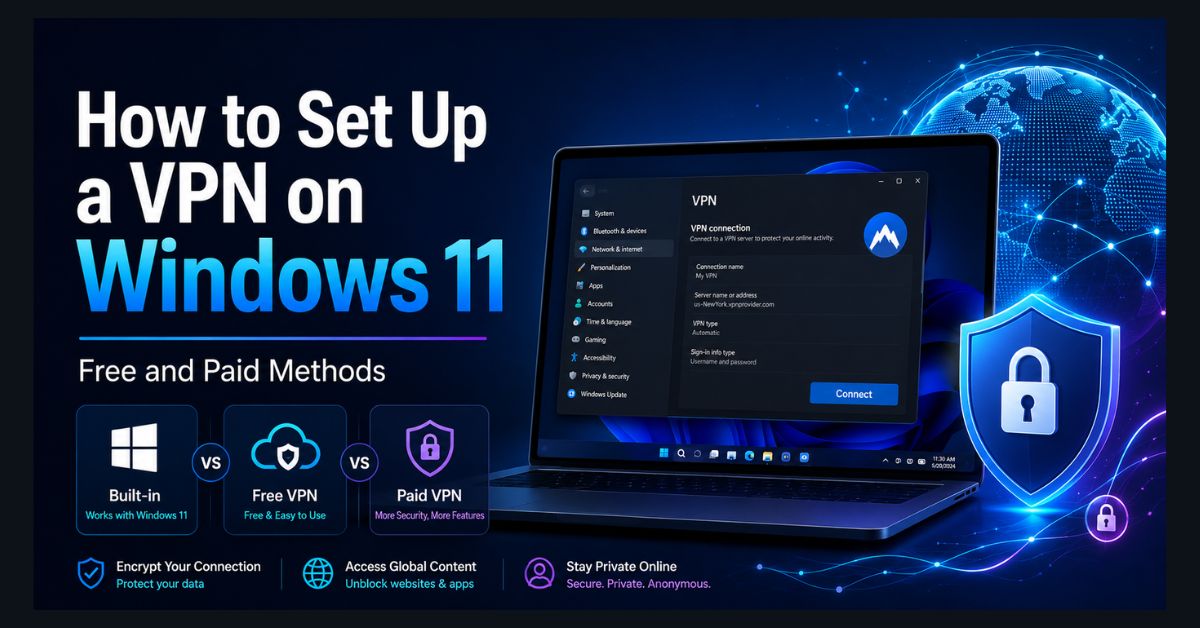
Set up the built-in VPN under Settings, Network and Internet, VPN, but only if you already have server credentials, because Windows 11’s VPN is a client rather than a service. It supports IKEv2, SSTP, and L2TP/IPsec, and you supply the server details from an employer, a provider, or your own server.
Add a connection in three steps:
- Open the VPN settings. Go to Settings, Network and Internet, VPN, and click Add VPN.
- Enter the details. Set VPN provider to “Windows (built-in),” give the connection a name, enter the server address your provider gave you, choose the VPN type (IKEv2 is a good default for most uses), and add your username and password.
- Save and connect. Click Save, then connect from the VPN settings page or the Quick Settings panel in the taskbar.
One security note: Windows still lists the old PPTP protocol, but avoid it, since it has known weaknesses and is considered insecure by modern standards. Stick to IKEv2 or SSTP. The built-in client is best for connecting to a corporate VPN or your own server; it is not the right choice for a casual user who does not already have credentials, who should use one of the app-based options below.
Which free VPNs are actually safe to use?
Only a handful of free VPNs are trustworthy, because most free services monetize by logging and selling your browsing data, which defeats the purpose. The safe shortlist is short, and everything off it should be treated with suspicion.
These are the free options worth using, with their real current limits:
- Proton VPN Free is the best overall. It offers genuinely unlimited data with no ads and an independently audited no-logs policy, but the free tier limits you to servers in 5 countries (US, Netherlands, Japan, Romania, Poland), allows only 1 device, does not let you choose a specific server, and blocks streaming and P2P. It is ideal for everyday privacy and public Wi-Fi.
- Windscribe Free gives 10GB a month, expandable to 15GB by confirming your email and posting about it, with servers in around 11 countries plus built-in ad and tracker blocking. Good for occasional use and light streaming.
- Cloudflare WARP is free and unlimited but focuses on speed and encryption rather than location spoofing, so it can’t pick a country. It’s best for privacy on public Wi-Fi, not geo-unblocking.
To use any of them, download the app only from the provider’s official website, install it, create a free account, and click Connect; the app configures everything. Avoid any free VPN not on this list. Unknown free VPNs frequently log and sell data, inject ads, or carry malware, and researchers have repeatedly tied apps like Hola and various “Turbo”-style VPNs to hidden ownership or data harvesting. If privacy matters to you, a cheap audited paid plan is safer than a questionable free one, and our cybersecurity and data privacy guide covers the broader picture.
Which paid VPN should you choose in 2026?
Paid VPNs give better speed, more servers, stronger audited privacy, and features like kill switches and split tunneling, and the main four differ mostly on price and extras. Prices below are recent two-year intro rates and move often, so verify them on each vendor’s site.
This table compares the leading options as of writing.
| VPN | Approx. price (2-yr intro) | Best for | Notable |
|---|---|---|---|
| NordVPN | ~$3/month | Overall speed and features | 7,200+ servers, 10 devices, added post-quantum encryption |
| Surfshark | ~$2/month | Best value | Unlimited devices, ad-blocking, 100 countries |
| ExpressVPN | ~$2.79/month | Ease of use, censorship | Cut prices in 2026; strong in restrictive regions |
| Proton VPN Plus | ~$4/month | Privacy | Swiss jurisdiction, open-source apps, audited no-logs |
Two honest caveats the marketing pages skip. First, ExpressVPN used to be the expensive premium pick, but it cut its two-year rate in 2026 and is now genuinely competitive, so older “ExpressVPN is pricey” advice is out of date. Second, and more important: those low prices are introductory two-year rates, and all of these providers renew at roughly two to four times the intro price once the term ends. Set a calendar reminder to cancel or re-sign before renewal. To set any of them up, buy a subscription on the provider’s site, download the Windows app, log in, and click Connect; most apps auto-pick the fastest server.
How do you fix a VPN that won’t connect on Windows 11?
Most Windows 11 VPN problems come down to the connection dropping your internet or the VPN failing to connect at all, and both have quick fixes. Work through the connection issue first, then the firewall.
If the VPN connects but you lose internet access, you’re hitting the connected-but-no-internet issue. Disconnect the VPN, confirm your internet works without it, then reconnect, and if it keeps killing your connection, switch protocols in the app (most let you choose between WireGuard, OpenVPN, and IKEv2; WireGuard is usually fastest and most stable). If the VPN won’t connect at all, your firewall may be blocking it. Rather than turning off your firewall, first add an exception for the VPN app under Windows Security, Firewall and network protection, Allow an app through firewall. Only disable the firewall briefly as a last-resort test, and turn it straight back on afterward, since running without a firewall leaves you exposed. If a quick test confirms the firewall was the cause, keep the firewall on and add the app exception instead.
How do you check that your VPN is actually working?
Check that your VPN is working by confirming three things: that your public IP address has changed, that your DNS requests aren’t leaking, and that your real location is hidden. A VPN that connects but leaks your DNS or IP gives you a false sense of privacy, so this two-minute check is worth doing after setup and after any protocol change.
Run through it in order. First, note your real IP address before connecting by searching “what is my IP” in your browser. Then connect the VPN and search again; the address and location shown should now be the VPN server’s, not yours. Second, run a DNS leak test. Connect the VPN, visit a DNS leak test site, and run the standard or extended test, following Proton VPN’s guide to verifying a VPN connection. If the results show DNS servers belonging to your internet provider rather than your VPN, you have a DNS leak, and your provider can still see which sites you visit even though your traffic looks encrypted. Third, check for a WebRTC leak, a browser-level flaw that can expose your real IP even through a working VPN tunnel; leak-test sites that include a WebRTC check will flag it. If any test fails, switch to a different protocol in your VPN app (WireGuard or OpenVPN), enable the app’s kill switch and leak-protection settings, and re-test. A properly configured reputable VPN should pass all three. If you can’t get a free or self-configured VPN to pass, that’s a strong signal to move to a reputable paid provider whose app handles leak protection automatically.
Do you actually need a VPN, and what won’t it do?
A VPN is worth having for public Wi-Fi, remote work, and region-locked content, but it is one security layer, not a complete defense. Knowing its limits keeps you from a false sense of safety.
A VPN encrypts your traffic and hides your browsing from your internet provider and from others on the same network, which is exactly what you want on public Wi-Fi. What it does not do is stop malware, protect you from a reused or breached password, or make you anonymous to a site you log into. So pair a VPN with a reputable antivirus, covered in our free antivirus guide, and check whether your credentials have leaked using our guide to checking if your email was in a breach. If you use an AI-powered browser, our look at whether AI browsers are safe is worth reading alongside this, since a VPN doesn’t cover what those tools send.
FAQ
Is a free VPN safe to use?
Only from reputable providers. Proton VPN Free, Windscribe, and Cloudflare WARP are safe, with audited or transparent no-logs practices. Most other free VPNs monetize by logging and selling your data, injecting ads, or worse. A good rule: if you wouldn’t trust the company with your full browsing history, don’t route your traffic through their VPN.
Does Windows 11 have a built-in VPN?
Yes, Windows 11 has a native VPN client that supports protocols including IKEv2, SSTP, and L2TP/IPsec. But it is a client, not a service, so you still need credentials from a VPN provider or your own server to connect. It’s ideal for corporate or self-hosted VPNs, less so for casual users, who are better served by a provider’s app.
Will a VPN slow down my internet?
Slightly. Encryption and routing through a remote server add overhead. Good paid VPNs typically cut speeds by only around 10-20%, and independent tests in 2026 put the best performers in the high-90s percent of your base speed. Free tiers slow you more, often 20-45%, because more users share fewer servers. For browsing, streaming, and calls, the difference is usually imperceptible on a decent connection.
Can my ISP see that I’m using a VPN?
Your internet provider can see that you’re connected to a VPN server, but not what you do through it, since your activity is encrypted. Some VPNs offer obfuscated or stealth servers that disguise VPN traffic as ordinary HTTPS, which helps in networks or regions that block VPNs.
Which VPN protocol should I use?
Use WireGuard where your app offers it, since it’s fast, modern, and secure, or IKEv2 as a strong alternative on the built-in Windows client. Avoid the old PPTP protocol, which Windows still lists but which has known security weaknesses. OpenVPN remains a solid, widely supported choice if WireGuard isn’t available.