

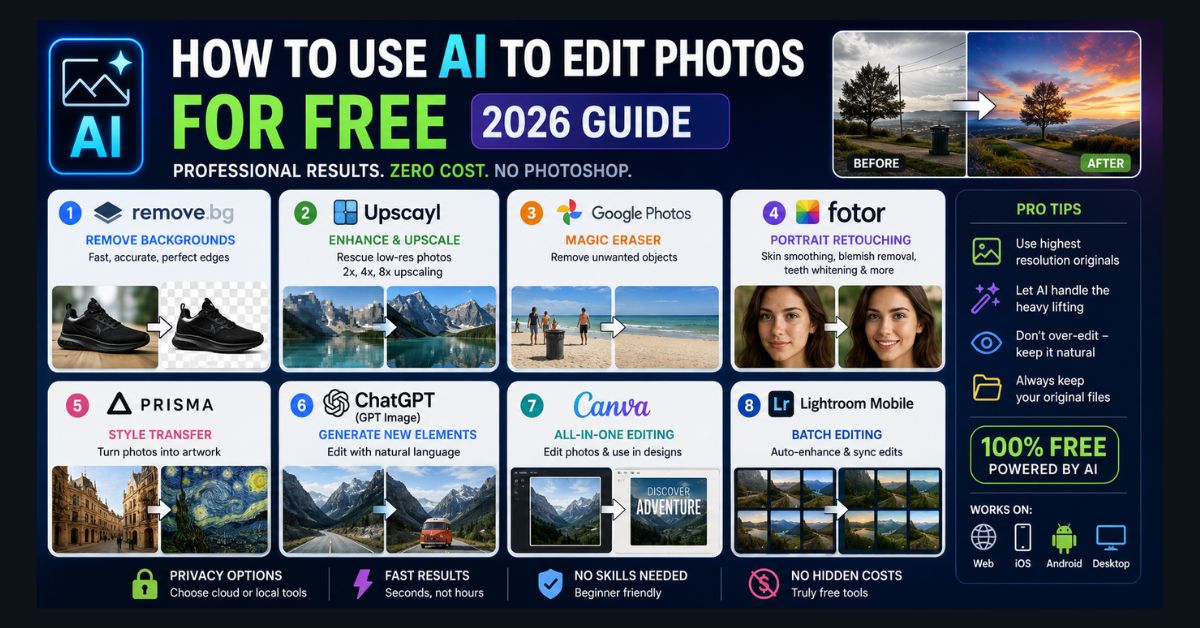
You don’t need Photoshop to edit photos well in 2026. Free AI tools now handle most tasks: remove.bg for backgrounds, Upscayl for upscaling, Google Magic Eraser for removing objects, Fotor for portraits, Canva for all-in-one editing, and ChatGPT for described edits. No single tool does everything — combining two or three covers almost any need.
- Backgrounds: remove.bg — fastest and cleanest, one free HD download per month
- Upscaling: Upscayl — free, open-source, runs locally (private) with no limits
- Object removal: Google Photos Magic Eraser — tap to erase photobombers and clutter
- All-in-one: Canva Free — background removal, object erase, and expand, plus design templates
- Complex edits: ChatGPT — describe the change in plain language, and always keep your original file
You don’t need Photoshop ($23/month) to make professional photo edits in 2026. AI-powered tools now handle the tasks that used to require hours of manual work — background removal, object erasing, quality enhancement, portrait retouching, and style transfer — many completely free, and most producing results that rival what a skilled Photoshop user can achieve.
The trick is knowing which free tool to use for which task. No single tool does everything well, but combining 2-3 tools covers virtually any photo editing need. Here are the eight best free AI photo editing tools, organized by what you actually want to do with your photos.
Remove Backgrounds: remove.bg
Free tier: 1 HD download/month, unlimited preview-resolution downloads Best for: Product photos, profile pictures, social media graphics
remove.bg is the fastest, most accurate background remover available. Upload a photo and the background disappears in under 5 seconds — with remarkably clean edge detection, even around complex subjects like hair, fur, semi-transparent objects, and fine details that would take 20+ minutes to mask manually in Photoshop.
The free tier gives you one high-resolution download per month and unlimited preview-resolution downloads (suitable for social media). If you need bulk processing, the API charges $0.14-0.23 per image — still far cheaper than doing it manually or hiring a freelancer.
How to use: Visit remove.bg → upload your image → download the result. That’s it. No account needed for preview quality.
Enhance Quality and Upscale: Upscayl
Free tier: Unlimited (open-source desktop app, runs locally) Best for: Rescuing low-resolution photos, old scans, screenshots, AI-generated images
Upscayl is a free, open-source AI upscaler that runs entirely on your computer — no upload to any server, no privacy concerns, no usage limits. It can upscale images 2x, 4x, or 8x while adding realistic detail that wasn’t in the original file.
The results are particularly impressive for old family photos, low-resolution downloads, screenshots, and small profile pictures you need to enlarge for printing. Upscayl doesn’t just stretch pixels — it generates new detail using AI inference, producing results that look genuinely sharper rather than blurry.
How to use: Download from upscayl.org → install (Windows, Mac, or Linux) → open an image → select upscale factor → process. Everything runs locally on your GPU.
Remove Unwanted Objects: Google Photos Magic Eraser
Free tier: Available on Google Pixel phones; Google One subscribers ($2.99/month) on any phone Best for: Removing photobombers, power lines, trash cans, distracting background elements
Magic Eraser lets you tap on any object in a photo — a stranger in the background, a power line cutting across the sky, a stray trash can at a scenic overlook — and the AI removes it, filling in the space with a natural-looking continuation of the background.
The results are remarkably convincing for most objects in most scenes. Complex removals (someone standing in front of a detailed pattern or another person) occasionally produce visible artifacts, but for common cleanup tasks, Magic Eraser saves trips to Photoshop.
How to use: Open a photo in Google Photos → tap Edit → tap Magic Eraser → tap or circle the object to remove → review and confirm.
Portrait Retouching: Fotor AI
Free tier: Basic edits free, HD export requires free account Best for: Skin smoothing, blemish removal, teeth whitening, red-eye fix
Fotor‘s AI portrait tools handle the retouching tasks that portrait photographers and selfie-takers need most: skin smoothing that removes blemishes without creating a plastic look, teeth whitening that stays natural, red-eye removal, and subtle facial reshaping (jawline, nose size, eye shape).
The key difference from Instagram-style filters: Fotor’s AI enhances rather than distorts. The results look like a slightly better version of you, not like you ran through a cartoonification filter. This makes Fotor particularly useful for professional headshots, LinkedIn photos, and dating profile pictures.
For more noticeable appearance experiments, a specialized grey hair filter can help preview a silver or grey-haired look while keeping the edit focused on the portrait.
How to use: Visit fotor.com → upload your portrait → select AI retouching tools → adjust to taste → download.
Style Transfer: Prisma
Free tier: Limited daily uses, watermark on some styles Best for: Turning photos into artwork, creative social media content
Prisma transforms your photos into artwork using AI style transfer. Upload a photo and Prisma reimagines it in the style of Van Gogh, Picasso, Mondrian, manga, watercolor, stained glass, and dozens more artistic styles.
This isn’t a simple filter overlay — the AI analyzes the composition, lighting, and subject of your photo and regenerates it in the chosen style. A portrait becomes an oil painting. A landscape becomes a watercolor. A selfie becomes a manga character. The results are genuinely creative and unpredictable, which is part of the appeal.
How to use: Download the Prisma app (iOS/Android) → take or upload a photo → select a style → save or share.
All-in-One Editing: Canva Free
Free tier: Generous — includes most AI tools Best for: Editing photos AND using them in designs immediately
Canva‘s free tier includes AI-powered background removal, Magic Eraser (object removal), Magic Expand (extend photos beyond their original borders — useful for making a portrait landscape), and basic enhancement tools (brightness, contrast, saturation).
The real advantage is workflow: edit your photo in Canva, then immediately use it in a social media graphic, presentation, poster, or any other design template. No downloading, uploading to another tool, or switching between apps.
How to use: Visit canva.com → start a design → upload or select a photo → click “Edit image” → use AI tools.
Generate New Elements: ChatGPT (GPT Image)
Free tier: Limited generations per session Best for: Adding objects, changing scenes, complex edits described in natural language
Need to add something to a photo that wasn’t there? Upload your image to ChatGPT and describe the edit in conversational language: “Remove the car in the background,” “Make the sky more dramatic with pink sunset clouds,” “Add a person walking on the path on the left side,” or “Change this to look like it was taken in autumn.”
The conversational approach makes complex edits accessible to anyone — no Photoshop skills, no layer masks, no selection tools. You describe what you want, and the AI interprets and executes.
For standalone AI image creation (generating images from scratch rather than editing existing ones), see our comprehensive best free AI image generators guide.
How to use: Open ChatGPT → upload your photo → describe the edit you want → iterate (“make it more subtle,” “try a different angle”).
Generate Images From Text for Content: QuillBot
Free tier: Available Paid plans: From $8.33/month Best for: Creators, marketers, and educators who want AI-generated visuals tied into a broader writing and content workflow
A quick note on scope: unlike the tools above, QuillBot is an image generator rather than a photo editor — it creates new visuals from text prompts instead of altering an existing photo. It is worth including here because content creators often need both in the same session. QuillBot’s AI Image Generator produces original visuals from a text description while sitting alongside the platform’s writing, editing, and presentation tools, so you can move from an idea to a finished content asset — blog illustration, marketing graphic, or social post — without switching apps.
That connected workflow is the main appeal: if you already draft or paraphrase content in QuillBot, generating matching visuals in the same place saves steps. A free plan is available, with paid tiers starting at $8.33/month, and commercial-use rights depend on the plan you choose. For a wider set of dedicated, no-cost text-to-image options, our best free AI image generators guide compares the strongest free tools head to head.
Batch Editing: Adobe Lightroom Mobile
Free tier: Core features free on mobile (iOS/Android) Best for: Processing dozens of photos at once, travel photography, event photography
Lightroom Mobile‘s free tier includes AI-powered auto-enhance (analyzes each photo individually and applies appropriate adjustments), noise reduction (essential for low-light photos), lens correction, and color grading. Unlike the other tools on this list, Lightroom excels at batch processing — apply edits to one photo, then sync those adjustments across an entire batch of similar images.
The AI doesn’t just apply the same filter to everything. It evaluates each image’s exposure, white balance, and color profile independently, then applies targeted corrections that make each photo look its best.
How to use: Download Lightroom Mobile (free on iOS/Android) → import photos → tap an image → use Auto enhance or manual AI tools → sync edits across similar photos.
Tips for Getting Better Results From AI Photo Editors
- Start with the highest resolution original you have. AI editors produce dramatically better results from higher-quality inputs. If you’re editing an iPhone photo, use the original HEIC/JPG from your camera roll, not a compressed version from a messaging app. If a tool rejects HEIC files, convert them to JPG on Windows first.
- Use AI for the heavy lifting, do final touch-ups manually. Let AI handle background removal, upscaling, and object erasing — these are the tasks where AI saves the most time. Fine-tune color, contrast, and cropping manually for the final polish.
- Don’t over-edit. The best AI edits are invisible. If someone looks at your photo and says “nice edit,” the edit is too obvious. Aim for photos that look naturally good, not obviously processed.
- Always keep your original file. AI edits should create a new file, not modify your original. If any tool doesn’t offer a “save as copy” option, duplicate your file before editing.
For video editing with AI rather than photos, check our Sora video generator guide and our best AI video generators roundup. And if you want to turn your edited photos into animated videos, we have a guide for that workflow too.
FAQ
Which free AI photo editor is best overall?
Canva Free offers the best combination of AI editing tools (background removal, object erasing, enhancement) plus the ability to immediately use edited photos in designs. For specialized tasks, use dedicated tools: remove.bg for backgrounds, Upscayl for upscaling, ChatGPT for complex described edits, and Fotor for portrait retouching.
Are AI-edited photos detectable?
Advanced forensic analysis can sometimes detect AI edits through metadata and pixel-level analysis. For practical purposes — social media, printing, personal sharing — AI edits are indistinguishable from manual Photoshop editing. Most platforms don’t flag AI-edited photos (as opposed to AI-generated photos, which increasingly carry metadata markers).
Can I use AI-edited photos commercially?
Yes. Editing your own photos with AI tools is legally no different from editing them with Photoshop — you own the photo, and the edit is a tool applied to it. This is different from AI-generated images (creating entirely new images from text prompts), which have separate licensing considerations depending on the generation tool used.
Do free AI photo editors keep my photos?
It varies. Cloud-based tools (remove.bg, Fotor, Canva) upload your photos to their servers for processing. Check each tool’s privacy policy for data retention terms. Local tools (Upscayl) process everything on your device — nothing is uploaded. For maximum privacy with personal or sensitive photos, use local tools whenever possible.
Can AI fix a blurry photo?
Partially. Upscayl and similar AI upscalers can add sharpness and detail to slightly soft images. However, severely motion-blurred or extremely out-of-focus photos can’t be fully recovered — AI can improve them, but can’t recreate detail that was never captured by the camera.