

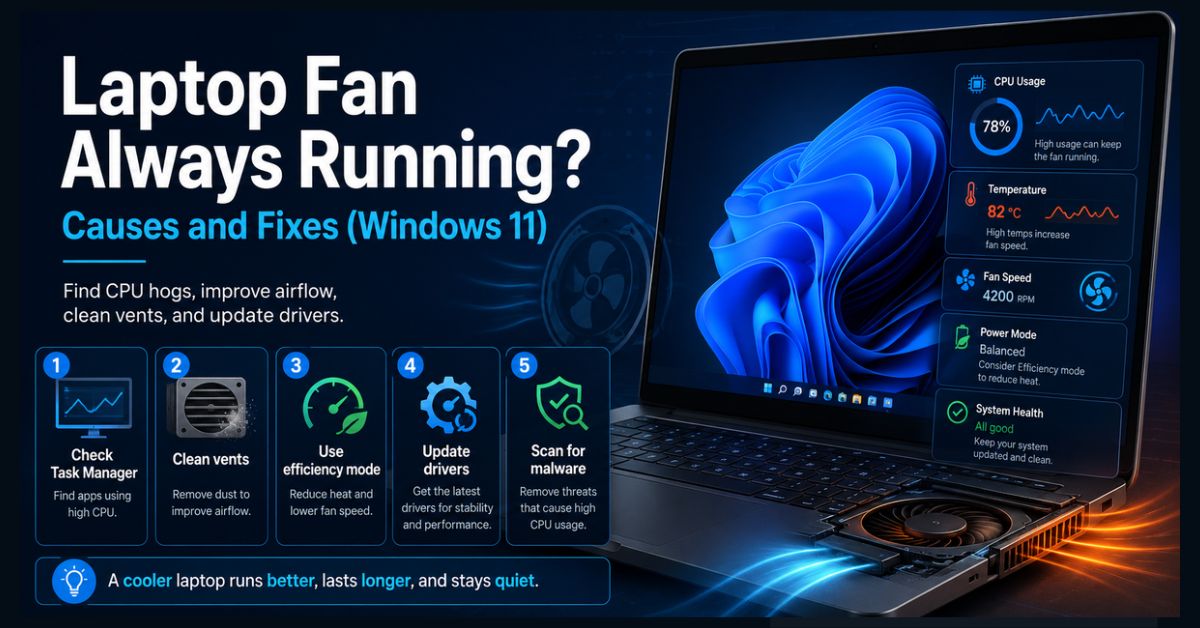
A laptop fan that never stops almost always means one of two things: a background process is keeping your CPU busy, or dust and poor airflow are trapping heat, not a broken fan. Open Task Manager to find CPU-heavy processes, clean the vents, set your power mode to efficiency, and update drivers. A fan spinning under load is normal; full speed at idle is not.
- First check: Task Manager, is the CPU busy while the laptop is idle?
- Two main causes: a background process hogging the CPU, or blocked airflow
- Quick wins: clean the vents, use a hard surface, set power mode to efficiency
- After an update: update or roll back GPU and chipset drivers
- Hardware sign: high temps with low CPU points to dust, paste, or a bad fan
That constant whirring is your laptop working to cool a system that is running hotter than it should. Sometimes a single runaway process is pinning your processor; other times the vents are clogged with dust and the machine is genuinely overheating. Either way, the fix is usually quick, and rarely means the fan itself is broken.
The steps below go from the easiest, safest checks to the more hands-on ones. Work through them in order and stop when the fan settles down.
Why is my laptop fan always running?
A fan runs to move heat away from your CPU and GPU, so a fan that runs constantly means one of them is consistently hot. There are two broad reasons: software keeping the processor busy, or airflow that is too restricted to cool it.
One quick test tells you which. Open Task Manager while the laptop is idle and doing nothing. If the CPU is high, the problem is software, a process to hunt down. If the CPU is low but the machine is hot and loud anyway, the problem is airflow or hardware, dust, surface, or cooling.
Is a constantly running fan normal?
Some fan activity is completely normal. When you game, edit video, run many browser tabs, or install updates, the CPU heats up and the fan speeds up to compensate, that is the cooling system doing its job. As ASUS notes in its overheating and fan guidance, fan speed simply tracks temperature.
What is not normal is the fan running at full speed constantly, especially at idle. For reference, typical idle temperatures sit around 30 to 50°C, and under heavy load a laptop can reach 80 to 90°C before the processor throttles to protect itself near 95 to 100°C. Loud fan under load is fine; loud fan doing nothing is the signal to troubleshoot.
Symptom-to-cause quick guide
Use this to jump to the likely fix.
| Symptom | Most likely cause | Go to |
| Fan loud, CPU high at idle | A background process or malware | Fixes 1 and 2 |
| Fan loud, CPU low, laptop hot | Blocked vents or bad surface | Fix 3 |
| Started after a Windows update | Driver or firmware issue | Fix 6 |
| Always full speed, even cool | Power mode or fan-control setting | Fixes 4 and 7 |
| High temps on a new laptop | Possible hardware fault | Hardware section |
Fix 1: Find the process hogging your CPU
A constant, loud fan almost always means sustained CPU load, so start by finding what is causing it.
- Press Ctrl + Shift + Esc to open Task Manager.
- On the Processes tab, click the CPU column to sort by usage.
- Note the top processes while the laptop is otherwise idle. Common culprits are Windows Update, search indexing, antivirus scans, cloud sync (OneDrive, Dropbox), telemetry, and browser tabs.
- Close the offending app, or if it is a browser, shut heavy tabs and extensions.
A quick browser test helps: open one clean window with no extensions on a blank page and watch whether CPU drops. If a legitimate task like a Windows update is running, just let it finish. If memory is maxed out, that also raises CPU and heat, so our guide to clearing RAM can help.
Fix 2: Scan for malware
If a process you do not recognize is pinning the CPU, or the fan roars right after startup for no clear reason, malware is a real possibility. Crypto-mining malware in particular exists specifically to max out your processor, which keeps the fan at full speed.
Run a full scan with Windows Security or a reputable tool, covered in our roundup of the best free antivirus for Windows 11, and remove anything it finds using our guide to removing malware for free.
Fix 3: Improve airflow and clean the vents
If the software side is calm but the fan still roars, the machine is overheating because air cannot move. This is the most common physical cause.
- Place the laptop on a hard, level surface like a desk. Avoid beds, couches, and your lap, soft surfaces block the intake vents underneath.
- Keep clearance around the vents (Dell suggests roughly 15 cm) so air can circulate.
- Blow out dust from the vents with a can of compressed air, in short bursts.
- Consider a cooling pad if you often run demanding tasks.
Dell’s fan troubleshooting guide stresses that blocked vents force the whole system to overheat, which is exactly what keeps a fan pinned at high speed.
Fix 4: Change your power mode
Power settings control how hard the system pushes the processor, and therefore how much heat it makes.
- Go to Settings > System > Power & battery.
- Set Power mode to Balanced or Best power efficiency.
- For more control, open the classic Power Options, edit your plan’s advanced settings, and under Processor power management lower the Maximum processor state to around 95% to limit heat-heavy turbo boost.
HP specifically recommends choosing Best power efficiency to help a constantly spinning fan settle. Switching visual effects to “Adjust for best performance” also lightens the load slightly.
Fix 5: Trim startup and background apps
Programs that launch at boot and run in the background keep the CPU busy from the moment you turn on.
- In Task Manager, open the Startup apps tab.
- Right-click and Disable anything nonessential (chat apps, updaters, sync tools you do not need at launch).
- In Settings > Apps > Installed apps, limit background activity for heavy apps.
This overlaps with general speed, so our guide to making your laptop faster has more on trimming the load.
Fix 6: Update (or roll back) drivers and Windows
Outdated or buggy drivers and firmware can leave fans running high even when the system is idle, and this often appears right after a Windows feature update.
- Update Windows via Settings > Windows Update, including any optional driver updates.
- Update the GPU and chipset drivers, ideally from your PC maker’s support site rather than generic ones, since vendor drivers handle thermal and power management better.
- If the noise began right after an update, roll back the relevant driver in Device Manager.
If the trouble started with a recent update, our guide to a Windows 11 update gone wrong covers related fixes.
Fix 7: Use your laptop maker’s fan and thermal software
Most manufacturers offer software that manages performance and fan behavior, often with a Quiet or Balanced profile that tames the fan directly. Examples include Dell Power Manager and SupportAssist, HP Command Center and CoolSense, MyASUS, and Lenovo Vantage.
Use these to select a cooler or quieter profile, and to check for a BIOS or firmware update, which can fix aggressive fan curves. Always download firmware and fan-control tools from your maker’s own support site, since they are model-specific.
When it’s a hardware problem
If your CPU is low but temperatures are high and the fan is loud immediately, the issue is likely physical. On older laptops, the thermal paste between the processor and heatsink can dry out, or the heatsink can lose good contact. The fan itself can also fail or its sensor can misread.
These fixes involve opening the laptop, which can void a warranty and risks damage if you are not experienced, so it is best handled by your manufacturer’s diagnostics or a professional. Run your maker’s hardware test (such as Dell SupportAssist) first. And if the laptop is new and overheats on light tasks despite all the steps above, the simplest move is to exchange or return it under warranty rather than repair it.
How to keep your laptop cool
A few habits prevent the fan from ever getting loud:
- Use the laptop on a hard, flat surface, never a bed or your lap for long sessions.
- Clean the vents with compressed air every few months.
- Keep Windows and your GPU/chipset drivers current.
- Limit heavy browser tabs and background apps you don’t need.
- Use Balanced or Best power efficiency mode for everyday work.
- Keep good clearance around the vents and consider a cooling pad for demanding tasks.
FAQ
Why is my laptop fan always running on Windows 11?
Almost always because the CPU is under sustained load or airflow is blocked. Open Task Manager and check CPU usage at idle: if it is high, a background process, update, or malware is the cause; if it is low but the laptop is hot, the vents are likely clogged or the laptop is on a soft surface trapping heat.
Is it bad if my laptop fan runs constantly?
A fan running under heavy load is normal and healthy. A fan running at full speed constantly, especially at idle, is a sign something is wrong, either a process keeping the CPU busy or poor cooling. Sustained overheating can reduce performance and, over time, stress components, so it is worth diagnosing.
How do I stop my laptop fan from running so loud?
Work through it in order: find and close CPU-heavy processes in Task Manager, scan for malware, clean the vents and use a hard surface, set Power mode to Best power efficiency, trim startup apps, and update your drivers. If the CPU is low but temperatures stay high, the cause is likely dust, thermal paste, or a failing fan.
What is a normal laptop temperature?
Idle temperatures are typically around 30 to 50°C. Under heavy load, laptops commonly reach 80 to 90°C, and processors begin throttling near 95 to 100°C to prevent damage. Brief highs during demanding tasks are normal; consistently high temperatures during light use indicate a cooling problem.
Can malware make my laptop fan run constantly?
Yes. Some malware, especially crypto-mining software, deliberately maxes out your CPU, which keeps the fan at full speed. If an unfamiliar process is using heavy CPU or the fan roars right after startup with nothing open, run a full malware scan with Windows Security or a reputable antivirus tool and remove anything it finds.