

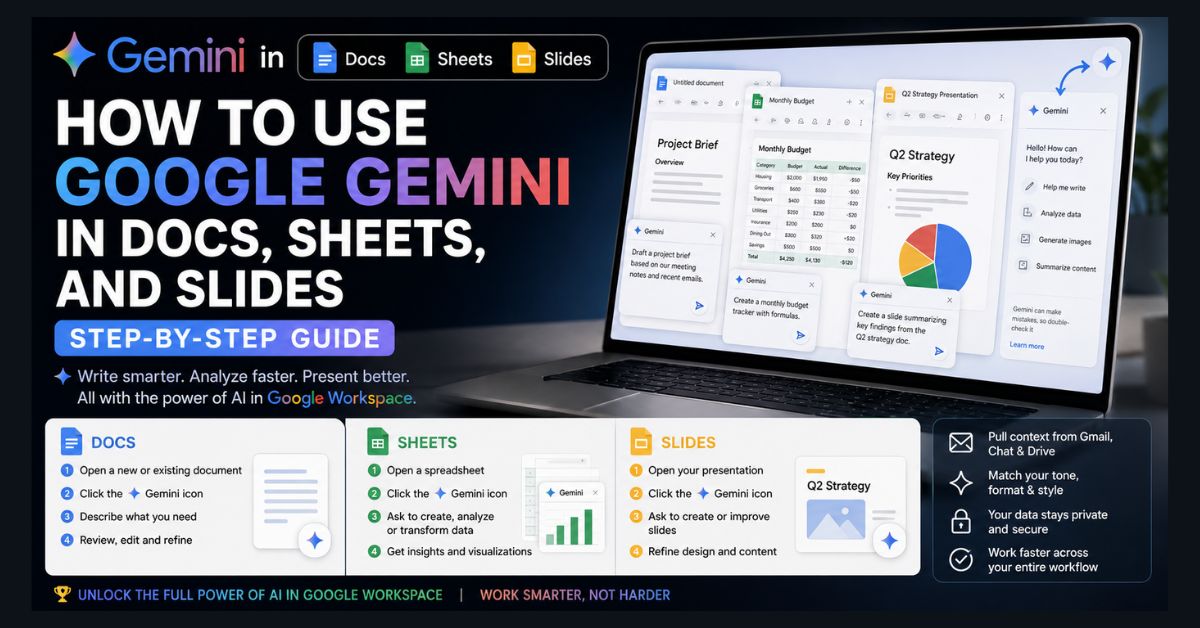
To use Gemini in Google Docs, Sheets, and Slides, open any file and click the Gemini sparkle icon in the toolbar or side panel, then describe what you want in plain language. Gemini can draft documents, build spreadsheets, and create slides — pulling context from your Gmail, Chat, and Drive.
- Where to find it: The Gemini sparkle/star icon in the toolbar or right sidebar
- Docs: Use “Help me write” to draft and refine documents
- Sheets: Generate a full spreadsheet from a single prompt
- Slides: Build on-theme slides and custom images from a description
- Requirement: A paid plan — Google One AI Premium ($19.99/mo) or a Workspace Business plan
Google’s March 2026 update transformed Gemini from a basic sidebar add-on into a genuinely useful workspace assistant. The announcement was one of the most significant Workspace updates in years: Gemini can now draft full documents by pulling context from your Gmail and Drive, generate complete spreadsheets from a single prompt, and build presentation slides that match your existing theme.
If you’re not sure what Gemini is or how it fits into Google’s AI strategy, start with our Google Gemini AI explainer. This guide assumes you know the basics and focuses on how to actually use Gemini in Docs, Sheets, and Slides for drafting, data work, presentations, and everyday Workspace tasks.
What You Need Before Starting
Gemini features in Google Workspace aren’t available on free Google accounts. You need one of these plans:
Google One AI Premium — $19.99/month for personal accounts. This is the simplest option for individual users and includes Gemini across Docs, Sheets, Slides, Drive, and Gmail.
Google Workspace Business plans (Starter, Standard, Plus) — Gemini is included or available as an add-on depending on your tier. For a comparison with Microsoft’s approach, see our Office 365 licensing guide.
To check if you have access, open any Google Doc and look for the Gemini icon (a sparkle/star symbol) in the toolbar or right sidebar. If you see it, you’re set.
Gemini in Google Docs
Google Docs is where Gemini is most developed. There are two primary ways to use it: the “Help me write” prompt box and the Gemini side panel.
Generating a New Document From Scratch
Open a new Google Doc. You’ll see a “Help me write” prompt in the body, or click the Gemini sparkle icon in the toolbar. Type a description and Gemini generates a full draft.
What makes this powerful since March 2026 is context-pulling. Gemini can now access your Gmail, Chat, and Drive to personalize outputs. For example: “Draft a project update email using the notes from my Monday team meeting in Chat and the budget spreadsheet in my Q2 Planning folder.” Gemini searches your files and incorporates that data into the draft.
This builds on Google’s broader AI Mode, which can now use Gmail and Photos for personalized responses across Google’s entire ecosystem.
Practical prompts that work well: “Write a one-page project brief for redesigning our customer onboarding flow.” “Create a pros and cons analysis of remote vs. hybrid work policies for our team.” “Draft a meeting agenda for tomorrow’s client call using the latest email thread from [client name].”
Editing Existing Text
Select any text, then click the Gemini sparkle icon that appears. You can ask Gemini to “make this more concise,” “change the tone to formal,” “expand this paragraph,” or “fix grammar and punctuation.”
A particularly useful feature called “Match writing style” helps with collaborative documents. When multiple authors have written sections in different voices, select the entire document and ask Gemini to unify the tone. It suggests tracked-changes-style edits you can accept or reject individually.
Matching Document Format
If you have a template whose structure you like, tell Gemini to “Match the format” of that document. Gemini mirrors the headings, layout, and organization while filling it with your content. This is invaluable for standardizing reports, proposals, and recurring documents across a team.
Gemini in Google Sheets
Sheets is where Gemini’s recent improvements are most dramatic. It’s evolved from a formula tool into a collaborative data assistant.
Creating a Spreadsheet From a Prompt
Open a new Sheet, click the Gemini sparkle icon, and describe what you want. Example: “Create a monthly budget tracker for a family of four with categories for housing, groceries, transportation, childcare, utilities, insurance, dining out, and savings. Add columns for budgeted amount, actual spend, and the difference.”
Gemini generates a formatted spreadsheet with headers, categories, formulas, and even reasonable default values based on web data.
The context-pulling works here too. Ask Gemini to “organize my upcoming move to Chicago using the emails from my real estate agent and the moving company quotes in Drive,” and it will search those sources and populate the spreadsheet with actual data from your files.
Using AI-Powered Formulas
In any cell, you can type an AI formula that queries the web or processes data contextually. For example, =AI(“What is the current population of Tokyo?”) runs a search and returns the answer. Drag this formula down a column of city names to populate each row with its population.
This is powerful for research tasks. If you have a column of company names, AI formulas can pull stock prices, employee counts, founding years, or other publicly available data — one row at a time, each running its own lookup.
Analyzing Existing Data
With data already in a sheet, click the Gemini side panel and ask questions. “What’s the trend in column C over the last 12 months?” “Which product category has the highest margin?” “Create a chart showing revenue by region.” Gemini analyzes your data and generates charts, summaries, or additional calculations directly in the sheet.
Gemini in Google Slides
Slides is where Gemini helps most with getting past the blank-page problem.
Generating Individual Slides
Open a presentation, click the Gemini sparkle icon, and describe the slide you want. Gemini generates it using your current presentation’s theme and color scheme.
You can reference Drive files as source material: “Create a slide summarizing key findings from the Q2 Sales Report in my Drive.” Gemini finds the file, extracts relevant data, and formats it into a slide matching your deck’s visual style.
Refine with follow-up prompts: “Make this more minimal,” “Add a chart instead of bullet points,” “Use the accent color from slide 3.”
As of May 2026, you generate one slide at a time. Google has announced multi-slide generation from a single prompt is coming, but it’s not available yet. For full-deck generation and alternatives outside Google Slides, see our guide to more AI presentation tools.
Generating Images for Slides
Within the Gemini side panel, click “Create images.” Describe what you want and Gemini generates options using Nano Banana 2. Insert directly into your slide — no downloading or uploading from external tools.
For more specialized image generation with additional control, see our guide to the best free AI image generators in 2026 where we compared Gemini’s image generation against seven other tools.
Writing Speaker Notes and Summaries
Gemini auto-generates speaker notes for any slide based on its content. Click a slide, open the Gemini panel, and ask “Write speaker notes for this slide.” It generates talking points that expand on the bullet points.
You can also request a summary of your entire presentation — useful for creating handout materials or executive summaries for people who won’t attend the presentation.
Gemini in Google Drive
The March 2026 update also made Drive search significantly smarter. Natural language searches now surface an “AI Overview” at the top of results, summarizing relevant information across your files.
The “Ask Gemini in Drive” feature lets you ask complex questions spanning multiple documents. Select several tax-related files and ask “What deductions am I eligible for based on these documents?” — Gemini analyzes them and provides an answer drawing from their contents.
For privacy-conscious users, note that Google states Workspace data processed by Gemini is not used to train AI models on business plans. For additional data protection guidance, see our data privacy management software guide.
Tips for Getting Better Results
Be specific in prompts. “Write a blog post” gives generic output. “Write a 500-word blog post about hybrid work policies for a tech company, using a professional but approachable tone, with three specific examples” gives something much closer to what you need.
Reference files explicitly. Tell Gemini where to look: “Use the data from the Q2 Marketing Report in my Drive” or “Reference the email thread with [person’s name] from last week.”
Review everything. AI-generated content requires human review for accuracy, especially when pulling data from your files. Verify that numbers, dates, and factual claims match your source documents.
Use Gemini for first drafts, not final versions. The biggest time savings come from getting past the blank page — generating a structure, initial draft, or data framework that you then refine with your expertise.
How Gemini Compares to Other AI Assistants
If you’re wondering whether Gemini is the right AI for your workflow, or whether ChatGPT or Claude might serve you better, we published a detailed Claude vs ChatGPT vs Gemini comparison covering writing quality, coding, research, pricing, and reliability across all three platforms. The short version: Gemini wins for Google Workspace users, but Claude and ChatGPT have advantages in other areas.
FAQ
1. Is Gemini in Google Workspace free?
No. Gemini features require a paid Google One AI Premium plan ($19.99/month) or a paid Google Workspace business plan. Free Google accounts do not have access to Gemini in Docs, Sheets, or Slides. However, the basic Gemini chatbot (at gemini.google.com) has a free tier with limited features.
2. Can Gemini access my Gmail and Drive files?
Yes, with your permission. Gemini can pull context from Gmail, Google Chat, and Drive to create personalized outputs. This is part of Google’s broader AI Mode expansion announced in January 2026. Your data remains private and isn’t used to train Google’s AI models on Workspace plans.
3. Can I generate an entire presentation with one prompt?
Not yet. As of May 2026, Gemini in Slides generates one slide at a time. Google has announced multi-slide generation is coming. For now, generate slides individually and refine each one with follow-up prompts.
4. How does Gemini in Workspace compare to Microsoft Copilot?
Both offer AI assistance across their respective productivity suites. Gemini’s strength is its native Google Search integration and the ability to pull context from Gmail, Chat, and Drive. Microsoft Copilot is stronger in Excel-specific tasks and has deeper integration with Teams. Pricing is similar. See our Office 365 licensing comparison for the Microsoft side of the equation.
5. Is my data safe when using Gemini in Workspace?
Google states that Workspace data processed by Gemini is not used to train AI models. Enterprise and business accounts have additional data processing agreements and compliance certifications. For personal AI Premium accounts, Google’s standard consumer privacy terms apply. Review Google’s Workspace AI privacy notice for your specific plan’s terms.